PowerPoint Report Generation
GeoDict includes a simplified wrapper API to create PowerPoint files. This is particularly useful, if the same workflow is repeated often with different parameters in an automatic parameter study and the results should be presented in a PowerPoint report. In this way, gd_ppt provides a simple possibility to compare the results as desired.
The general idea is to prepare an empty PowerPoint file, containing only slide masters, which is loaded with the gd_ppt library from a Python file. For each slide to be generated, an empty layout master slide is selected and added to the presentation. Then, the placeholders are replaced by actual content. The supported content types are text, pictures, movies, and tables. The placeholders are identified by the text inside the placeholder.
To prepare your own template, save a copy of your own corporate design PowerPoint template, containing only master slides. In PowerPoint and then change to the master view by selecting View → Slide Master from the toolbar.
The layout master slides are organized under an overall Theme Master Slide. Change only the needed Layout Masters by replacing the text in the needed placeholder by a single, rememberable name, e.g. title or picture.
The following screenshot shows layout masters with placeholders. The slide indices are shown here with red numbers. Observe that the slide counting starts with zero.
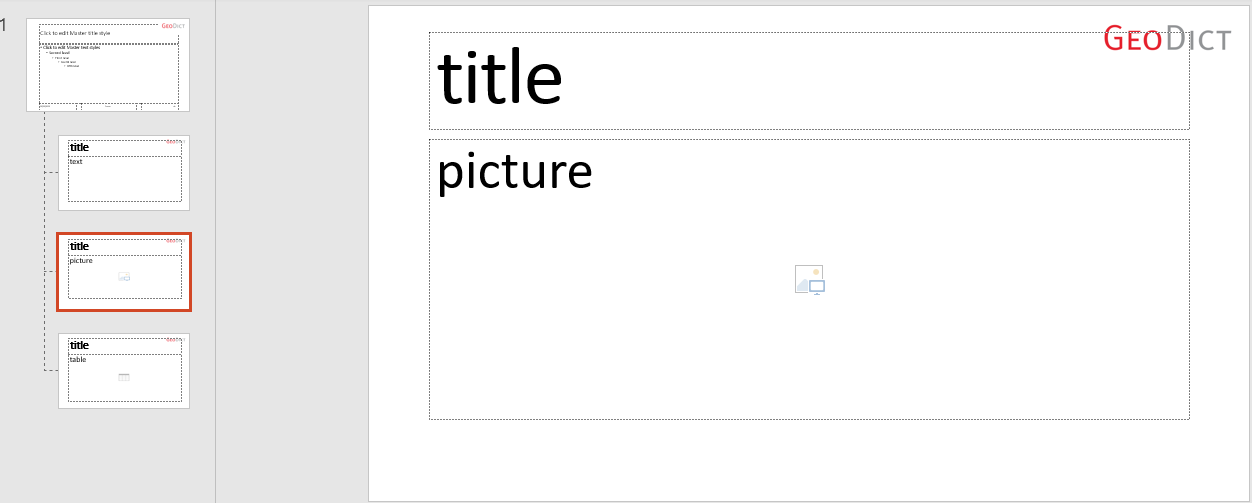
In the figure above, the selected example layout master with index 1 has two placeholders called title and picture.
In the examples given for the sub functions, only one slide was added for each PowerPoint report. Of course, the number of slides added to a report is not limited. Add as many slides as desired between the lines rep = gd_ppt.ReportGenerator and rep.save.
|
Know how! You can download the PowerPoint template and the GeoPy script to recreate the shown examples. |

The gd_ppt library is loaded at the beginning of a Python file with the command import gd_ppt and contains the following commands and sub-functions:
gd_ppt.reportgenerator
Opens the template PowerPoint file.
Input:
- template file, string
Example: see any of the sub functions
Sub functions