Result File
In the Visualization Area, the generated foam is displayed.
The *.gdr file created during the generation opens in the Result Viewer. In the Results tab, the subtab Report shows on top the number of nodes, struts, faces and cells and the average number of struts per node for the random foam structure.
The solid volume percentages of the whole foam, for only the struts or faces as well as the ratio between the SVP for the struts and the SVP for the faces are listed under Solid Volume Percentage.
Next, for the struts, the minimal, maximal and mean length is shown and for the faces the minimal, maximal and mean area.
More detailed information about the strut lengths and face areas is shown on the subtab Plots. The strut length distribution as well as the face area distribution are visualized as histograms.

Through the Data Visualization tab, three files can be loaded into the Visualization area of the GeoDict GUI.

With Load *.gad, the Basis Geometry (*.gad), which was defined in the options menu, can be displayed.

It is possible also to Load Tessellation as Index Image (*.g32) by clicking Load *.g32. Each foam cell is given an individual ID.

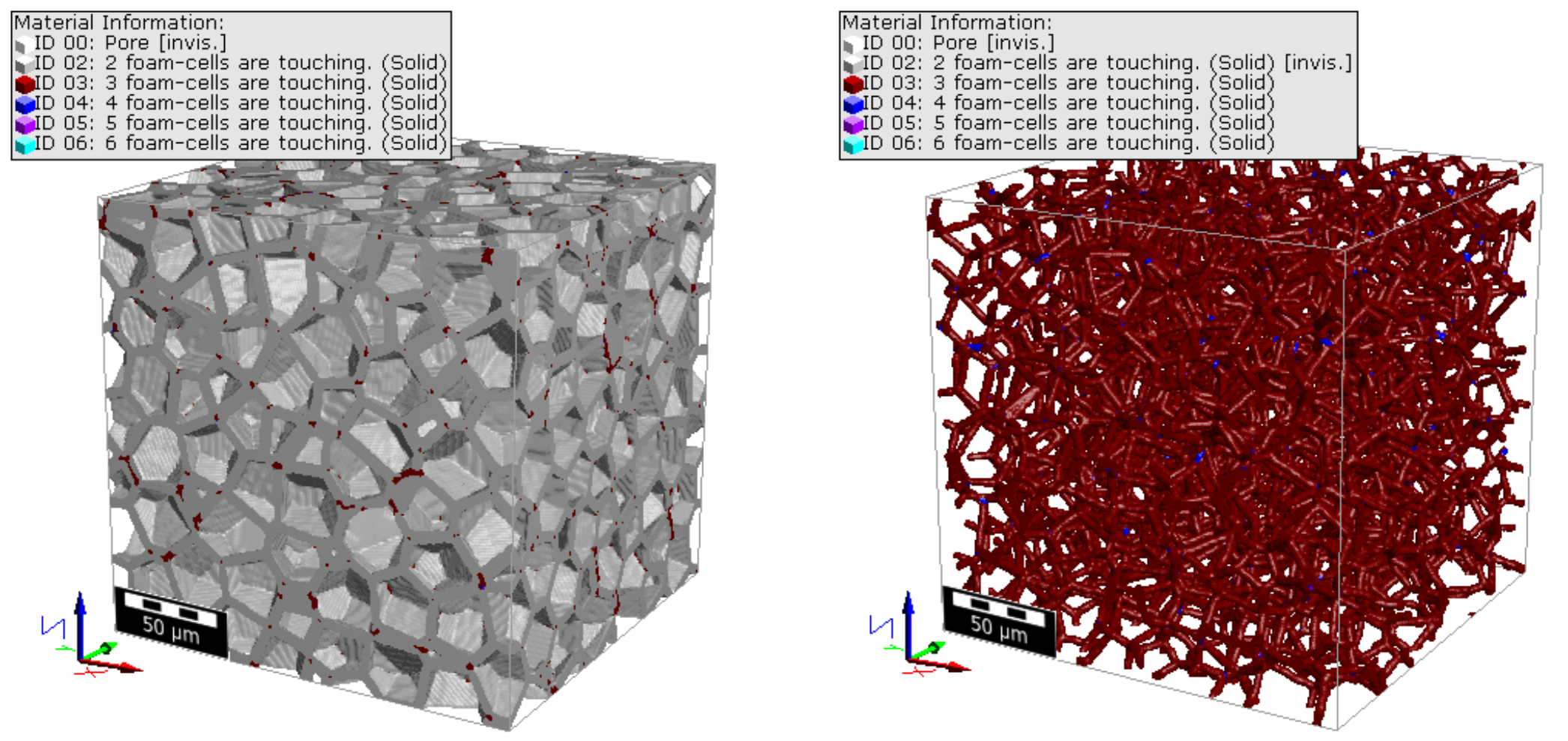
A third option is Load Foam Skeleton (*.gdt), where each number of the Material ID stands for the number of cells that meet at this point. This means Material ID 2 represents the faces between two cells and Material ID 3 represents the struts of the foam. In the right picture, Material ID 2 was set to invisible, so Material ID 3 representing the struts can be better seen.