Easy Image
The Easy Image app is designed to guide you through the steps of creating various media in an understandable way. It also saves the data needed to recreate the created media material.
|
Modules needed to run this GeoApp: GeoDict Base |

Click Run to open the 3D-Image Report Parameters dialog.
Here you set the basic settings, such as file naming, location and image preset selection. Tooltips describe these options in more detail.
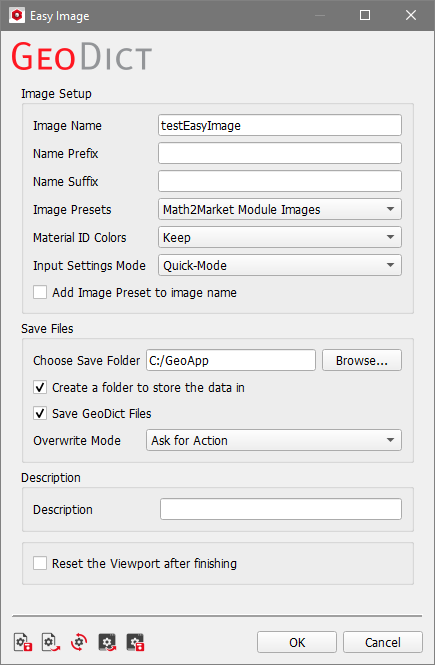
In the image presets, you can also select special modes, such as the split-by material preset. With this preset you can additionally save a video that visualizes the process of splitting.
If you want to learn more about this, you can find a video tutorial here.
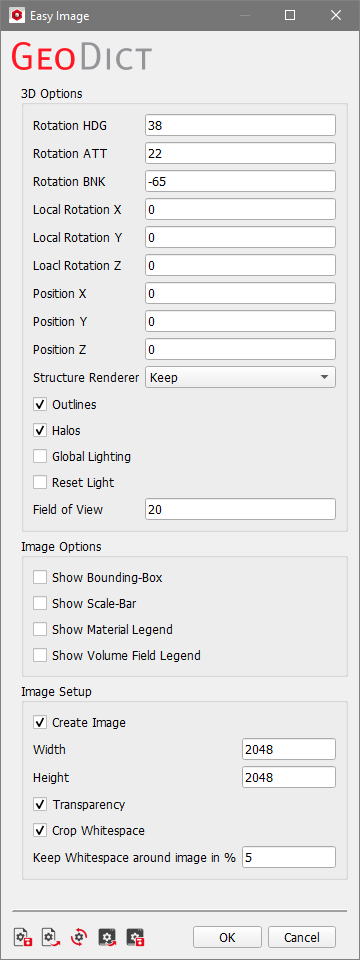
During image creation, additional dialogs help you to collect and save all necessary GeoDict files. Other dialogs let you make adjustments to the image setup during image creation. Below we see for example the Expert-Mode dialog, which allows changes to the camera and visualization effects.
Results
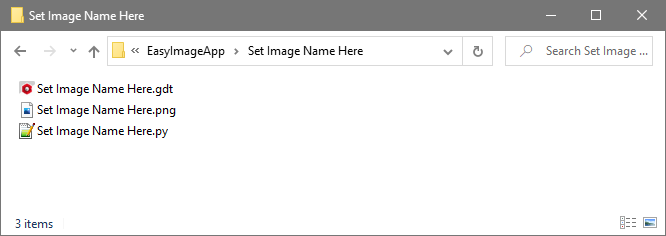
At the end of the image creation by the Easy Image app, you get a folder with the previously selected Image Name. Name Prefix and Name Suffix are applied only to the files stored in the folder. This way you can quickly and easily create multiple versions in the same place and not have to duplicate the necessary files.
With all files in one place and the image settings saved as a Python macro, images can be reproduced quickly and easily.
Here, three different Image Presets were used for the same structure, available on our website.
The Material ID colors were set to GeoDict Highlight colors. All other parameters were kept at default settings.
