Expert Settings
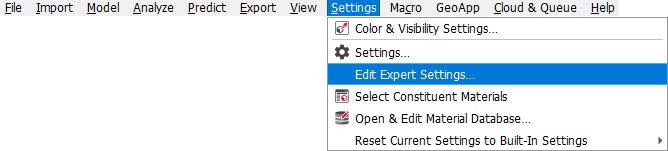
For many commands available in the GeoDict modules, additional parameters exist that are not available through the dialogs that open in the corresponding modules. These parameters are also not stored in the parameter lists of those commands inside the python macros. By default, no expert settings are set, and well-chosen default values are used.
Some expert settings allow to access experimental or unstable features. Others allow to access solver variants that are only useful in very special circumstances.
|
Important! In general, you should consult the Math2Market support team (support@math2market.de) before making any changes to the expert settings. |

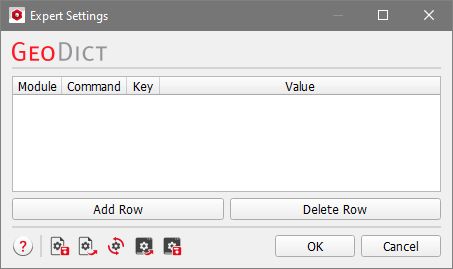
To activate an expert setting click Add Row to sequentially select the Module, the Command, and the Key that define the expert setting that should be edited. Afterwards, enter a Value for the chosen key, often True or False, but it can also be a number.
The choices of module, command, and key are entered as columns into the first row. Click the cell under Value and manually enter the value for the chosen key.
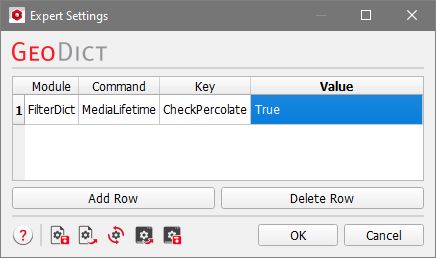
Select any cell of a row and click Delete Row to delete the whole entry from the list.
Clicking OK at the bottom of the dialog results in carrying out the modifications and closing the dialog.
Select Cancel to discard the modifications entered in the dialog.
