Grow Sediment
When Grow Sediment is selected from the pull-down menu in the GrainGeo section, layers of a new material (Interface Material) are added to the original structure.
Sediments can only be grown on structures that contain analytic information (GAD format).
Clicking the Options’ Edit… button opens the Grow Sediment Options dialog to enter the desired parameters. Clicking OK closes the dialog and returns to the GrainGeo section. Clicking Generate starts the process of growing sediments on the structure.
A structure containing GAD information must be in memory.
General Parameters
 Result File Name
At the top of the Grow Sediment dialog, the name for the files containing the generation results can be entered in the Result File Name (*.gdr) box. The default name can be kept, or a new name can be chosen fitting the current project.
|
Parallelization
Control how many threads are used for the structure generation. Click the Edit button to access the available parallelization options.
Structure generation algorithms can be parallelized if your license and hardware allow it. The Parallelization Options dialog opens when clicking the Edit button, to choose between Sequential, Parallel (Shared Memory) or Automatic Number of Threads.
When Sequential is selected, no parallelization is applied.
When Parallel (Shared Memory) is selected, the Number of Threads can be entered. Below, the maximum number of available threads and the maximum number of licensed parallel processes is shown in the dialog.
If Automatic Number of Threads is selected, the number of parallel processes is automatically selected for optimal speed, based on the number of CPU cores and licensed parallel processes.
For up to eight Available Threads, all of them will be used. If more than eight threads are available, two cases might occur.
- The number of Available Threads is larger (or equal) than the Number of CPU Cores:
- Then the maximum of eight and Number of CPU Cores divided by 2 is used.
- The number of Available Threads is smaller than the Number of CPU Cores:
- Then the maximum of eight and number of Available Threads divided by 2 is used.

|
Note! Using Automatic Number of Threads prevents Hyper-Threading to ensure optimal loading of the processor.
|
|
Growth Mode
The amount of the added sediment material on the structure can be controlled either by volume percentage (Exceed SVP) or by the Coating Thickness.
Exceed SVP
Observe the effect of increasing Exceed SVP (%) from 20%, to 60% and then to 90%, when growing sediments on a structure made of spheres.
|
Coating Thickness
Observe the effect when selecting the Coating Thickness to be 2.2e-06 m (2.2 µm), 1.5e-05 m (15 µm), and 2.5e-05 m (25 µm).
|
Specify Growing Sediment
Specify the Interface Material and whether to Save Voxel-Geometry with Object Indices and to Save Grain Orientation.
Find Grain Interfaces
By checking Find Grain Interfaces the interfaces are assigned to a new material.
The Interface Material of the sediment growing on the structure can be chosen from the GeoDict material database by clicking the button.
|
Save Options
As mentioned for the Sinter & Crystallization feature, the geometry information can be saved as binary in *.g32 format or as human readable ASCII *.leS by checking Save Voxel-Geometry with Object Indices. The grain orientation can be saved as *.gof file by checking Save Grain Orientation.
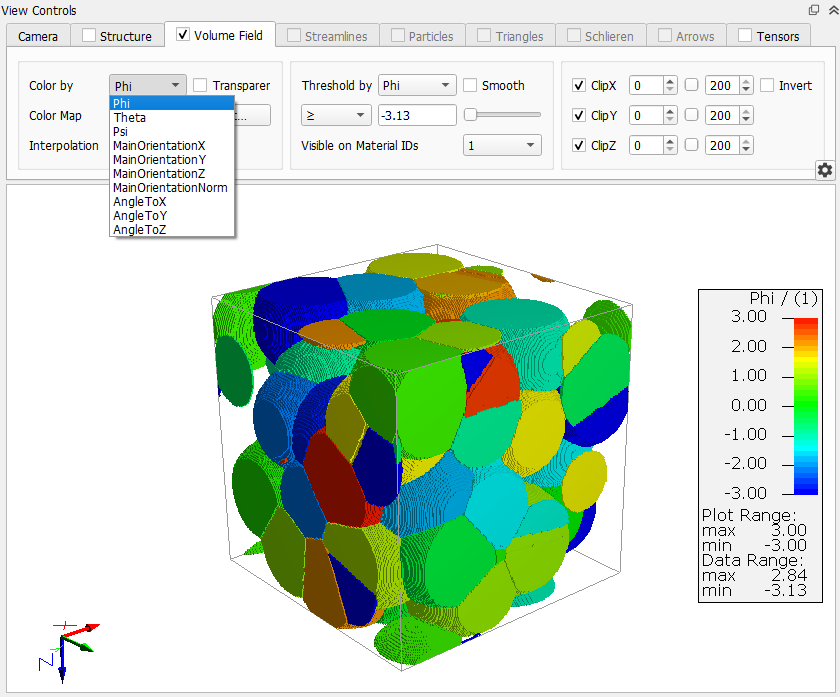
Load the resulting data from the Data Visualization tab in the Result Viewer.
Below an example for an orientation image is shown.
Find more information about visualization of volume fields in the Visualization handbook.
|