Remote Desktop
If GeoDict is installed on a server that is shared by many users, a graphical remote desktop connection from your local computer to the remote server is needed to use GeoDict.
If both the local computer and the remote server use Microsoft Windows, Microsoft’s built-in Remote Desktop Connection tool can be used for this.
If it is a Linux server, we recommend to use TurboVNC. The graphical remote desktop connection with TurboVNC is a very convenient way to perform simulations on a remote Linux server. For more information see the TurboVNC Documentation

|
Note! If multiple users use GeoDict at the same time, multiple GeoDict licenses are required. One GeoDict license can only be used in one TurboVNC session. If the same user starts multiple remote sessions (e.g. from different desktops) at the same time, multiple licenses are needed, too.
|
Follow these steps to use the remote desktop for GeoDict. Steps 1 to 3 are to set it up (administrator privileges required), and carried out only once. Steps 4 to 6 are done every time remote computations are performed:
 1. Install TurboVNC on the remote Linux computer
2. Install and set up VirtualGL on the remote Linux computer
3. Install and set up TurboVNC on the local Windows computer
4. Start TurboVNC server on the remote Linux computer
To start the VNC server, open a ssh connection to the remote Linux computer, for example with PuTTY. Enter
/opt/TurboVNC/bin/vncserver
A VNC password is requested when started for the first time. Passwords can be changed later through:
/opt/TurboVNC/bin/vncpasswd
The connection information is returned and reports hostname (here: Zelos), session numer (here: 9) and user name (here: becker)
Desktop 'TurboVNC: Zelos:9 (becker)' started on display Zelos:9
The session number (here: 9) is needed later.
The ssh connection can be closed now.
This server stays open as long as you do not log-out the virtual session. A virtual session can be stopped using the -kill option and the session number (here :9) by entering
/opt/TurboVNC/bin/vncserver -kill :9
The active VNC servers can be listed by entering
/opt/TurboVNC/bin/vncserver –list
|
5. Connect the Windows computer to the remote Linux computer
As long as a virtual session exists (i.e. you have not logged-out or killed the session), you can connect to the remote Linux computer by starting a VNC Viewer and entering the hostname and session number:
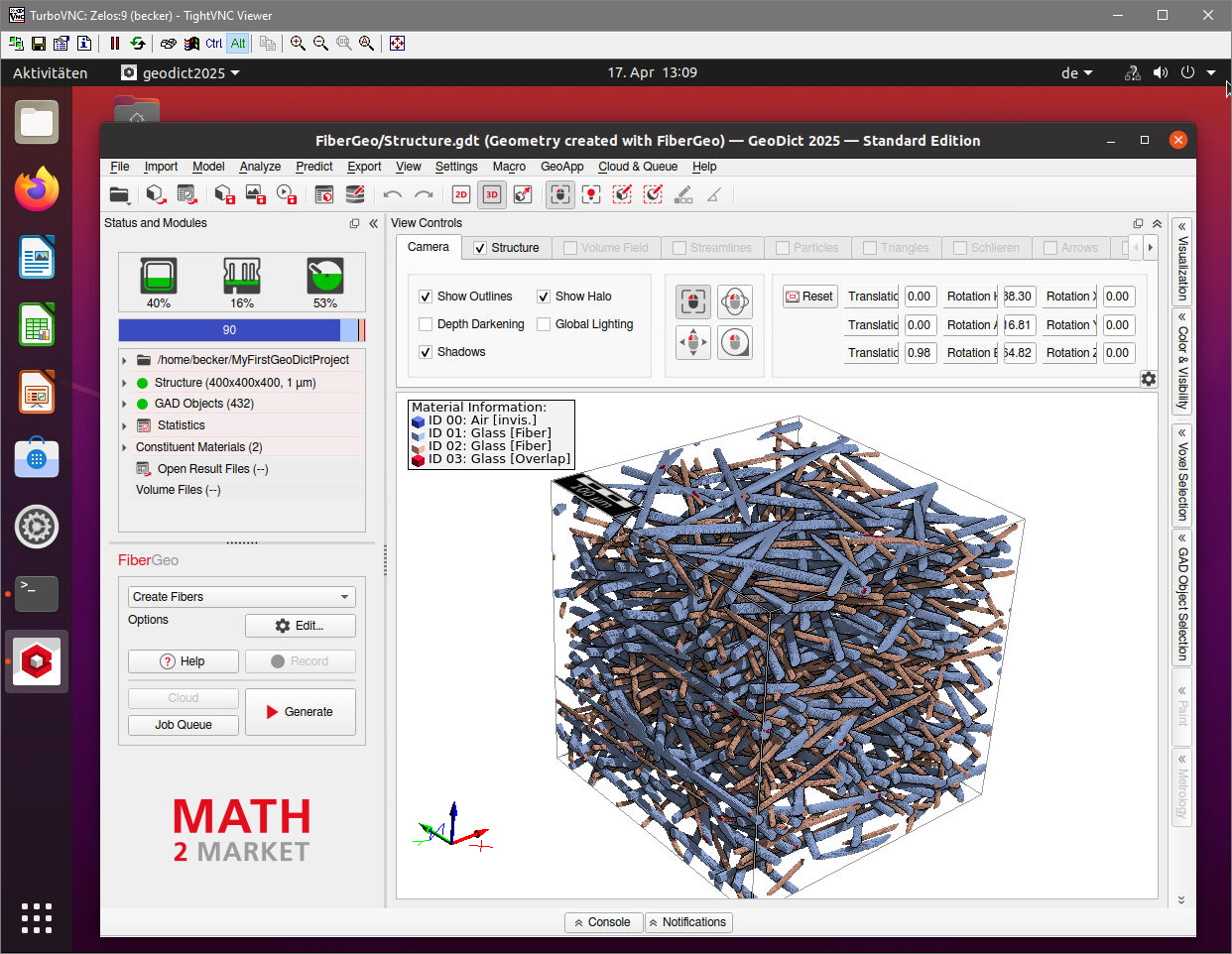
A virtual desktop of the remote Linux computer opens:
|
6. Start and run GeoDict on the remote Linux computer
To start GeoDict, open a terminal and enter:
vglrun /opt/geodict2025/geodict2025
The started session on the remote Linux computer runs until you kill the VNC server. If you just close the remote desktop dialog box by clicking on the X in the upper right corner, the VNC server keeps running. Also, any GeoDict processes you started will continue to run in this case. You can also log out and shutdown your local desktop and the session will continue to run on the remote desktop. You can connect to the remote VNC server again later.
|