Image File Formats
Single 2D images or complete structure data consisting of a stack of 2D images, in any of the supported image formats, can be imported using ImportGeo-Vol. The images in a stack form layers in the XY-plane. Then, each of the images is one layer in the Z-direction. TIF images in 3D-format can also be imported.
To import a single image or a stack of images select the image or one of the files in the stack. You can also select a specific format from the pull-down menu in the Select File dialog to only see images with this format.
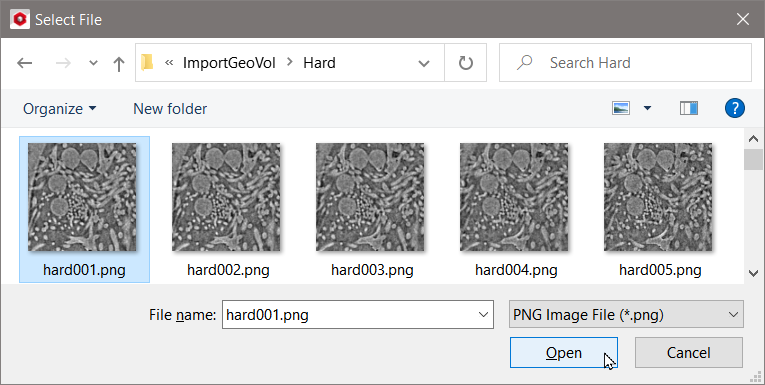
After you click Open, the Geometry Import dialog opens.
The dimensional values in the X and Y-direction are automatically filled in for all image type files, but they can be changed to import only a part of the single image or structure (Crop X, Crop Y). The default voxel length must be changed to the one in the resolution data provided with the stack of CT images. All images in a stack must be imported with the same resolution.
If not all images in the selected folder should be imported uncheck Import all Files in Folder. Then, the relative path to the image file and its name displays in the field Image Name(s). Adjust the Image Name(s), and the values for Number First and Number Last.
For the import, the images must be given as a stack of files, with the same file name followed by numerically correlated numbers.
Checking Import all Files in Folder has the same effect as:
- changing the numbers in Image(s) Name by as many ”#”s as the image number (e.g., 001 = ###) and
- entering the first image and last image numbers for the range of images to load.
In the following, the number of imported images is changed using the parameters Number First and Number Last to import a single image file, a range of image files, or the complete stack of image files to form a structure, segmented with Quick Segmentation.
Click Quick Segmentation to segment the image without image processing or click Image Processing to open the image in the 3D Image Processing dialog.
