2D Density Map
The 2D Density Map command calculates the distribution of Grammage, Solid Volume Fraction (SVF) or the Number of Objects in a plane normal to the chosen direction. Each pixel in this plane is calculated by averaging the respective property in the direction of interest at this position.
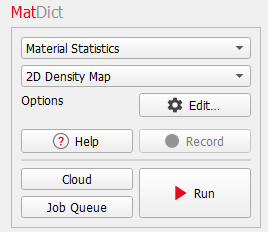
The 2D Density Map dialog opens when clicking the Edit… button. It contains two tabs: Statistic Options and Material Density.
At the top of the dialog, enter the Result File Name. The result file is saved in the chosen project folder (File → Choose Project Folder in the menu bar).
Statistic Options

Choose the property to be computed from the Compute Map for pull-down menu.

Only when choosing Grammage, the Material Density tab is selectable and the density values for the individual Material IDs must be defined there. For Solid Volume Fraction or Number of Objects, the density of the Material IDs is not considered in the calculations and the Material Density tab therefore not needed.
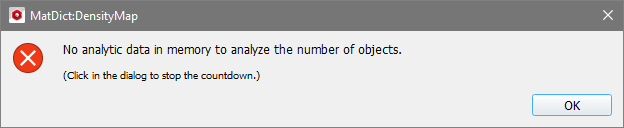
When choosing Number of Objects, analytic information about the objects in the current structure must be available. Otherwise, a warning message appears, and the density map cannot be computed.
The choice in the Compute Statistics for pull-down menu controls whether the property is computed for All Solid Materials or only for Selected Material IDs.

For Selected Material IDs, chose them from the materials present in the structure in the Choose Material IDs pull-down menu.

Check Compute in X-direction, Compute in Y-direction, and/or Compute in Z-direction to calculate the chosen properties in these directions.
From the Raster Length pull-down menu, choose Voxel Length or Given Length. This defines the side length of square areas in which Grammage, Solid Volume Fraction, or Number of Objects are computed. Voxel Length sets the raster length equal to the voxel size and, thus, the 2D density map is computed in the chosen directions for each voxel. If Given Length is chosen, the Length in units of voxel must be entered to define the resolution for the calculations. The following figures show the effect of the Raster Length on the results.
Histogram Bins refers to the number of bins used to divide the range of density values (Grammage, Solid Volume Fraction, or Object Number) into a series of equally sized intervals. In the result file, the number of histogram bins is used to create tables and plots with the frequency (probability) of values that fall into each interval.
For example, the following plots are taken from result files for the same structure. In the left figure, the histogram is shown with 20 bins, and in the right figure with 10 bins.
Material Density
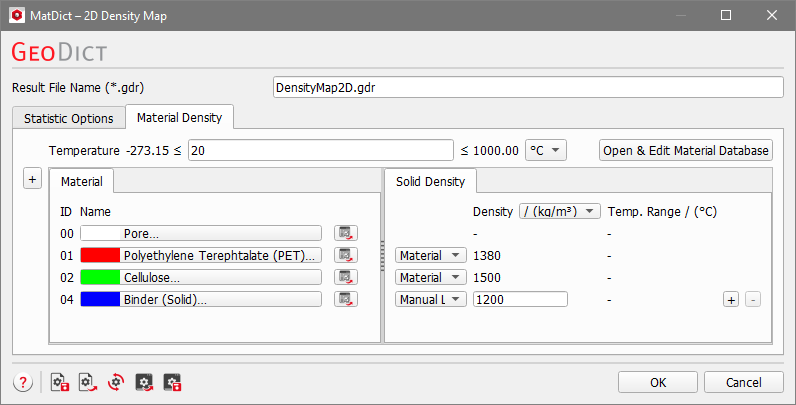
If Grammage is chosen as the computed material property, the density of every material in the structure must be specified under the Material Density tab. The density can be given in kg/m3 or g/cm3. For materials from the GeoDict Material Database, the density value is entered automatically. If not, manual data can be entered and the Material Law changes to Manual Law. More laws can be added or deleted by clicking the “+” or “-“ button on the right of the corresponding row. You can enter the density for manual materials directly in the Solid Density tab.
Topics of this section |
|---|
|
