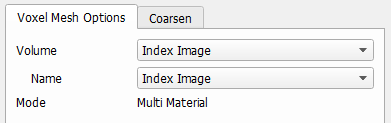
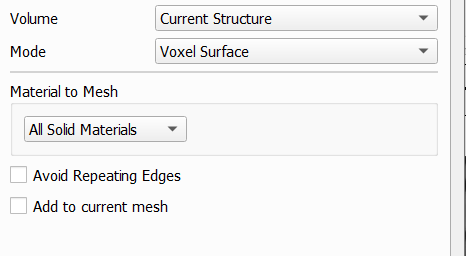
The Voxel Mesh option allows to create triangulations from the available voxel information. The kind of voxel information is selected with the Volume pull-down menu: It can be a GeoDict structure (this is the default), a grey value image, an index image, or a volume field. Additionally, the Mode defines how the volume is meshed. The choices for Volume and Mode change the other available options.
Volume
Different types of Volume of structure information can be meshed: Current Structure, Current Grey-Value Image, Index Image, and Volume Field.
With this option, the currently loaded voxel structure is converted to a mesh. For Current Structure, all four Modes are available: Voxel Surface, Rounded, Smooth and Multi Material.
Instead of first converting a grey-value image to a voxel structure (with ImportGeo -Vol), it is now directly possible to mesh the Current Grey-Value Image. In this case, the Mode is fixed to Rounded. Based on the given Threshold, an isosurface is created that splits the structure in two phases. The normal of the isosurface points into the pore space. If Automatic Threshold is selected, the OTSU algorithm is used to determine the threshold. The tool tip also displays the explanation when the mouse hovers over Automatic Threshold.
With this option, all information from the grey value image can be used. The created mesh is smoother than a mesh created from a segmented voxel structure, since the grey value information allows to obtain sub-voxel precision.
By choosing an Index Image as Volume, it is possible to use the object indexes to create Multi Material triangulations. Analogously, the object indexes from GrainFind or FiberFind results can be used in the same way.
Each object with a given index is converted to its own mesh, and the meshes for different objects do not overlap. The Mode is fixed to Multi Material, since this is the option that keeps the object information and preserves the partition of unity.
In the figure below, to the left an index image from a GrainFind result is shown. The right figure shows the mesh calculated from that index image.
With the Volume Field option, triangulations can be created from arbitrary GeoDict results. In the example below, a flow field from a FlowDict simulation is converted to a mesh. The Volume Field option works analogously to the Current Grey-Value Image option: It creates an isosurface mesh based on the given Threshold.
In the figure below, observe from left to right: A flow field calculated with FlowDict, the flow field with a threshold (i.e. only fast velocities are shown), and a mesh computed with the same threshold.
Mode
Four Modes can be used to export voxel data: Voxel Surface, Rounded, Smooth, or Multi Material. Multi Material is the default. Which options are available depends on the selected Volume: For example, if the Current Grey-Value Image is selected, only Rounded is available.
Voxel Surface exports the exact surface of the voxel structure with its characteristic rectangular edges. This option is available in GeoDict to ensure compatibility with older releases. Use the Voxel Surface mode only if you intend to preserve the staircase-like pattern of voxel structure, otherwise, Multi-Material mode is recommended.
Rounded works analogously to the Smooth export, but it focuses on triangle quality instead of smoothness. The exported surface is constrained to the domain and the surfaces of multiple materials may intersect. This export mode is most suitable for numerical simulations with only one material phase (e.g. flow simulations in the pore space).
The Smooth algorithm is an improved version of the marching cubes algorithm which produces a mesh with a better triangle quality. The mesh is smoothed during creation. This surface is not constrained to the domain and the surfaces of multiple materials may intersect. Smooth is the most suitable export mode for visualization purposes.
With the Multi Material option, the meshes for the different materials do not overlap. They have perfect contact at the points where different materials touch. When all materials are exported, a partition of unity is created. This means that each point in the domain is enclosed in exactly one surface. This property is preserved with further processing steps (e.g. Smooth Mesh or Coarsen Mesh).
Multi material meshes are constrained to the domain. This export mode is suitable to mesh multi-material microstructures for numerical simulations.
The differences of the four modes can be observed from this example:
Material to Mesh
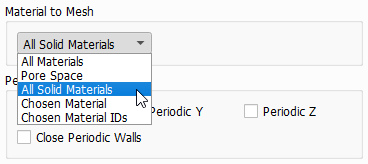
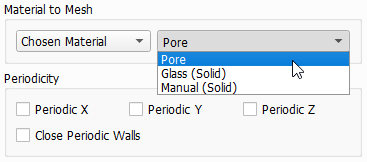
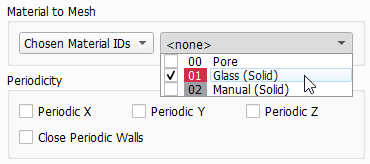
Select the material IDs to be meshed with the options under Material to Mesh. With the first three options, either All Materials, the Pore Space or All Solid Materials are meshed. All Solid Materials is the default, since this is the best choice for most use cases.
With Chosen Material, all material IDs for the given material are selected.
With Chosen Material IDs, individual material IDs can be selected.
Periodicity
The boundary condition defines how the triangulation algorithm deals with boundary voxels.
When Periodicity is selected, the mesh of one end is periodic to the other end of the structure in the chosen direction. This option should only be used if the original structure is periodic.
When Periodicity is not selected, symmetric boundary conditions are applied and the mesh is closed at all boundaries.
In the pictures below, the difference can be observed at the boundary in Z-direction. On the left, periodic boundary conditions are used, and the green mesh is not closed since it continues at the opposite side. On the right, symmetric boundary conditions are used.
When Periodicity is selected for a direction, the mesh walls are by default open at the boundaries. With Close Periodic Cell Walls, these periodic walls are closed.
The Periodicity option is only available for the Multi Material mode.
Avoid Repeating Edges
This option is available when Voxel Surface mode is chosen. Where different materials are in contact, their voxel surfaces share the same edges. This is not allowed in a mesh in the STL format. With Avoid Repeating Edges, these edges are shifted slightly inwards the material. Then, each material has different edges. This option is only available for Voxel Surface mode.
For the Multi Material option, such an option is not necessary since there, the different materials are saved to different meshes.
Add to current mesh
Add to current mesh is only available for MeshGeo -> Create Mesh. When this option is selected and a mesh is already in memory, the new mesh is added to that mesh. Multiple meshes can then be edited together and be saved to a single file.