While using the Box renderer, transparency can be applied to the displayed structure by selecting Surface or Volume as the Transparency Mode, instead of the default None.
For the Smooth Renderer, transparency is applied after selecting Volume (Surface is not selectable)
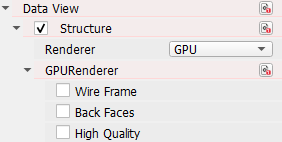
For the box renderer, clicking the Transparencies’ Edit… button opens the Transparency Options dialog. Here, the user can define the transparency level for all materials in the structure. When unchecking Apply Immediately, confirm the transparency options by clicking Apply. Otherwise, they are applied automatically. Close the dialog by clicking Close. Additionally, the transparency options are also accessible through the Visualization Settings dialog.
The Transparency for the Smooth renderer is similar as for the Box renderer, but there is an essential difference: Transparency can be only applied to a single material in the displayed structure.
After selecting Volume as the Transparency Mode, select the material to which transparency is applied (Transparent Material) and the level of transparency. The smaller the value, the more transparency is applied, as shown in the example.
In this example, Material ID 00 is set to invisible, but the transparency of Material ID 01 (solid) can be defined with values between 0 and 1. The smaller the value, the more transparency is applied.
|


 through the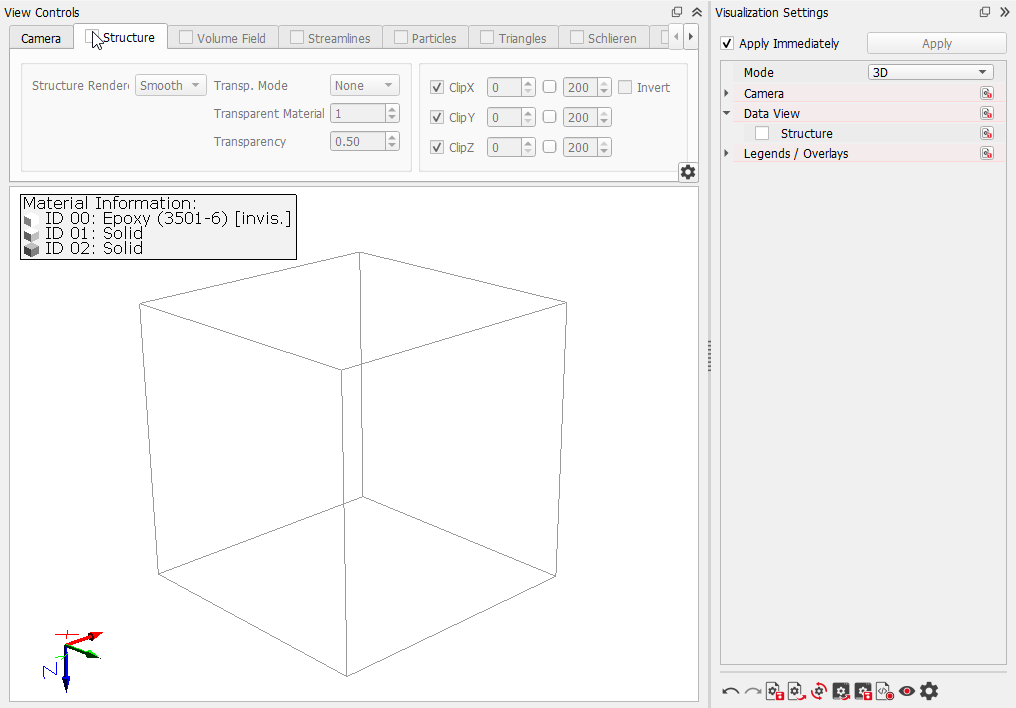

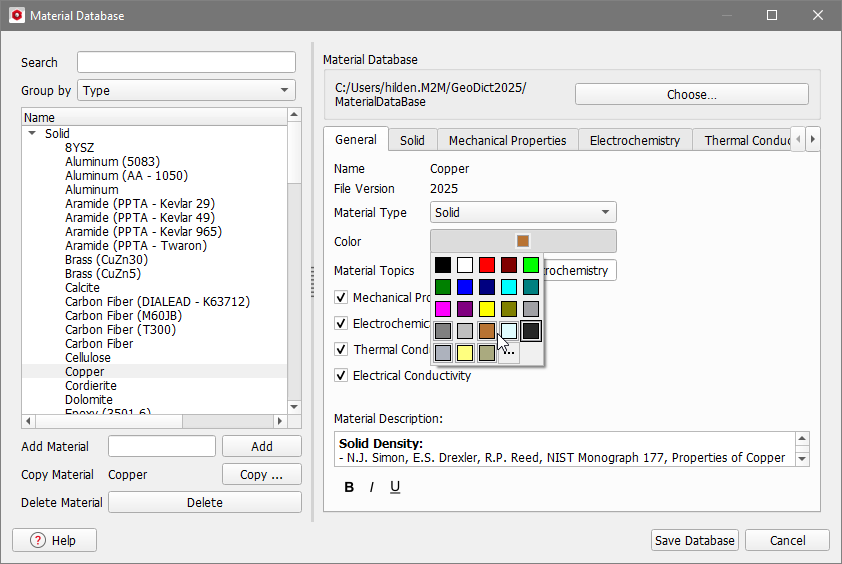
 in the toolbar. Select the material to change on the left, choose the desired color under the General tab on the right and click Save Database.