Materials and Thread Types
Under the Materials and Thread Types tab, up to seven different thread types can be defined for each the Weft-System and the Warp-System. The Thread definition works analogously to the Threads tab of all the other WeaveGeo commands. The panel for the Weft-System consists of 7 tabs, named AX to GX, where the parameters for each thread are entered. The seven threads of the weft-system are assigned Material ID 01 to Material ID 07. Analogously, the tabs for the Warp-System are named AY,...,GY, respectively. The threads of the warp-system are assigned Material ID 08 to Material ID 14. The names AX, AY,... appear again in the Binding tab.
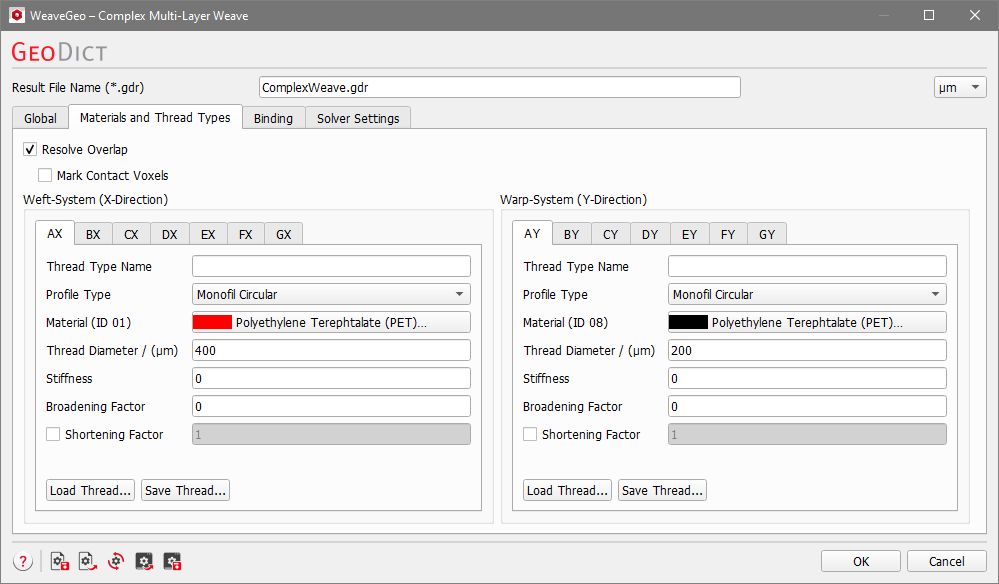
This tab is divided in three main parts. At the top select how overlapping threads should be treated. Below, there are two panels next to each other, one for the settings of the Weft Thread and one for the settings of the Warp Thread. Both contain the same parameters for the different thread types. Each thread can be modeled individually with different parameters.
 How to handle thread overlap?
Different threads might overlap in the generated structure, e.g. due to Vertical Thread Overlap (see Weave Shape tab). This might be unintuitive, but it leads to realistic thread shapes at contact points. Therefore, the thread overlap allows to create realistic weave structures without the need for simulating the physical effect of the thread contacts.
By default, Resolve Overlap is enabled. With this option, the overlapping regions are assigned to the materials of the threads which are in contact. This leads to a more realistic structure.
Additionally checking Mark Contact Voxels allows to define a separate material for the contact areas. This means, for each overlapping object a one voxel thick layer is reassigned to the Contact Material. In this way, even contacting threads with the same material ID can be clearly distinguished.

|
Know how! Using Resolve Overlap needs more time to compute, therefore we recommend disabling this option for large structures where the information about the overlap is not relevant (e.g. for flow simulations).
|
Alternatively, an Overlap Material can be selected for the regions where threads overlap.
In the figure below, observe the effect of Resolve Overlap, Resolve Overlap with Mark Contact Voxels, and the use of an Overlap Material.
The vertical thread overlap was set to 30 µm, while the threads have a height of 100 µm.
|
Can I save and reload settings for a thread?
Yes, this is possible! At the bottom of the Weft and the Warp Thread panel, respectively, there is a Save Thread button. Click it to enter a name and save the parameters to a *.gps file. This is a settings file for GeoDict.
Previously saved threads can be imported by clicking Load Thread.
|
Thread panel
Parameters for all profile types
Thread Type Name
In the Thread Type Name field, a name can be given to the warp or the weft thread generated with the current parameters, respectively. The name is not shown in the generated structure, only in the dialog. Giving the thread a name can support to easily recognize a loaded thread in the dialog.
|
Profile Type
Seven Profile Types for the threads can be selected from the drop-down menu.
Monofil threads can have a Circular, Elliptical, or Rectangular cross-section. For the Multifil threads, Random Multifil and Custom Multifil are available.
See the Thread Profile types section for explanations on Monofil, Multifil, Rope, and Regular Bundle profile types.
|
Material
For all profile types, Material determines the material assigned to the thread. Also the Material ID is given here. The Weft Thread has always Material ID 01, and the Warp Thread is always assigned to Material ID 02.
Click on the material name to open the Material Selector and select the material for the corresponding thread from the GeoDict Material Database.
|
Thread Width / Thread Height / Thread Diameter
Thread Width and Thread Height determine the size of the cross-section area of the thread. The thread height is the extent in Z-direction. As the weft thread has its longitudinal direction in X-direction, the thread width determines the extent in Y-direction. For the warp thread the thread width determines the extent in X-direction.

|
Note! For Ropes and Custom Multifils, the Thread Width and Thread Height cannot be entered since these parameters depend on the other rope parameters. They are only shown as information. Find more information below in the profile type specific parameters section.
|
|
Note! For Regular Bundle threads, the Thread Height cannot be entered and is only shown as information. It is computed based on the number of individual filaments and the filament diameter.
|
In case of a Monofil Circular profile type, width and height are equal, so only the Thread Diameter can be entered.
|
Stiffness
A high Stiffness indicates a rigid thread that only bends in small angles. Values for Stiffness can vary from 0 to 1. For plain weaves, this option has only effects when using the FreeWeave Solver (in the Solver Settings tab). Below, an example of a plain weave is shown, where the Stiffness of the weft thread was varied.
For the twill weave (shown below) and the satin weave the stiffness can also be modeled with the Classic WeaveGeo solver. Again, the Stiffness of the weft thread was varied.
|
Parameters for Random Multifil, Rope, and Regular Bundle
Number for Ropes
For the profile type Rope, one of the predefined Rope Types must be selected from the drop-down menu. The selected Rope Type determines the filament Number which cannot be changed manually.
In the example below, the warp thread is a 1x7 rope. This means that it consists of one strand which contains 7 filaments. Thus, the filament number is set to 7. The weft thread is a 3x3 rope, made of 3 strands of 3 filaments, which sets 9 as the filament number. The number of Unit Cells in warp and weft direction (under the Domain tab) was set to 2.
|
Number for Random Multifil
For Random Multifil profile types, an arbitrary number of filaments can be entered. The upper limit is 10,000 filaments, but keep in mind that more filaments will lead to longer structure generation times!
|
Number for Regular Bundle
Enter the Number specifying the number of filaments per thread in regular bundles. Possible values are in the range from 1 to 19.
|
Diameter
Under Diameter enter the diameter of the individual filaments, which are all equal sized.
|
Length of Lay
Length of Lay is only available for Random Multifil and Rope. It gives the distance (in the chosen unit) that is needed for the thread to perform a full 360° rotation around itself (twist). Since a unit cell must be periodic, the Length of Lay must be chosen accordingly. This means that in general the size of a unit cell must be a multiple of the length of lay. This ensures that the thread makes an integer number of 360° rotations. It is also possible to make e.g. only 180° twists if the filaments of the thread are arranged in a way that the structure stays periodic in the unit cell. If the entered length of lay does not allow to generate the unit cell periodically, a warning message appears, and the parameter is adjusted automatically. The choice of unrealistically short values might lead to artifacts in the generation and, therefore, to unrealistic structures. If the Length of Lay is set to zero, the filaments are not rotated around themselves.
For ropes with several strands (here, the weft thread), the Length of Lay 1 is the length for one rotation of the rope (thread) and Length of Lay 2 is the length for one rotation of the strands in the rope.
|
Direction of Rotation
Direction of Rotation is only available for Random Multifil and Rope and sets the direction – right (Z-twist rope) or left (S-twist rope) - in which the thread is rotated around itself (here, the warp thread). It only has an effect if the value for Length of Lay is larger than zero.
Direction of Rotation 1 controls the direction of rotation of the strand corresponding to Length of Lay 1: right (Z-twist strand) or left (S-twist strand). Direction of Rotation 2 controls the direction of rotation of the strand corresponding to Length of Lay 2.
|
Lateral Oscillation
Lateral Oscillation is only available for Random Multifil threads. It is the degree of random waviness of the filaments in the X-Y-plane. A different structure with the same Lateral Oscillation can be generated by changing the Random Seed (see Weave Shape tab).
|
Parameters for Custom Multifil
How does the Custom Multifil profile type work?
For Custom Multifil, the settings panel is structured hierarchically. On the first, layer the settings for the whole thread can be made. On the subsequent layers, the strands and filaments of which the thread is composed can be defined individually. At the bottom, the Thread Width and Thread Height are displayed. They cannot be edited since they are computed from the settings of the single filaments. The Stiffness is given for the whole thread.
On each layer the parameters Diameter, Length of Lay, Direction, and Child Count are shown. The active parameters depend on the level of the corresponding filament.
The Diameter is only editable for the filaments with Child Count 0 and defines their thickness. The diameter of the filament in the layer above is automatically computed based on the number of child filaments and their entered diameters.
|
Know how! In contrast to Random Multifil threads, the filaments can have different diameters.
|
Length of Lay and Direction are the same as described above and define how a filament is twisted around itself. They are only active if Child Count is not zero.
Child Count defines in how many sub-filaments a filament is divided. The settings panel for each filament is displayed indented on the next layer. All lower layers can be folded by clicking on the small black triangle.
Below, a Custom Multifil structure is shown, generated with the settings shown on the left and below. The domain length in X- and Y-direction is 300 voxels, respectively.
The weft thread consists of two right (Z)-twisted filaments and a single, thinner filament twisted left (S) around them. The warp thread consists of 4 filaments with different diameters which are also twisted.
|
Special parameters for the FreeWeave solver
Simulate Individual Filaments
If the FreeWeave Solver is chosen (in the Solver Settings tab), an additional option at the bottom of the thread panels is available. Check Simulate Individual Filaments to simulate interactions between the single filaments. Setting Inner Stiffness to a non-zero value allows to give the filaments a stiffness value, that is different to the one of the whole thread. When Inner Stiffness is set to zero the regular Stiffness value for the thread is used. If Simulate Individual Filaments is not activated, the thread is modeled as a single circular thread and then the filaments are placed at their computed positions.
The structure in the following example was produced with the shown settings. Observe the difference in the placement of the weft threads for Simulate Individual Filaments checked and unchecked.
|
Simulate Individual Fibers is always available in the Complex Weave command if a multifilament profile type is selected.
Complex Weave specific parameters
These two parameters are only available in the Complex Weave dialog.
Broadening Factor
The Broadening Factor defines the behavior of bent threads. At the crossing points of two threads a thread may be widened, which means the height of the thread is reduced and the material is distributed across the width.

|
Important! Common values for the Broadening Factor are between 0 and 2. Higher values are possible, but keep in mind, that the thread gets thinner the higher the broadening factor is. Extremely higher values lead to long runtimes and / or unrealistic structures!
|
For threads with a non-circular cross-section, the thread radius is half the height (thickness in Z-direction) of the thread. The bending radius is the radius of the osculating circle that best approximates the curvature of the thread at the crossing point of two threads.
The cross sectional area has to be constant even if the thread is bent around other threads. Thus, the new width and height of the thread are computed as follows:
|
Shortening Factor
The Shortening Factor can be defined for each thread individually. At the beginning of the generation process, a thread is much longer than the domain size in its direction. During the generation process the threads are tightened, thus they get shorter in each iteration.
The Shortening Factor determines how long the thread is allowed to be in relation to the domain length. If the shortening factor is 1.05 the thread can be shortened to 105% of the domain length. Thus, the Shortening Factor must be larger or equal than 1.
|


