The AcoustoDict Delany–Bazley Model dialog opens when clicking the Options’ Edit… button in the AcoustoDict section. The parameters necessary to run the solver can be entered under the Constituent Materials, Boundary Conditions, and Solver tabs. The Equations and References tab displays further information about the model.
Click OK to confirm the entered solver options, or click Cancel to close the dialog without modifications.
The Result File Name (*.gdr) of the AcoustoDict simulation must be entered in the edit box. Choose a name according to your current project. The results files are saved in the chosen project folder (File→Choose Project Folder, in the menu bar).
Constituent Materials
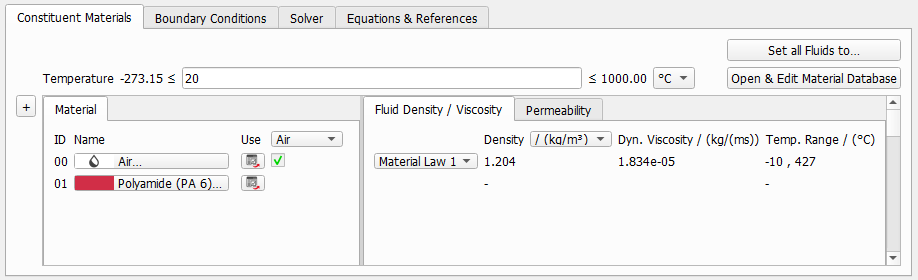
Under the Constituent Materials tab, the constituent materials of the fluid phase and the solid phase in the structure model currently in memory are shown.
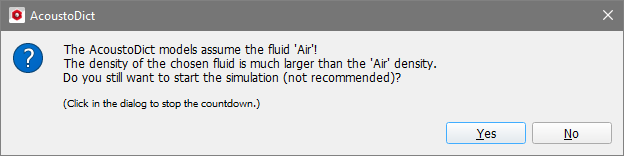
The Delany–Bazley model is only valid when the fluid is air and the simulations assume that this is the case. If the constituent material for the fluid occupying the pore space is changed to some other constituent material (which is possible to do), a warning pops up when trying to run the simulation.
Click No and go back to the Constituent Materials tab. Click on the button for Material ID 00 to change it to Air through the Material Selector.
Under the assumptions made in the Delany–Bazley model, only the air flow resistivity and the porosity of the material are important for the acoustic absorption. Thus, the constituent materials chosen for the solid phase do not influence the results.
Boundary Conditions
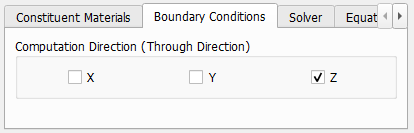
In the Computation Directions panel of the Boundary Conditions tab, choose the direction of wave propagation (also referred to as Through Direction). Only one through direction can be active.
Solver
AcoustoDict solves the Stokes equation to compute the air flow resistivity . Select which of the two solvers EJ or LIR is used to solve the Stokes problem. For highly porous structures, the LIR solver is in general recommended.
For both solvers, set the Simulation Stopping Criterion, the solver Parallelization, and decide if the solver output files should be discarded. For the LIR solver, expand the dialog to show also the Advanced Options if required.
Both LIR and EJ solve the Stokes equations by an iterative approach.
Iterative Solver
The basic idea of an iterative method is to
Start with some initial guess for the unknown values
Improve the current values in each iterative step
Repeat the iterative process until one of the stopping criteria is reached.
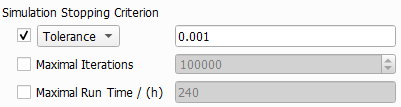
For the EJ solver, select either Tolerance (the recommended default) or Residual as the stopping criterion. For the LIR solver, select Error Bound (recommended default) or Tolerance as the stopping criterion.
Tolerance detects whether the iterative process becomes stationary. This occurs when the change in the permeability value from iteration to iteration becomes sufficiently small. If the relative change is smaller than the value entered for Tolerance, the iteration is stopped.
When the Residual stopping criterion is used, the iteration is stopped if the solution satisfies the equation up to the required accuracy.
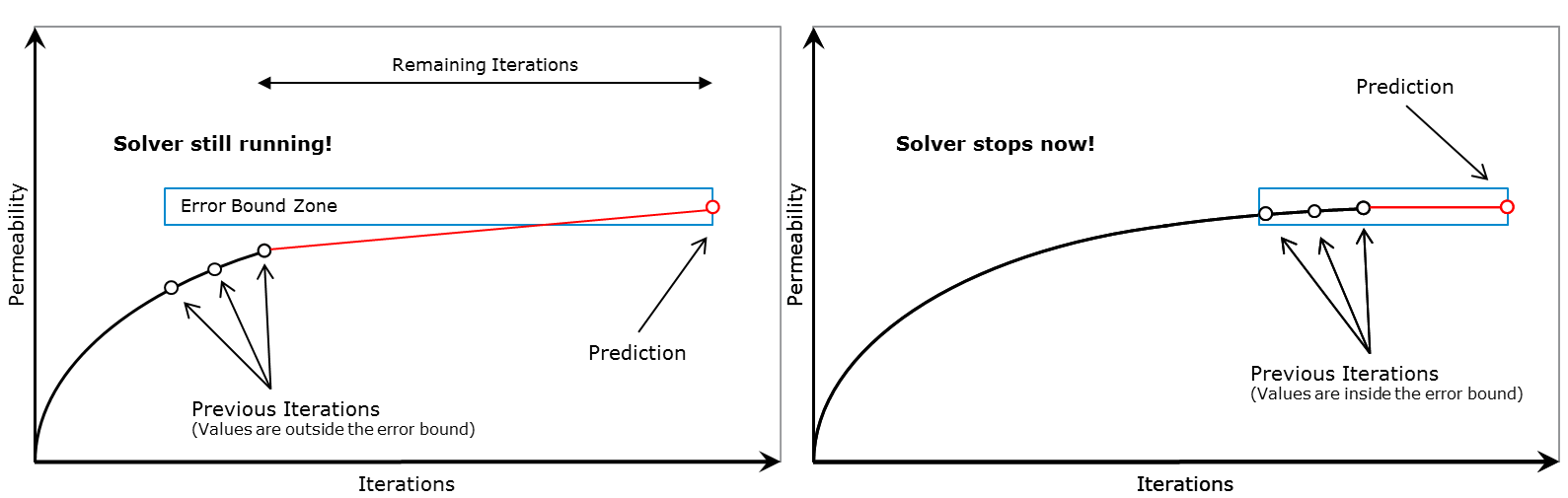
The default stopping criterion of the LIR solver, Error Bound, uses the result of previous iterations, and predicts the final solution based on linear and quadratic extrapolation. The solver stops if the relative difference regarding the prediction is smaller than the specified error bound. The stopping criterion recognizes oscillations in the convergence behavior and prevents premature stopping at local minima or maxima. A damped convergence curve is fit through the oscillating curve and the solver stops then regarding the damped convergence curve.
When the solver stops because the Maximal Iterations value or Maximal Run Time has been reached, no guarantee on the quality of solution can be given. In this case, a warning is printed into the report. Following possibilities might help:
Check the corresponding .log file to see how large the residual values and permeability increase are. If these values are already very close to the desired result, you may decide to use the current result.
Double-check the structure and parameter values. Unphysical parameters or too rough resolution of the structure (leading, e.g., to artificial unconnected components) can cause an iterative solver to fail.
The stopping criterion that has been reached can be viewed in the Result Viewer of the GeoDict result file (*.gdr) under the Results Map tab.
Depending on the purchased license, the simulation process can be parallelized.
The Parallelization Options dialog opens when clicking the Edit... button. For details on how to set up und run parallel computations, consult the High Performance Computing handbook.
Checking the Discard PDE Solver Files box causes the deletion of all intermediate computation files. While having the benefit of saving storage place, discarding solver files has also the side effect of disabling the 3D visualization of the results.
Of course, the contents of the result file (*.gdr) are not discarded, even in this case.
If the option Write Compressed Volume Fields is checked for the LIR solver then the adaptive grid structure is used as compression method for writing .vap files. This option allows to save 80–90% space on hard drive. The runtime for writing .vap files is also reduced significantly. If the option Write Compressed Volume Fields is not checked then a usual regular grid is used for writing .vap files.
The multigrid method was introduced to speed-up the computation and reduce the runtime significantly. The main idea of multigrid is the usage of multiple coarser adaptive grids to speed up convergence behavior but requires only little more memory.
The method is available to solve the Stokes and Stokes–Brinkman equations as well as for solving diffusion, thermal, and electrical conduction and is enabled by default.
Depending on the structure and the corresponding material parameters, a significant speedup of the LIR solved can be achieved by using the BiCGStab method to compute the solution. Using the BiCGStab method approximately doubles the amount of RAM needed for the computation.
When Use Krylov Subspace Method is set to Automatic, GeoDict determines the most efficient method based on structure, material parameters, and boundary conditions, and then uses that method. In case that the Krylov subspace method (BICGStab) is used, the Relaxation is also chosen automatically.
Alternatively, the user may also explicitly enable or disable this method.
Depending on the material parameters and geometry of the structure, the underlying mathematical problem can vary in complexity, thus influencing the behavior of the solver. The iterative method uses the Relaxation number to adjust it from stable (with smaller number chosen, which results in higher number of iterations, slower time stepping, and longer solver run times), to fast with higher number chosen, which makes the solver run less iterations but implies the risk that the solver does not converge.
For the LIR solver, this balance is managed through the Relaxation. The value should be between 0 and 2. For relaxation values smaller than one (<1.0), the simulation is more stable. For relaxation values larger than one (>1.0), the simulation is faster.
The LIR solver can Optimize for speed or memory.
If Speed is chosen, the solver constructs additional optimization structures. The runtime is decreased by up to 30% but requires up to 50% more memory compared to the other option. If Memory is chosen, then the runtime is increased by up to 40% but the solver requires up to 50% less memory.
The Grid Type decides what kind of tree structure is used for the simulation.
The default option is LIR-Tree and should always be used. The solver uses an adaptive tree structure called LIR-tree and needs up to 10 times less runtime and memory compared to the Regular Grid option, which uses a Cartesian grid.
The LIR solver refines the computational grid based on the computed field. New cells are introduced at locations where higher accuracy is needed. Check Grid Refinement Method and select one of the three available options in the drop-down menu.
A Posteriori Error Bound: The solver targets the specified accuracy Threshold. While the Error Bound (set as Simulation Stopping Criterion) determines the relative error in the solution of the linear system, A Posteriori Error Bound refers to the relative error estimated by comparing high-order and low-order discrete solutions. The corresponding accuracy Threshold value must be between 0.0 and 1.0.
Difference (Automatic): Computational cells are split when the difference in values between neighboring cells exceeds a specified threshold. The solver automatically selects the threshold based on the structure and the simulation settings.
Difference (Manual): Computational cells are split when the difference in values between neighboring cells exceeds the specified Threshold. The Threshold value must be between 0.0 and 1.0. The solver refines the grid at regions with high gradients; cells are split where the current gradient exceeds the threshold multiplied by the maximum gradient.
The Number of Grid Refinements controls how many grid refinements are allowed during the simulation. The value should be between 0 and 10. Grid refinements may increase the number of iterations, runtime and memory requirements.
When Allow Sub-Voxel Resolution is enabled, the solver is allowed to split computational cells to sizes smaller than the voxel length. This feature is beneficial for low-porosity structures for which the pore throats require finer resolution. Enabling this feature may increase the number of iterations, runtime, and memory requirements.
Equations and References
This tab displays formulas and references which are explained in more detail in the introduction of this AcoustoDict handbook.


 Advanced Options (LIR): Write Compressed Volume Fields

