Workflow Manager
Check Show Workflow Manager on the top left side of the 3D Image Processing dialog to display the Workflow Manager. This section displays either the Current Workflow or a chosen predefined workflow. The current workflow contains all image adjustments and filters that were applied (e.g., the Ring Artifact Removal).
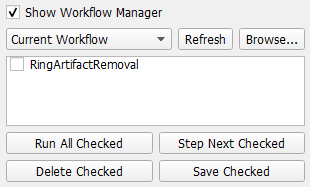
If you added a new workflow to the workflow folder during the current GeoDict session either by moving a GeoPy (GeoDict Python) file to the GeoDict settings folder or by using the Save Checked button, click Refresh to display the new workflow in the pull-down menu.
Click Browse and select a GeoPy macro to add it to the pull-down menu.
The workflow buttons offer the possibility to run the entire workflow again (Run All Checked) or run only single steps (Step Next Checked). Features can be deleted (Delete Checked) or saved (Save Checked) to a new predefined workflow.
Predefined workflows contain a set of image processing tools. The GeoDict settings folder already offers two predefined workflows:
- The FIB-SEM Workflow (shown here) uses the Flickering Correction, Slice Alignment, Curtaining Filter, Scale of the image, and the Non-Local Means Filter.
- The Micro-CT Workflow combines the Gradient Brightness Correction, Enhance Contrast, and Non-Local Means Filter.
Predefined workflows may be controlled by variables, but they can be edited (Edit Parameters) to adjust a workflow to your needs.
With Edit Macro, the chosen workflow script is opened for editing. To learn more about GeoPy macros refer to the GeoPy scripting user guide.
