1, 2, or 4 Byte Integer File Formats
The RAW format describes gray-scale three-dimensional (or volume) images. In a RAW image file, the Header Size specifies the length of the header of the selected image file in bytes. A typical convention for Header Size is 2048. A RAW file is a simple binary file, in most cases, without header information. A RAW file is created, e.g., when taking tomographic images. Thus, the creator of a RAW file must provide the information on the size needed for import, as it should be provided from the person taking the tomography.
For a file containing a three-dimensional image with NX by NY by NZ voxels with format Int, the file can consist of:
- Header Size + 1 x NX x NY x NZ bytes
- Header Size + 2 x NX x NY x NZ bytes
- Header Size + 4 x NX x NY x NZ bytes
The position of the byte (or 2 bytes or 4 bytes) in the Int file determines the position of the corresponding voxel. In case of a single byte (or 8-bit images), all gray values from 0 to 255 may be present. In images with 2 bytes per voxel (or 16-bit images), gray values from 0 to 65535 can be represented. Finally, images with 4 bytes per voxel (or 32-bit images) can represent roughly 4 billion gray values.
If the RAW file to load contains floating point values, in the Geometry Import dialog select Float from the pull-down menu for Format. For images in float format the file can consist of:
- Header Size + 4 x NX x NY x NZ bytes
- Header Size + 8 x NX x NY x NZ bytes
Define whether the binary data in the selected file is stored in Big Endian byte order. If not checked, GeoDict assumes that the image is stored in Little Endian byte order. If an image is stored by a big endian system, the most significant bytes are stored at the smallest memory address. For more details about endianness, refer to the Wikipedia page. The information about how the bytes of the image are stored must be provided by the creator of the RAW file.
GeoDict cannot automatically retrieve the dimensions of an image saved in RAW format. The parameters NX, NY and NZ and the Header Size must be known before loading the file.
In case the user simply clicks Quick Segmentation or Image Processing in the Geometry Import dialog after browsing for a RAW file, a warning appears stating that the file length does not agree with the entered size.
In the following, a Berea sandstone sample (Andrä et al., 2013) is used as an example to describe the workflow before segmenting or processing the image. Here, with the values of NX=1024, NY=1024 and NZ=1024, the file length with the Header Size (50) comes up to 1,073,741,874 bytes (Header size + NX x NY x NZ = 50 + 1024 x 1024 x 1024) in case of an 8 bit image, but this is incorrect, since the actual header size is 0 and, as a result, the RAW file is not loaded.
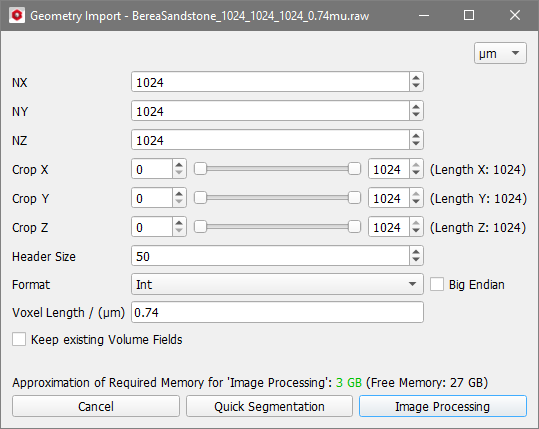
A Warning appears comparing the selected file size and the calculated byte size with respect to the input values for 8 bit and 16 bit integer values. The Warning suggests an input value for the Header Size, which is necessary for RAW files with header information. Values up to 2048 (bytes) may typically be expected here. If there are no good suggestions for the header size, probably the volume dimensions of the scan were given incorrectly. In the example below we obtain the correct suggestion 0 for the header size for the 8 bit image.
We recommend to include file dimensions and voxel size in the name of RAW files. Accordingly, the correct values are here extracted from the file name of the Berea sandstone structure BereaSandstone_1024_1024_1024_0.74mu.raw. In other cases, the person that measured the tomography provides the correct values in an additional readable file or as readable header of the RAW file, so that the values can be extracted using a text editor (e.g., Notepad++).
Click Quick Segmentation to segment the image without image processing or click Image Processing to open the image in the 3D Image Processing dialog.
