GeoDict Installation
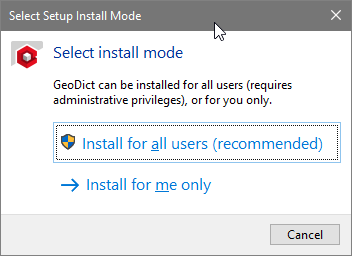
After starting the GeoDict installer, a pop-up window asks you if you want to install GeoDict with administrator privileges for all users, or if you want to install it in your user’s directory.

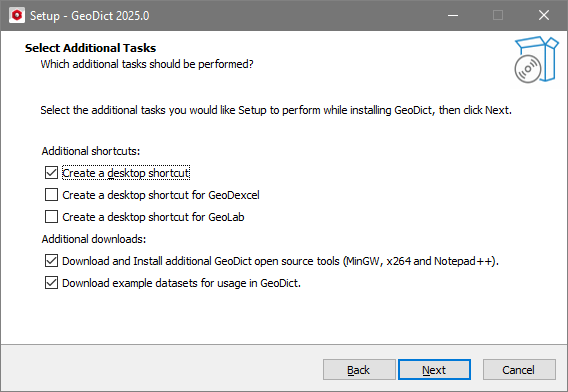
The installation wizard installs GeoDict by default in C:\Program Files\Math2Market GmbH\GeoDict 2025 and we recommend to use this folder for installation. Approximately 5.7 GB of hard disk space is needed for installation. Follow the wizard through the usual installation steps: allow the installer to make changes on your computer, accept the GeoDict License Agreement, and select a folder for the installation. By default, GeoDict will be installed in C:\Program Files\Math2Market GmbH\GeoDict 2025 and we recommend to use this folder. During the installation process, the wizard will ask you to select additional tasks. You can select which shortcuts will be created. More important, you can select to download and install additional open source tools required by GeoDict. If selected, the installer will automatically download and install the GeoDict-Tools package, too. In this case, it is not necessary to install the GeoDict-Tools package separately. It is also possible to download and install additional example datasets. If selected, the example datasets are copied into the GeoDict installation folder. The folder C:\Program Files\Math2Market GmbH\GeoDict 2025\GrayValueDataSets contains these 5 data sets.
After you have made the selections, the additional packages are downloaded. Then, a dialog summarizes the selections. Confirm them and start to install the packages to the hard drive by clicking Install: 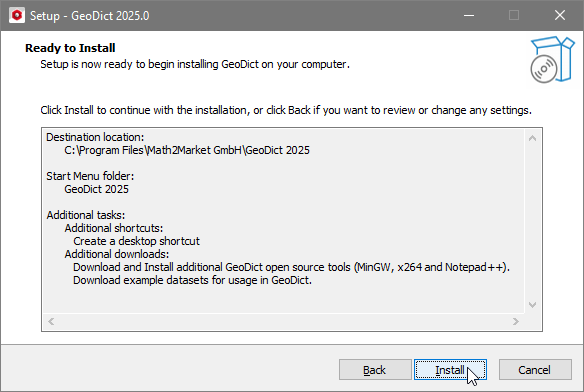 During the GeoDict 2025 installation, two Microsoft redistributables are installed if they have not been previously installed by other programs.
|

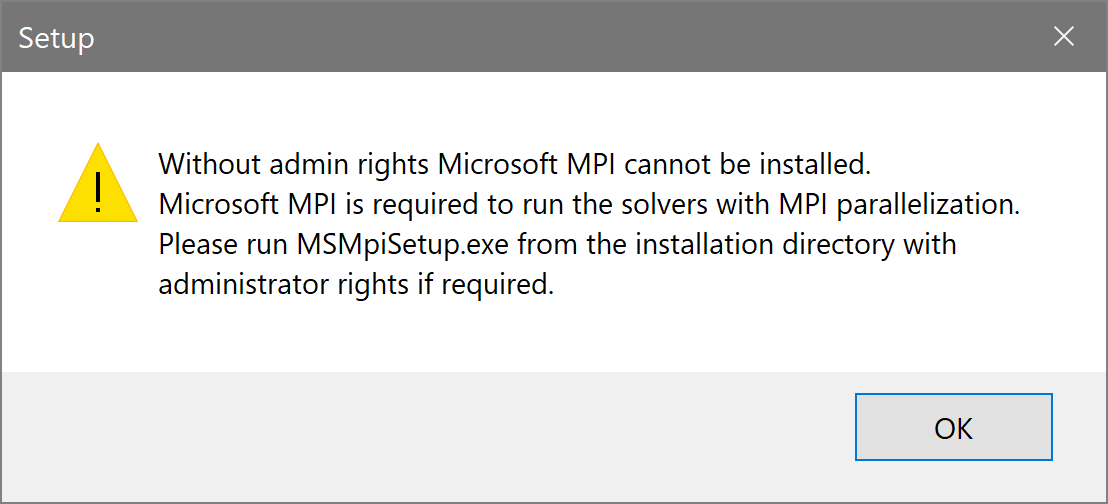
The installation wizard installs GeoDict by default in C:\Users\username\AppData\Local\Programs\Math2Market GmbH\GeoDict 2025\. Approximately 5.7 GB of hard disk space is needed for installation. Follow the wizard through the installation steps. Without administrator privileges, the Microsoft redistributables cannot be installed. If they have been previously installed by other software products, it is not necessary to re-install them and GeoDict will use the installed Microsoft products.
Without administrator privileges, you cannot install Notepad++ during the installation of the GeoDict-Tools package. If the example datasets are downloaded and installed during the GeoDict installation, the datasets are copied into the GeoDict installation folder. The folder C:\Users\username\AppData\Local\Programs\Math2Market GmbH\GeoDict 2025\\GrayValueDataSets contains 5 data sets. |
©2025 created by Math2Market GmbH / Imprint / Privacy Policy
