Open and Closed Porosity
Use Open and Closed Porosity to determine the connectivity of the pores to one or more domain boundaries. In the study of mechanical properties and structural integrity of porous materials, it is important to establish the pore morphology of the porous material. Morphological factors to be determined are the amount and percentage of open and closed pores, and the total pore volume percentage. Open pores are extensive networks of interconnected pores, leading from the surface to the core in any of the Cartesian directions. In contrast, isolated pores which do not open to the surface in any direction are referred to as closed pores.
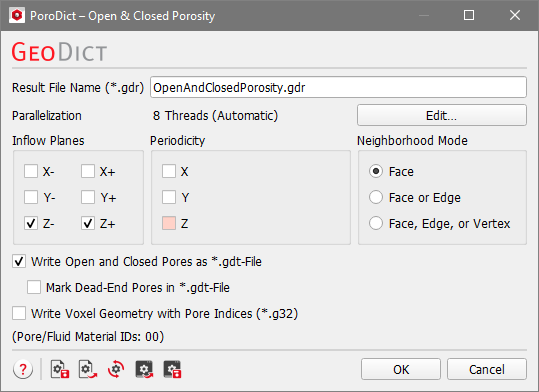
The Open & Closed Porosity dialog opens when clicking the Edit… button.
At the top of the dialog, enter the Result File Name. The result file is saved in the chosen project folder (File → Choose Project Folder in the menu bar).
 Parallelization settings
Control how many threads are used for the computation. Parallelization is possible if your license and hardware allow it. The Parallelization Options dialog opens when clicking the Edit button, to choose between Sequential, Parallel (Shared Memory) or Automatic Number of Threads.
Selecting Sequential will not apply parallelization.
When Parallel (Shared Memory) is selected, the Number of Threads can be entered. Below, the maximum number of available threads and the maximum number of licensed parallel processes is shown in the dialog.
If Automatic Number of Threads is selected, the number of parallel processes is automatically selected for optimal speed, based on the CPU cores and licensed parallel processes.
For up to eight Available Threads, all of them will be used. If more than eight threads are available, two cases might occur.
- The number of Available Threads is larger (or equal) than the Number of CPU Cores:
- Then the maximum of eight and Number of CPU Cores divided by 2 is used.
- The number of Available Threads is smaller than the Number of CPU Cores:
- Then the maximum of eight and number of Available Threads divided by 2 is used.
|
Inflow Planes
Select one or more Inflow Planes to which the pores are open and considered as part of the open pore network. You can imagine that a fluid invades the structure from the inflow plane and all pores that are reached by the fluid are considered as open pores.
For example, here with the default Z- (x-y-plane through z=1) and Z+ (x-y-plane through z=NZ) checked, the inflow planes are located at the top and at the bottom of the structure. Then, pores that are connected to the inflow planes are marked as open pores (white), and pores that do not open to the inflow planes are considered as closed pores (marked in red).
|
Periodicity
When you select Periodicity, the boundary pores in that direction will be periodically connected to the opposite domain side. Directions which you choose as Inflow Plane cannot be selected for Periodicity.
In the example below, Z- and Z+ were chosen as inflow planes. In the middle, the resulting open (white) and closed (green) pores when no Periodicity was chosen are shown. Only pores with a direct connection to the Inflow Plane are classified as open pores. On the right, Periodicity in X direction was selected. Now, the pore at the top left (touching X- boundary) is periodically connected to the X+ boundary to which the large pore has also a connection. Thus, the pore at the top left is also connected to the inflow planes and treated as open pore.
|
Neighborhood Mode
With the Neighborhood Mode choose how the voxels from the pore space material in the structure are allowed to be connected to each other.
The different Neighborhood Modes are explained using this example.
Two voxels can be connected through faces, edges, and corners. Voxels that share a face, do also share edges and corners, as you can observe for the red and the blue voxel. The blue and the green voxel share an edge and the corner points of this edge. Finally, the blue and the yellow voxel share only one corner point.
Thus, checking Face is more restrictive than choosing Face or Edge, and this is more limiting than selecting Face, Edge or Corner.
When choosing the Neighborhood Mode Face only the red and the blue voxel are connected.
When choosing Face or Edge the red and the blue voxel and the blue and the green voxel are connected.
Finally, if Face, Edge or Corner is chosen, the red and the blue voxel, the blue and the green voxel and the blue and the yellow voxel are connected.
|
Write Open and Closed Pores as *.gdt-File
Check Write Open and Closed Pores as *.gdt-File to save a structure file, where the closed pores get another Material ID than the open pores. The resulting structure files of the examples for the parameters Inflow plane and Periodicity are those *.gdt files. You can load this structure file into GeoDict from the Data Visualization tab in the Result Viewer.
If you choose to save open and closed pores as *.gdt file, you have the option to Mark Dead-End Pores in *.gdt-File. This saves a further classification (as different Material IDs) of the open pores into the file:
- Dead-end pores are open pores which have contact with only one of the specified inflow planes.
- Through pores are open pores which connect multiple specified inflow planes.

|
Note! This classification only makes sense if multiple inflow planes are chosen.
|
In the example below, Z- and Z+ were chosen as inflow planes and periodicity in X direction is applied. When Mark Dead-End Pores in *.gdt-File was checked, the open pore at the top will be marked as dead-end pore, because it only has connection to the Z+ inflow plane. The large pore at the right goes from top to bottom and is connected to both inflow planes. Thus, it is marked as through pore.
|
Write Voxel Geometry with Pore Indices (*.g32)
Check Write Voxel Geometry with Pore Indices (*.g32) to save an index image as *.g32 file, where each pore is assigned an individual index number. You can load this file into GeoDict from the Data Visualization tab in the Result Viewer.
In the example below, Z- and Z+ were chosen as inflow planes. When no periodicity is checked, the pore at the top left is not connected to the large pore on the right, so they have different index numbers (resulting in different colors). If periodicity is applied in X-direction, the two pores are connected and have the same index number in the g32 file.
|