Data format
GeoDict result files are saved in YAML-format and contain many different Key : Value Maps, where parameters are hierarchically arranged.
These Maps consist of a describing Keyword and the corresponding Value, where the value can have a corresponding Unit or not:
Key |
Unit |
Value |
Pressure |
Pa |
123 |
The Value in such a combination can be a Key : Value Map again, which is then called a Sub-Map. This is often used in GeoDict’s result files to clarify associated parameters, for example:
Key |
Unit |
Value |
Batch1 |
||
Pressure |
Pa |
123 |
Batch 2 |
||
Pressure |
Pa |
456 |
In GeoDict’s Result Viewer, those maps are shown in well-arranged tables, where sub-maps can be unfolded by clicking on the rotating triangle:
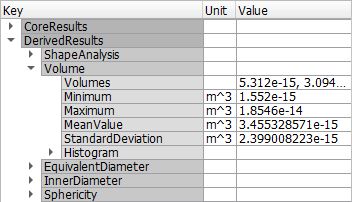
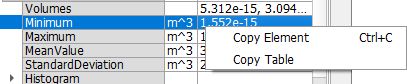
Clicking on an entry here will highlight the line for better readability. In the right-click content menu, the options to copy only the entry on which the right-click was performed (Ctrl + C) or the whole table are available.
The *.gdr files contain all results in ascii text. Therefore, it is possible to open them simply with a text editor, if GeoDict is not available. All data inside a result file is arranged in a Key : Value Map with several Sub-Maps, to keep the file in an organized shape.
The raw text of Key : Value Maps is written in YAML code similar to Python dictionaries and looks as follows:
"InputMap" : { |
|
"ResultFileName" : "DistanceFabricHD.gdr", |
|
"OverlapMaterial" : { |
|
"Type" : "Solid", |
|
"Name" : "Kevlar", |
# Possible values: Fluid, Solid, Porous |
"Information" : "Overlap" |
|
} |
|
} |
|
Maps are always surrounded by curly braces { }. If a key describes a Sub-Map the sub-map again is embraced by { } symbols, denoting start and end of a sub-map or sub dictionary. A key-value pair is always separated by a colon. The entries in a dictionary are separated by comma.
Some text editors can understand this syntax and will highlight the text accordingly.
To activate YAML syntax highlighting for a *.gdr in Notepad++, simply click on Language → YAML after the file is loaded:

In Notepad++, it is then also possible to collapse Sub-Maps for clarity by clicking on the [-] minus control at the left border of the page.
Such Key : Value Maps are also to be found in Python macros and look the same.
