View Controls
Use the view controls to define the look of your data in the visualization area.
At the program start, the Visualization area shows the GeoDict splash screen. When structures or result fields are loaded in GeoDict, they are shown in the Visualization area and the View Controls panel appears above it.
The View Controls panel shows information and options for the visualization of the image displayed in the Visualization area. The items shown in the View Controls and the image display in the Visualization area are closely related. They are influenced and change accordingly with the parameters selected in the View menu and in the Visualization tab and the Color & Visibility tab of the GUI Sidebar..
The View Controls panel is organized into tabs with the controls for structure visualization and result fields computed for it (and accessible through the result file).
Different tabs are available depending on the view and the loaded result fields.
Learn more about setting the options in the Visualization Options topic to optimize the visualization of images from geometry data and property data.
Collapse the View Controls panel by clicking  in the upper right corner.
The View Controls panel can be undocked by clicking the corresponding icon  in the upper right corner. Close it by clicking
  in the upper right corner.
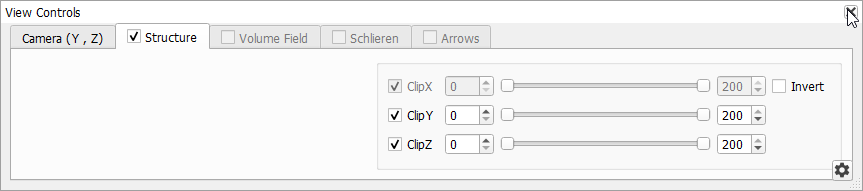
The visualization in 2D or 3D changes the View Controls, by activating other tabs to access features for the visualization of geometry data or result data.
