Options
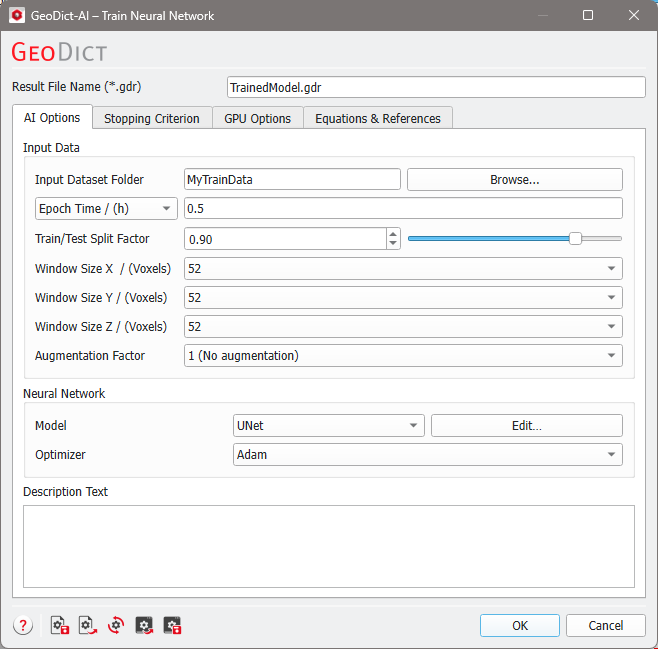
In the GeoDict-AI section, select Train Neural Network from the pull-down menu. The GeoDict-AI - Train Neural Network options dialog opens after clicking the Options’ Edit… button in the GeoDict-AI section. When opening this dialog the first time, it can take some time as GeoDict checks for available GPUs.
At the top of the dialog, the name for the files containing the training results can be entered in the Result File Name (*.gdr) box. The default name can be kept, or a new name can be chosen to fit the current project.
As usual in GeoDict, the training process produces a .gdr file and a corresponding result folder of the same name. The result file (*.gdr) contains information about the training process. The corresponding result folder contains the trained model.
Topics of this section |
|---|
|
