Define the color and visibility of your materials.
The Color & Visibility Settings are available from three different places:
the Settings menu in the menu bar.
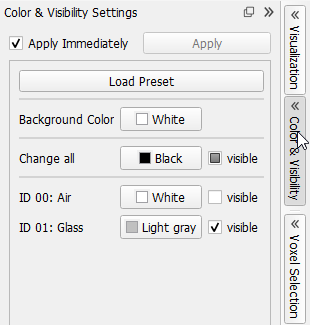
the Color & Visibility tab in the GUI Sidebar on the right side,
or clicking the icon in the toolbar.
In all three cases, the Color & Visibility Settings open as a panel that can be also undocked from the GUI by clicking in the upper right corner.
The Color & Visibility Settings can be collapsed either by clicking in the upper right corner or by re-clicking the Color & Visibility tab in the GUI Sidebar.
The undocked Color & Visibility dialog can be closed with in the upper right corner.
The default color settings, applied to the background and materials during the generation withGeoDict, can be changed through the Color & Visibility Settings dialog. While up to 256 material IDs can be present in a structure, only the colors for the IDs contained in the current structure can be edited.
All settings changed in the Color & Visibility Settings dialog are applied directly if Apply Immediately is checked. When the checkbox is disabled, the Apply button next to it is enabled to apply the changes only when desired.
Know how! The icons at the bottom of the dialog can be used to:
Saves the settings to a GeoDict settings file (*.gps).
Loads the settings from a GeoDict settings file (*.gps) or a GeoDict result file (*.gdr).
Resets all parameter settings to the built-in default settings.
Resets all parameter settings to the saved start-up settings.
Saves the current parameter settings as start-up settings.
Each option is explained by a tooltip which appears when resting the mouse over the icon.
A color preset is a group of colors that are applied together.
Click Load Preset and, in the Load Color Preset dialog, select whether to display the generated structure’s material using one of the presets.
The number of colors shown in the preset previews depends on the number of materials present in the current structure. If for example 100 IDs are present, the dialog looks as follows:
You may select new colors through the buttons in the Color & Visibility Settings dialog and save the current group of colors as a preset (Save as new Preset), to have it appear in the list of color presets later. The preset can be removed anytime by right-clicking on it and selecting Remove Selected Item.
In the following, find some of the color presets applied to our example structure:
The visibility of the materials in the structure, for example of Material ID 01, is controlled by checking or unchecking visible. In the example below, material ID 01 is still present in the structure, but it is just not visible.
By default, the Material ID 00 is the background material surrounding the objects, inside the domain indicated by the bounding box. In the default settings, the visibility of Material ID 00 is unchecked, to be able to see the objects in the structure in 3D rendering, and the color is white.
The color and visibility of Material ID 00 can be changed. In this example, this has the effect of showing a block in 3D rendering that corresponds to the domain, in the color selected for Material ID 00 (here, orange).
To change the color selected for a material from the default (e.g., Dark gray) to another color (e.g., yellow), click the button for the color (here: dark gray) and select the yellow color from the table.
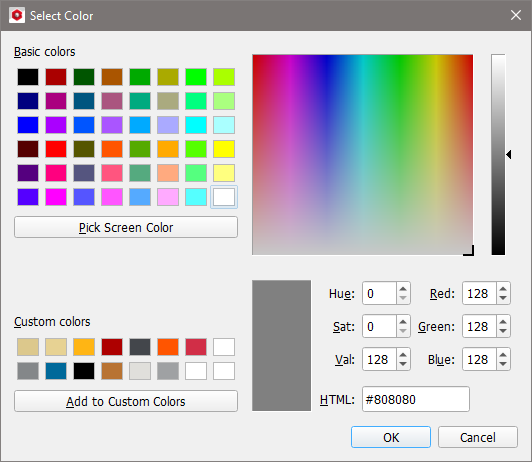
To change the default color to a user-defined color, select the three-dots icon.
In the opening Select Color dialog enter the RGB values that define the color and click Add to Custom Colors. Alternatively, the rectangle for the new color can be dragged to occupy the place of the old one in the custom colors.
The new color setting is applied to the material after clicking OK.
The Background Color of the Visualization area, at the top of the Color & Visibility Settings dialog, can be changed in the same way.
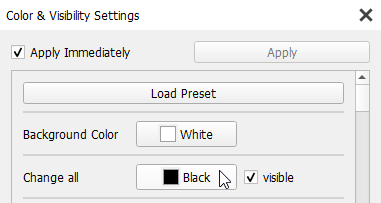
The color and the visibility can be changed for all materials at once in the Change all line below the Background Color line. As soon another color is selected, the color for all material IDs is set to the chosen color. If unchecking (checking) the visible checkbox, all material IDs are set to invisible (visible).
 icon in the toolbar.
 in the upper right corner.
  in the upper right corner or by re-clicking the Color & Visibility tab in the GUI Sidebar.
 in the upper right corner.