Remote Desktop
If GeoDict is installed on a server that is shared by many users, a graphical remote desktop connection from your local computer to the remote server is needed to use GeoDict.
If both the local computer and the remote server use Microsoft Windows, Microsoft’s built-in Remote Desktop Connection tool can be used for this.
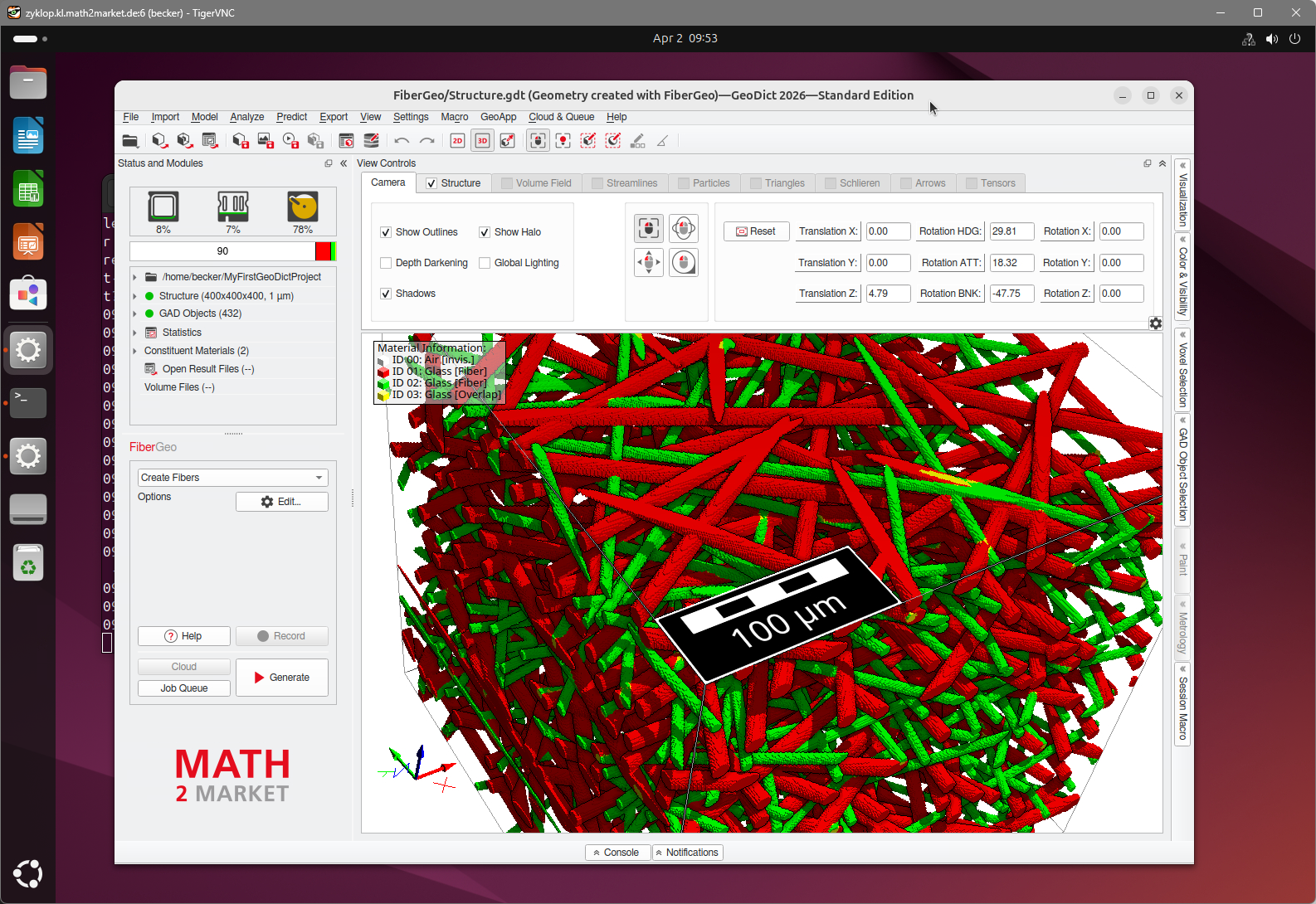
If it is a Linux server, we recommend to use TigerVNC. The graphical remote desktop connection with TigerVNC is a very convenient way to perform simulations on a remote Linux server.
|
Note! If multiple users use GeoDict at the same time, multiple GeoDict licenses are required. One GeoDict license can only be used in one TigerVNC session. If the same user starts multiple remote sessions (e.g., from different desktops) at the same time, multiple licenses are needed as well. |

Follow these steps to use the remote desktop for GeoDict. Steps 1 to 3 are to set it up (administrator privileges required), and carried out only once. Steps 4 to 6 are done every time remote computations are performed:
 1. Install TigerVNC server on the remote Linux computer
2. Install VirtualGL on the remote Linux computer
3. Install and set up TigerVNC viewer on the local Windows computer
4. Start TigerVNC server on the remote Linux computer
5. Connect the Windows computer to the remote Linux computer
6. Start and run GeoDict on the remote Linux computer
|
X-Forwarding in Linux It is in principle possible to connect from a Linux terminal to a Linux server using ssh -X, without the installation of VirtualGL and TigerVNC. In this case, visualization in 3D is only possible when Indirect GLX is enabled on the Linux terminal (it is not necessary to enable this on the Linux server that runs GeoDict, but it must be enabled on the terminal that runs the X11 server). By default, this option is disabled in many cases. The status of this option can be checked with
Output is, for example:
To enable this option is not straightforward, because it works differently on different Linux systems or different graphic cards, and often requires a system administrator to change the config files of the system. Because of this complexity in the setup, we recommend in general to use TigerVNC for remote logins instead of ssh -X. |

