Creating User-Defined Object Types
The object type CombinedObject can be used to define a user-defined object type that can then be used, e.g., in GrainGeo alternatively to the built-in object types when creating a 3D structure model. For this, create a single CombinedObject with the GadGeo -Create/Add GAD Objects command and save it as a .gad file as follows:
At first, remove all objects from the Create/Add GAD Objects tab and create a new CombinedObject.
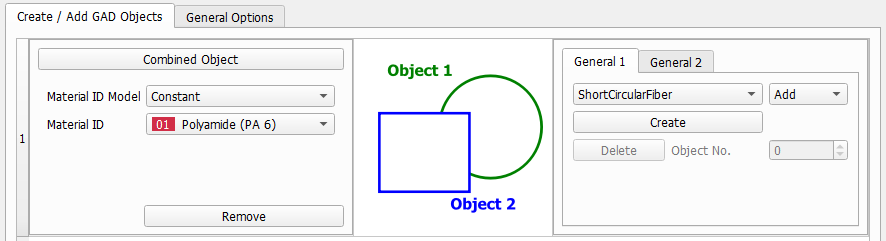
In the General 1 tab, standard objects can be added to the combined type, or subtracted from the combined type. Upon startup, a CombinedObject consists of a single sphere, which can be removed by deleting Object No. 1 using the Delete button. For each object that is created here (by clicking Create), a new tab widget will appear, where the tab header states the object number, the type name, and if the object is added or subtracted.
In the General 2 tab, the position of the Center of the new object can be defined and the main orientation vector can be defined through the Direction vector. When using GadGeo to define a user-defined object, the global position and rotation of the sample object is not relevant, so for simplicity, it is recommended to use the default Cartesian coordinate system also as local coordinate system.
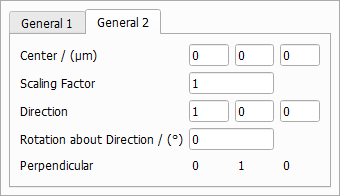
Center and Direction will also be used to describe the position of the new object when using it in a structure generator like GrainGeo, or inside the GAD file. Therefore, when creating a new object type in the default coordinate system, the object should be defined such that its center of mass lies in the origin (0,0,0) and the main direction of the object is the x-axis (1,0,0). If defined otherwise, using the object type in GrainGeo may give unexpected results, e.g. when defining an orientation distribution or a distribution of the object locations.
Be aware that GeoDict will not check if the so defined center is the center of mass of the new object or even if the center is inside of the object.
The standard objects that create the new combined object are defined in the subsequent tabs. In the example here, three cylinders form a 3D cross as a new object type:
As already mentioned above, the coordinates entered in these tabs refer to the local coordinate system of the object, not the global coordinates of the domain.
After the parameters have been entered, close the dialog and create the structure. Then, save the structure as *.gad file using File->Save Structure As… from the main menu. To be able to use the file later as user-defined combined object, it is important that only a single CombinedObject is stored inside of the file.
After the file has been stored, it is possible to use it in GeoDict’s structure generators. For example, in GrainGeo Create Grains choose Combined Object as Object Type, Add it and then Browse… for the *.gad file just created.
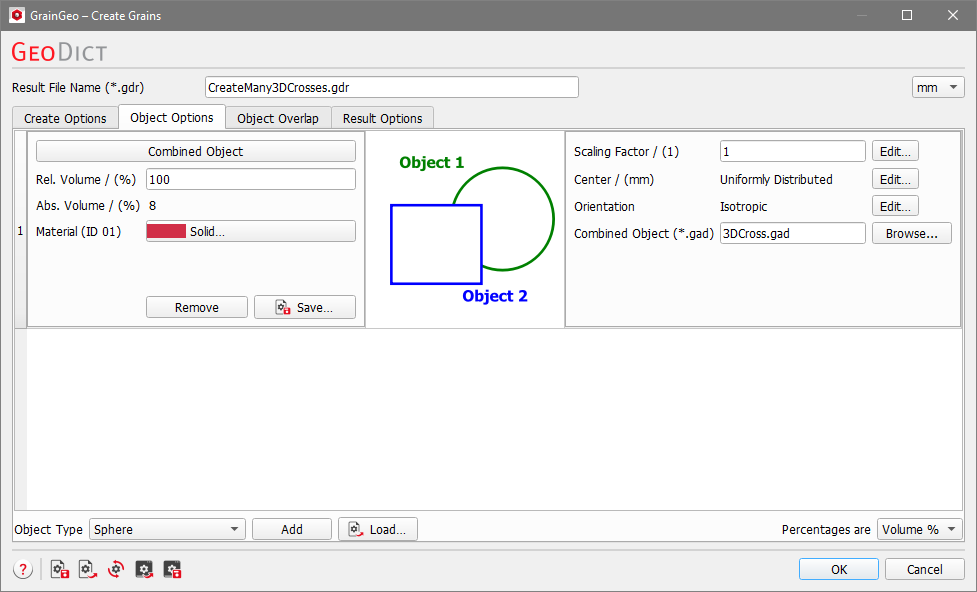
The Center and Orientation used in the structure generator refer to the center point and the direction defined previously in the General 2 tab (the origin and the x-axis of the local coordinate system of the object).
Besides this, a variation of the object size is possible with the Scaling Factor. Here, it is not possible anymore to access or vary the individual sizes of the standard objects that make up the combined object.
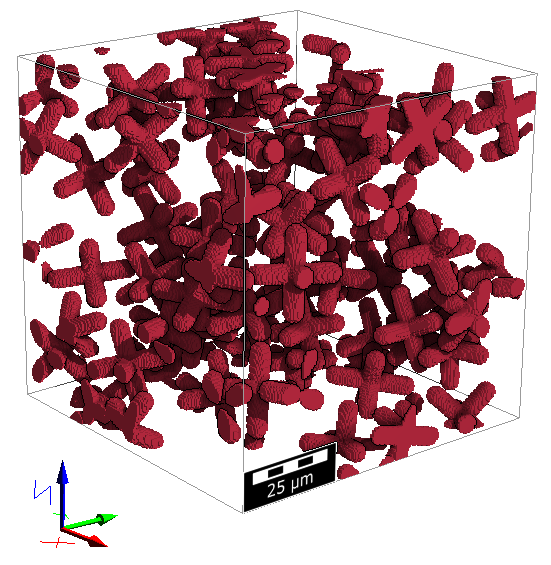
Closing the dialog and clicking Generate creates a structure consisting of the user defined type. Note that, although a CombinedObject consists of several sub-objects, it is not possible to select different materials or material IDs for the different parts here. However, it is possible to change that in a post-processing step using the Change Material ID Model command.
