Binder Identification
Initialization
Select if you want to Use Current Structure (recommended for first analysis) or Load Neural Network Output as Identification Mode.
 Use Current Structure
The default Use Current Structure applies the binder identification to the structure currently available in the GeoDict memory.
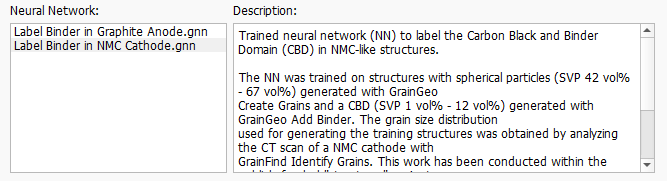
Select one of the neural networks available under Neural Network. Currently two *.gnn (GeoDict neural network parameter) files are delivered with GrainFind, making it possible to select the best suitable one for the structure under consideration.
In the Description, the current constraints for the application of the chosen neural network are listed, like the grain shape and size for that the neural network was trained. To ensure that the grains in the present structure fit to these conditions, we recommended to use Estimate Grain Diameter before running the binder identification.
|
Load Neural Network Output
In case you want to change only some of the parameters, choose the option Load Neural Network Output. Here, you do not have to run the identification for each voxel with the neural network again, which speeds up the analysis.
Browse to a GeoDict result folder of a previous run of GrainFind-Identify Binder (AI) and select a nnOutput.npz file from that folder.
No selection of Neural Network is possible since already the output of the neural network is used in this case.

|
Important! The currently loaded structure needs to be the same with which the neural network was trained. Otherwise an error message appears.
Also, make the same selection for Material to Analyze (see below).
|
|
Under Material to Analyze, define the part of the structure to be considered in the analysis. Either the complete structure can be analyzed (All Solid Materials), an individual material can be selected (Chosen Material) or a choice of Material IDs can be made (Chosen Material IDs). If the selection includes multiple Material IDs they are combined and analyzed as one single material.
Domain-Boundary Options
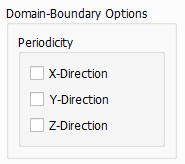
If you have a periodic structure, you can check the boxes for periodicity in the individual directions to apply periodic domain boundary conditions. However, periodicity is unusual for most 3D scans and this setting is rarely activated.
Additional Parameters
Threshold
The neural network provides a probability whether solid voxel is binder or not. The Threshold defines the limit for labeling a voxel as binder. It is recommended to keep the default value of 0.5, since this reflects the computed probabilities correctly.
|
Binder Material
Select the material assigned to the recognized binder. Click on the default material to select a new one from the Material Selector.
The pull-down menu gives access to selecting the desired material from the GeoDict Material Database. When none of the materials available in the database fit the preferred specifications, Manual should be chosen. Alternatively, a new material with the desired specifications can be added to the Material Database (see the Material Database handbook).

To match realistic material colors for visualization in a certain application, the default material colors can be changed through the Color & Visibility tab of the GUI sidebar. For more visualization options, see the Visualization handbook.
You can also set the color of the Binder Material ID (which is the first unused Material ID) to a color different from the color of any solid or pore material present in the original structure. This makes distinguishing the binder from the other materials much easier. In the example structure only Material ID 00 (invisible) and Material ID 01 (gray) are present. Thus, the binder Material ID 02 is set to red.
Load the Structure with the labeled binder from the Binder Visualization tab.
|