Console and Notifications
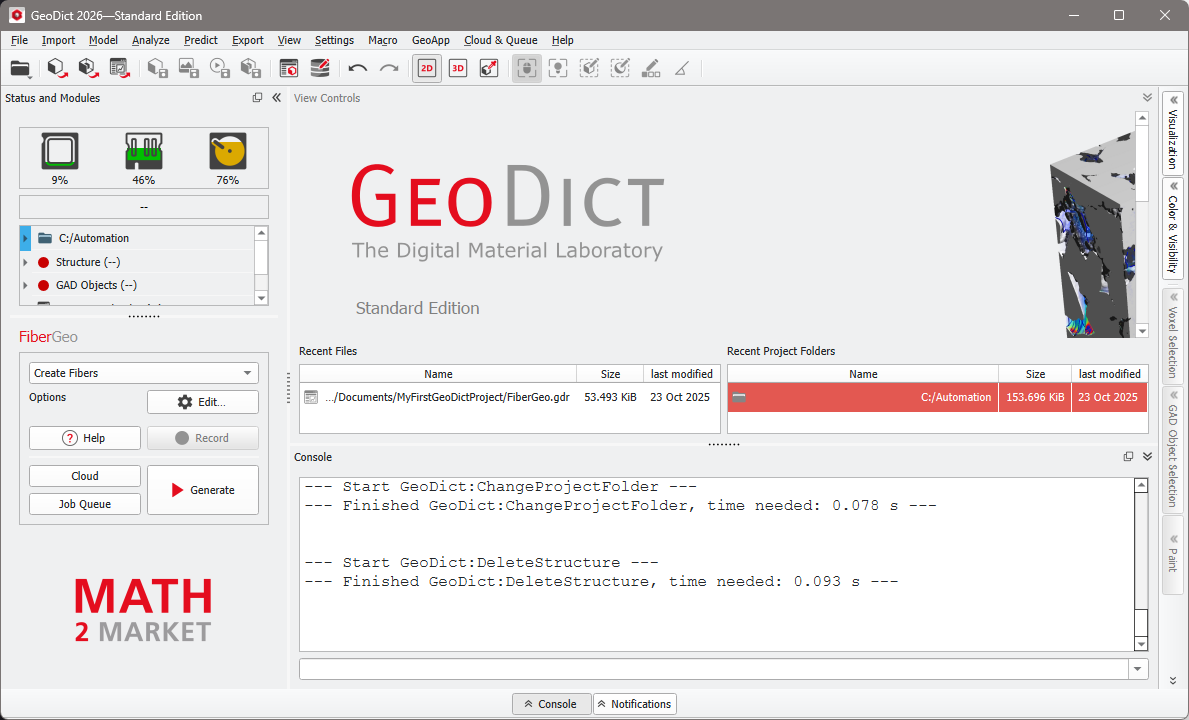
The console and notifications panels are located at the bottom of the GUI, under the visualization area. The Console panel is a textual GUI window and log viewer. The console allows you to read the system logs, help find certain ones, monitor them, and filter their contents. Additionally, you can enter and execute python commands directly in the console. For examples, see typing commands in console below.
Console and Notifications panels can be undocked and turned into a dialog that can move around. Undocking is done by clicking the  icon, located at the top right after expanding. Although still minimized if the GeoDict GUI is minimized, the dialog can be moved independently on the screen.
To connect the dialog with the GUI again, drag and drop it to its place at the bottom of the GUI or simply close the dialog, by clicking on  .
.
 Console
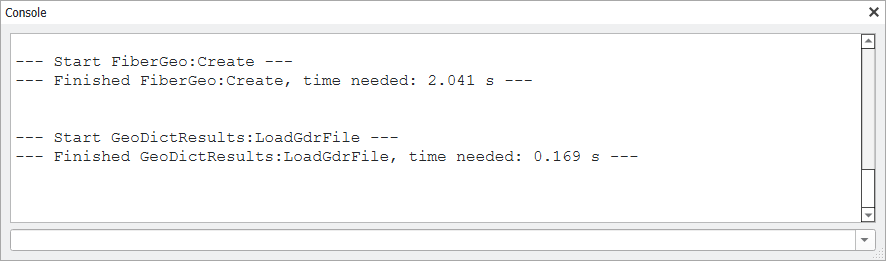
GeoDict provides an interactive console within the GUI. All commands running from the GUI are displayed in the console.
The console panel can be folded and unfolded by clicking on the  icon in the bottom of GeoDict. icon in the bottom of GeoDict.
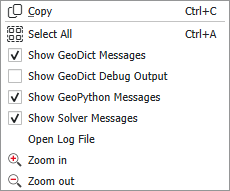
A right click in the console panel provides further options to filter and read the information displayed. Text in the console can be marked with the cursor and exported to another program by using Copy. With Select All the whole text in the console is marked.
The console content is grouped in four different kinds of messages. Each group has its own color and you can decide which of them to show by checking the corresponding boxes.
- Show GeoDict Messages: all direct GeoDict messages. These messages are black for light mode and white for dark mode.
- Show GeoDict Debug Output: GeoDict commands may have additional output intended to help localizing bugs and measuring performance. These messages are blue.
- Show GeoPython Messages: show output from GeoPy macros and functions. These messages are green.
- Show Solver Messages: show messages from GeoDict solvers, e.g., convergence progress. These messages are purple.
During each GeoDict session a log file, that contains all outputs from the console, is written and saved in %username%/GeoDict2026/log (Windows) or %username%/.geodict2026/log (Linux). With Open Log File it is opened in the chosen text editor.
Use Zoom in and Zoom out to enlarge or reduce the font size of the console.
|
Notifications
The Notifications panel can be opened and closed in the same way by clicking on the  icon. icon.
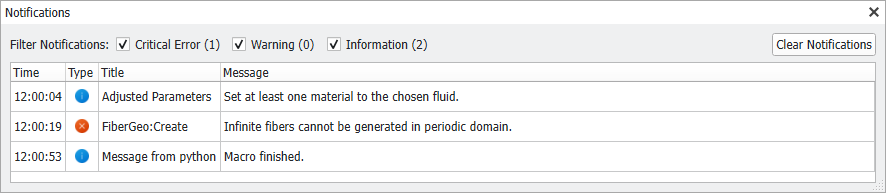
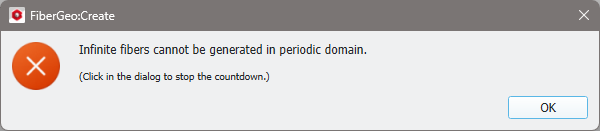
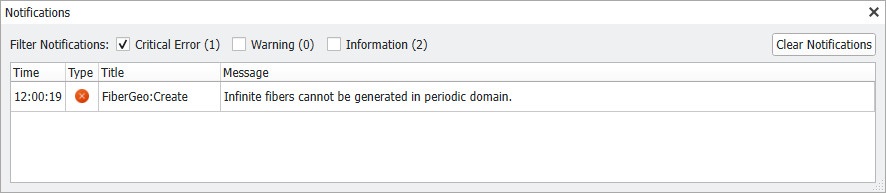
Messages from GeoDict, which are shown in the console, are also shown in the Notifications panel.
The list shows the Time, when a message was raised, the icon shows the Type of the message, also the Title and the Message itself are given. The message is fully displayed in the tooltip, which opens when resting with the cursor over the message. Double-click on a message to open the message dialog again. This is helpful, when a message box was closed, and you want to re-read the message. Another advantage is, that you do not have to scroll through the console, where other output from GeoDict is listed.
With a right click in the corresponding field in the Notifications panel the title and the message text can be copied to the clipboard to save them, e.g., in a text editor.
With the filter options it is possible to show only Critical Errors, Warnings and/or Information.
Click on Clear Notifications to delete all messages from the list.
|
Typing Python commands in the console
The box below the console can be used to run Python commands. One command line at a time can be inserted, and it is run by pressing Enter on the keyboard.
Unfolding the pull-down menu of the box shows the last used commands and some standard commands from the GeoDict Python API.
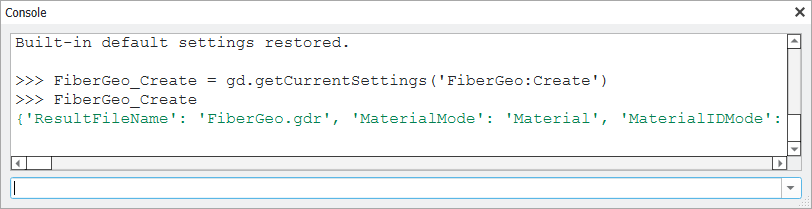
Besides, variables can be used. Store information in a variable for later use as, for example, the Python dictionary of the current FiberGeo parameters:
Typing the variable name again displays the value in the console. In the example, the Python dictionary from the FiberGeo Create Options dialog is shown.
The variable value can be changed at any time by assigning a new value to the variable, using the equal sign. Changing only one entry of a dictionary is done by referring to the entry’s key in square brackets. The new value is assigned using the equal sign.
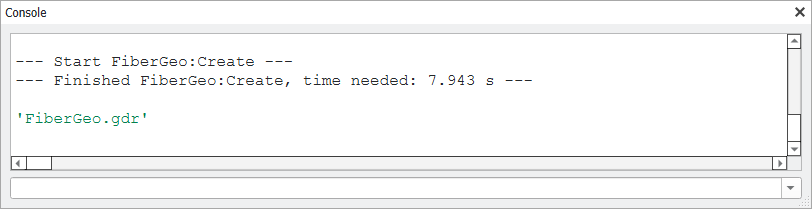
Now FiberGeo can be run with a solid volume percentage of 50 instead of 10, using the Python API command gd.runCmd() which is described in the API for GeoDict commands.
|