Results
After running Design Battery successfully, a GeoDict result file (.gdr) is written and the Result Viewer for this result file opens automatically. The created battery structure is available in memory and shown in the visualization area of the GeoDict GUI.
The .gdr file can be reopened at any time by choosing File - Open Results (*.gdr) in the menu bar. The Result Viewer opens at the Results tab.
More details about the general options can be found in the Result Viewer chapter.
 Report
The Results - Report subtab lists the information on the volume fractions of the different materials for the whole battery, as well as for anode and cathode separately.
|
Plots
Under the Results - Plots subtab, the volume fraction distributions over the whole battery as averaged values over each slice in y- and z-direction are shown for the electrolyte and the active material.
In the electrolyte-volume-fraction plot the binder is represented as a solid material while the separator is represented as porous, leading to the constant area in the separator area of the plot. Later, in the analysis of the battery or a charging simulation, binder can be considered as porous material.
No values are shown for the active material volume fraction at the separator and both current collectors, since these areas do not contain active material.
By right-clicking with the mouse in one of the plots, axis and graph settings can be changed, the components can be set to visible or invisible, and the graph can be saved as image, *.txt file, or be copied to the clipboard.
|
Result Folder
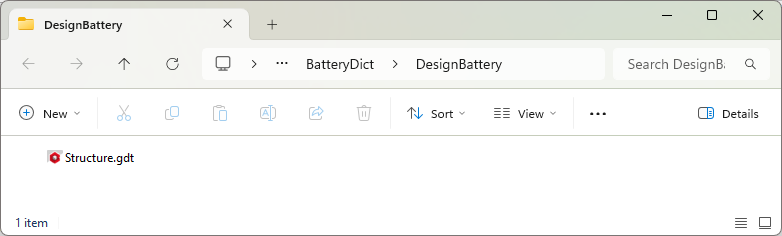
After the generation of a battery structure, a GeoDict result file (.gdr) is created in the selected project folder. A subfolder with the same name as the result file contains the generated battery structure.
|