Report
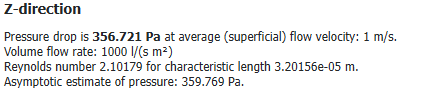
The Report tab under the Results tab shows the computed results. For each selected Computational Direction, the computed results are shown:
- Pressure drop / flow velocity: the determined result (pressure drop or flow velocity) is always shown in bold face.
- Volume flow rate: either prescribed as boundary condition or computed in the simulation.
- Reynolds number: estimated with the given characteristic length. You can change the char. length in the post-processing options.
- Asymptotic estimate of pressure: the asymptotic result predicted by the Error Bound stopping criterion



Information about the convergence of the iterative solver is also displayed for each selected computation direction: Iterations, runtime, memory usage, and applied stopping criterion.
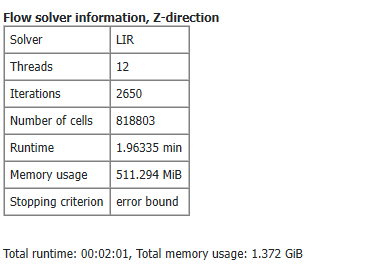
In the last line the total runtime and total memory usage are given. Here not only the resources used by the solver are taken into account but also writing volume fields and structure files or already loaded volume fields from previous simulations. Thus, even if only one flow direction is computed, the total runtime and total memory values are usually higher than the solver specific values.
Post-Processing
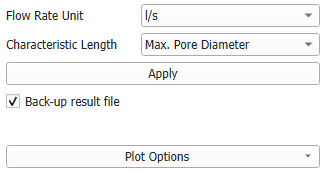
In the post-processing panel on the left of the report, you can change the Flow Rate Unit to m3/s, l/s, l/min, m3/h, or cfm.
You can also change how the Characteristic Length used in the calculation of the Reynolds number is determined. Select between Numerical Length, Max. Pore Diameter, Max. Fiber/Particle Diameter, and Manually specified. If Manually specified is selected, specify the characteristic length below. You can find further information on the Characteristic Length here.
Click Apply to change the Report.
|
Important! Note that after clicking Apply, the result file changes and is not the original simulation result file anymore! If Back-up result file is checked, the original *.gdr file is saved in the result folder and can be restored at any time. |