|
Navigation: GeoDict 2026 - User Guide > Simulation & Prediction > FlowDict > Stokes(-Brinkman) > Options > Solver |
Scroll |
Advanced Options
Unfold Advanced Options to gain access to several advanced solver options.
Advanced Options for EJ:
Checking Analyze Geometry performs an analysis of the geometry before the solver computations.  If no percolation path through the structure is found, the partial differential equation does not need to be solved, and a permeability of 0.0 is directly reported as the solution. Furthermore, the solver operates on the whole structure, regardless of which parts are connected or unconnected. However, unconnected components are not transport relevant, thus the effort of solving in these parts is not necessary. For these reasons, a geometrical analysis is routinely run to determine whether a through path exists. After the analysis is finished, unconnected components are removed from the computational grid. This may speed up the computations but requires some time for the geometrical analysis, especially for very large structures. So if you know beforehand that there are no unrelevant parts or that the structure has been processed to eliminate them, the geometry analysis can be switched off by unchecking Analyze Geometry. |
Advanced Options for SimpleFFT:
Checking Analyze Geometry performs an analysis of the geometry before the solver computations. If no percolation path through the structure is found, the partial differential equation does not need to be solved, and a permeability of 0.0 is directly reported as the solution. Furthermore, the solver operates on the whole structure, regardless of which parts are connected or unconnected. However, unconnected components are not transport relevant, thus the effort of solving in these parts is not necessary. For these reasons, a geometrical analysis is routinely run to determine whether a through path exists. After the analysis is finished, unconnected components are removed from the computational grid. This may speed up the computations but requires some time for the geometrical analysis, especially for very large structures. So if you know beforehand that there are no unrelevant parts or that the structure has been processed to eliminate them, the geometry analysis can be switched off by unchecking Analyze Geometry. |
The tridiagonal matrix algorithm (Tdma), also known as the Thomas Algorithm, may help to improve the convergence for high porosity structure, especially for Navier-Stokes. The algorithm transforms the 3D flow problem to 2D. Thus, it leads to a shorter runtime and increases the convergence speed. Three options can be chosen from the pull-down menu: Automatic, NotUse Tdma or Use Tdma. If Automatic is selected, the SimpleFFT solver decides if Tdma will be used, regarding the porosity of the structure. Thus, Tdma is used if the porosity is high. For most cases it is recommended to choose Automatic. If a message dialog appears, displaying that NaN is detected in iterations, NotUse Tdma should be tried. If the structures porosity is very high, it might decrease the runtime a little bit to explicitly choose Use Tdma. But for most cases Automatic will work well. For more information about the Thomas algorithm see here. |
Depending on the material parameters and geometrical structure of the structure, the underlying mathematical problem can vary in complexity, thus influencing the behavior of the solver. This is directly related to the Reynolds number, an indication of the complexity of the flow solver computations. The higher the Reynolds number, the more Stable the flow solver settings should be, resulting in higher number of iterations, slower time stepping, and longer flow solver run times. However, making the solver run less iterations and, thus, faster (Fast), implies the risk that the solver does not converge. For the SimpleFFT solver, the management of this balance is done through the Velocity relaxation: Stable ↔ Fast and Pressure relaxation: Stable ↔ Fast slide bars. Setting the balance of Stable versus Fast is a trial-and-error process. Although there is no general rule to optimize it, the log files and the visualization of the structure might help finding the balance. Non-sense structure visualization results indicate that a more stable, slower solver is needed. |
Advanced Options for LIR:
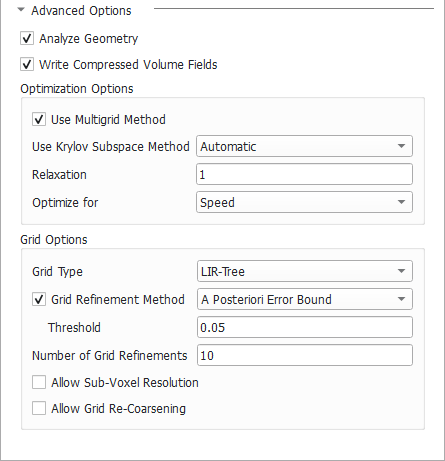
Checking Analyze Geometry performs an analysis of the geometry before the solver computations. If no percolation path through the structure is found, the partial differential equation does not need to be solved, and a permeability of 0.0 is directly reported as the solution. Furthermore, the solver operates on the whole structure, regardless of which parts are connected or unconnected. However, unconnected components are not transport relevant, thus the effort of solving in these parts is not necessary. For these reasons, a geometrical analysis is routinely run to determine whether a through path exists. After the analysis is finished, unconnected components are removed from the computational grid. This may speed up the computations but requires some time for the geometrical analysis, especially for very large structures. So if you know beforehand that there are no unrelevant parts or that the structure has been processed to eliminate them, the geometry analysis can be switched off by unchecking Analyze Geometry. |
 Write Compressed Volume Fields
The LIR solver uses a very memory efficient adaptive grid structure for the simulations. If the option Write Compressed Volume Fields is checked, then the adaptive grid is used as compression method for writing out *.vap files. This option allows to save 80-90% space on hard drive. The runtime for writing *.vap files is also reduced significantly. But the runtime for loading and uncompressing of compressed *.vap is increased by the amount of runtime that was saved for writing out compressed *.vap files. If the option Write Compressed Volume Fields is not checked, then a usual regular grid is used for writing out *.vap files. |
The Multigrid Method (see, e.g., Wesseling, 2004) was introduced to speed-up the computation and reduce the runtime significantly. The main idea of Multigrid is the usage of multiple coarser adaptive grids to speed up convergence behavior but requires only little more memory. The method is available to solve the Stokes and Stokes–Brinkman equations as well as for solving mechanics, diffusion, thermal, and electrical conduction and is enabled by default. Another speed-up option to accelerate the convergence behavior of the LIR solver is called Krylov Subspace Method. The runtime of the LIR solver depends on many different properties of the structure and the simulation parameters. The BiCGStab algorithm is used, which can reduce the runtime for challenging simulation very drastically.
Unfortunately, the Krylov method is not always faster than a simulation without the Krylov method and therefore we introduced an Automatic mode which uses some heuristics to choose the most efficient method based on structure, material parameters, and boundary conditions automatically. Of course, it is possible to explicitly enable (Enabled) or disable (Disabled) the method.
Depending on the material parameters and geometry of the structure, the underlying mathematical problem can vary in complexity, thus influencing the behavior of the solver. The more complex the problem is, the more stable the solver settings should be. With the Relaxation number, the solver is adjusted from Stable (which results in higher number of iterations, slower time stepping, and longer solver run times), to Fast, which makes the solver run less iterations but implies the risk that the solver does not converge. The Relaxation is a parameter of the SOR method and must be between 0 and 2 to ensure convergence. For relaxation values smaller than one (<1.0), the simulation is more stable. For relaxation values larger than one (>1.0), the simulation converges faster. The LIR solver can Optimize for Speed or Memory.
|

The Grid Type decides what kind of tree structure is used for the simulation. The default option is LIR-Tree and should always be used. The solver uses an adaptive grid structure called LIR-tree and needs up to 10 times less runtime and memory compared to the Regular Grid option. The solver can analyze the result field during the computation and improves the adaptive grid in places where more accuracy is needed. The LIR solver splits cells where a high gradient occurs. The solver can analyze the computed field and refines the adaptive grid during the computation at locations where more accuracy is needed. The LIR solver splits cells where a high gradients occur when the Grid Refinement Method is enabled. In this case, the additional parameters Number of Grid Refinements, Allow Sub-Voxel Resolution, and Allow Grid Re-Coarsening become available. Select one of the three available refinement methods from the drop-down menu. When A Posteriori Error Bound is selected, the solver targets the specified accuracy Threshold. While the Error Bound (set as Simulation Stopping Criterion) determines the relative error in the solution of the linear system, A Posteriori Error Bound refers to the relative error estimated by comparing high-order and low-order discrete solutions. The accuracy Threshold refers to the relative error to the analytical solution and the value must be between 0.0 and 1.0.  Choosing Difference (Automatic) leads to computational cells being split when the difference in values between neighboring cells exceeds a certain Threshold. The solver automatically chooses all internal parameters based on the structure and simulation settings. For this option, cells are split where the current gradient is greater than the Threshold multiplied by the maximum gradient, where the threshold is determined automatically.  Selecting Difference (Manual) also causes the computational cells to be split when the difference in values between neighboring cells exceeds the specified Threshold. You can specify all parameters (Threshold and Number of Grid Refinements) for the grid refinement manually. For this option, cells are split where the current gradient is greater than the Threshold multiplied by the maximum gradient. The Threshold value must be between 0.0 and 1.0. The recommended value range is between 0.05 and 0.1.  The Number of Grid Refinements controls the maximum number of grid refinements that the solver can perform during the simulation. The value should be set between 0 and 10, where a value of 0 means that no grid refinements will be made. Grid refinements may increase the number of iterations, runtime, and memory requirements. When Allow Sub-Voxel Resolution is enabled, the solver is allowed to split computational cells to sizes smaller than the voxel length.  This feature is beneficial for low-porosity structures for which the pore throats require finer resolution or for modeling fast Navier-Stokes flows with strong vortices. Enabling this feature may increase the number of iterations, runtime, and memory requirements. Check Allow Grid Re-Coarsening to allow the solver to automatically revert the grid refinement and coarsen the computational cells.  This means, grid refinement is done temporarily. Afterwards, the cells are merged as soon as accuracy is not needed anymore. This reduces the memory and runtime requirements. |
©2026 created by Math2Market GmbH / Imprint / Privacy Policy
