Basis Geometry
Define the underlying geometry options for the foam under the Basis Geometry tab.

Basis Pore-Geometry
A random foam is generated based on a random homogeneous pack of spheres or ellipsoids called Basis Pore-Geometry. Each cell in the generated foam corresponds to an object (sphere or ellipsoid) in the Basis Pore-Geometry. For example, if the Basis Pore-Geometry contains 100 spheres with a diameter of 50 µm, the foam will contain 100 cells with a diameter of approx. 50 µm.
The Basis Pore-Geometry can be created:
- From a preexisting periodic packing generated, e.g., with GrainGeo as GeoDict analytic data (.gad). The periodic packing must be loaded in memory (Use Current Analytic Geometry), that is shown in the visualization area. To create a random foam, at least 9 GAD-objects with a minimal object diameter of 20 voxel must be present in the structure. The analytic data is then taken as basis geometry to form the foam.
- As a new geometry in FoamGeo (Create Pore-Geometry).
The parameters described below are only available if Create Pore-Geometry is chosen. If instead the current analytic geometry is used, no more settings need to be defined in the Basis Geometry tab.
The parameters in the Domain panel determine the random foam size. NX, NY, and NZ determine the number of voxels of the grid in the X, Y, and Z direction, respectively. The size of the structure created depends on NX, NY, and NZ and on the entered Voxel Length (size of a voxel in the selected units).
The coordinates of the domain origin can be set to those given in Origin X, Origin Y, and Origin Z. Alternatively, click Center Domain to set the origin (0,0,0) to NX/2, NY/2, and NZ/2.
Basis Pore-Shape
From the Basis Pore-Shape pull-down menu, select either Sphere or Ellipsoid for the desired basis pore shape. The volume of the random foam cells resulting from the selected basis pore shape is always a bit larger than the basis pore shape volume.
When selecting Sphere, you need to enter the Diameter of the spheres on which the generated foam is based. Selecting Ellipsoid allows you to generate complex random foams.
As explained for strut diameters of Kelvin Structures, the diameter of the spheres (Diameter) or ellipsoids (Diameter 1 in X-direction, Diameter 2 in Y-direction, Diameter 3 in Z-direction) can be changed by clicking Edit….
Then the diameters can be set independently to take a Constant value, or to follow a distribution (Uniformly in interval, Gaussian, Probability Distribution, or Log-Normal).
For the Basis Pore-Shape Ellipsoid three different Size Modes are available: Independent, Coupled, and Aspect Ratio.
The Independent Size Mode allows to define the diameter for each of the three directions independently. For example, you can assign a Constant value for Diameter 1, a Uniformly in interval distribution for Diameter 2, and a Gaussian distribution for Diameter 3 as in the example above.
By choosing Coupled diameters, a probability can be assigned to the combination of the three diameters. Instead of independent probability distributions for diameters 1, 2, and 3, the three coupled diameters share the same probability in the distribution. For example, you can assign the following probability distribution table to Diameter 1, Diameter 2, and Diameter 3. According to the table, ellipsoids of diameters 10 µm / 5 µm / 7 µm have a 50% (0.5) probability to be the basis pore-shapes for the generated random foam.
The third option is to enter an Aspect Ratio describing the relationship between the three ellipsoid diameter. Aspect Ratio 1 is defined by Diameter 2 divided by Diameter 1 and Aspect Ratio 2 is defined by Diameter 3 divided by Diameter 1.
For the Basis Pore-Shape Ellipsoid, an Orientation can be set by clicking the Edit… button. In the Orientation dialog, objects can be defined to be Isotropic, have a certain Anisotropic Direction, Anisotropic Orientation, Given Directions, are oriented In XY-Plane, or have a maximum Angle Around Direction. More details on the different orientation modes can be found in the GrainGeo user guide.
Parallelization
Control how many threads are used for the computation. Parallelization is possible if your license and hardware allow it.
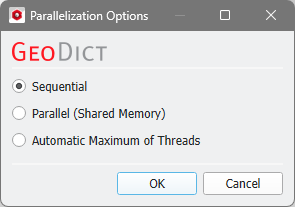
The Parallelization Options dialog opens when clicking the Edit... button and you can choose between Sequential, Parallel (Shared Memory), or Automatic Maximum of Threads.

Selecting Sequential will not apply parallelization and only one thread is used for the computation.
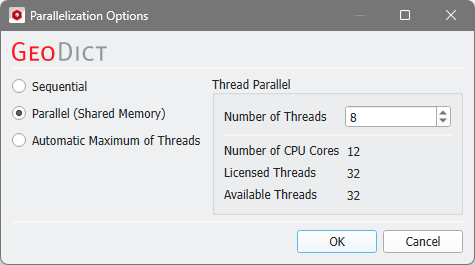
When Parallel (Shared Memory) is selected, the Number of Threads can be entered. Below, the Number of CPU Cores that the current machine has, the maximum number of Licensed Threads, and the number of those licensed threads that are available (Available Threads) are shown in the dialog. The maximum number of parallel processes you can use is the smallest of these three numbers.
If Automatic Maximum of Threads is selected, the number of parallel processes is automatically selected for optimal speed, based on the CPU cores and licensed parallel processes.
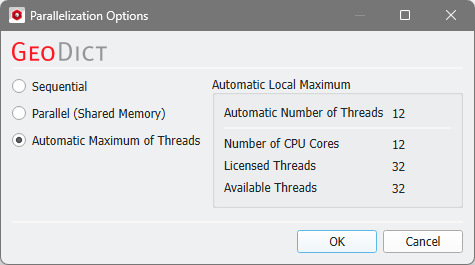
The Automatic Local Maximum of processes is automatically selected, which is the minimum of Number of CPU Cores, Licensed Threads, and Available Threads.
