Apply Shrink Sleeve
A shrink sleeve is a material that tightens when heat is applied. The Apply Shrink Sleeve app simulates this behavior by adding a layer of a different Material ID around a structure. This allows to separate the pore space inside a structure from the pore space on the outside. This is especially helpful when processing cylindrical structures, e.g., core samples. The structure needs to be oriented vertically, i.e., in the Z-direction.
After loading a 3D structure, click Edit to open the Apply Shrink Sleeve Parameters dialog.
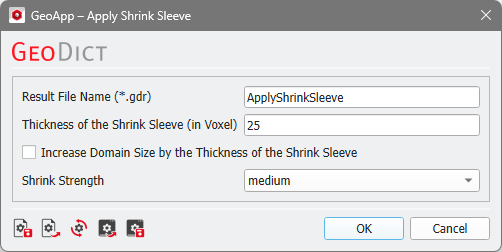
Three parameters can be edited. First enter a Result File Name.
The Thickness of the Shrink Sleeve (in Voxel) defines the thickness of the applied layer.
Select to Increase Domain Size by the Thickness of the Shrink Sleeve in X- and Y-direction. If you check this, the whole shrink sleeve will be contained in the domain. Compare below the result without domain increasing (left) and with increased domain (right).
The Shrink Strength can be selected as low, medium or high. For a high shrink strength the added shrink sleeve is very tight around the structure. This means that pores at the outside of the solid material might also be filled with the coating material of the shrink sleeve. Observe the influence of the the Shrink Strength on the exemplary structure below with low strength on the left, medium strength in the center, and high strength on the right.
Click OK to close the dialog, go back to the GeoApp section, and click Run.
Results
After the run is finished the Result Viewer opens automatically.
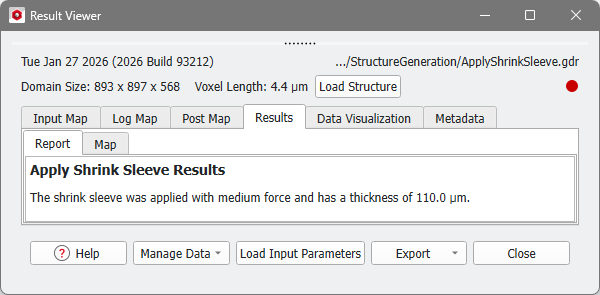
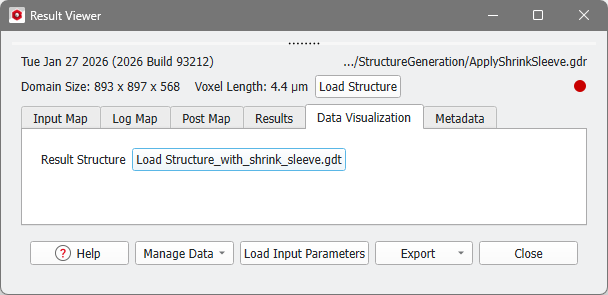
The structure with the applied shrink sleeve is shown in the visualization area and saved in the result folder as Structure_with_shrink_sleeve.gdt. It can also be loaded from the Data Visualization tab in the Result Viewer.
Below, the result for a medium shrink strength with increased domain size is shown for a Gildehauser sandstone (Berg et al., 2018) in 3D and 2D visualization.
