Easy Image
The Easy Image GeoApp is designed to guide you through the process of creating various types of media in an easy-to-understand way. It also saves the necessary data to recreate the media.
|
Modules needed to run this GeoApp: GeoDict Base |

Click Run to open the Easy Image dialog. Here, you can set the basic settings, such as Image Name, Save Folder, and Image Preset selection. Hover over each entry to see a tooltip with more information about that option.
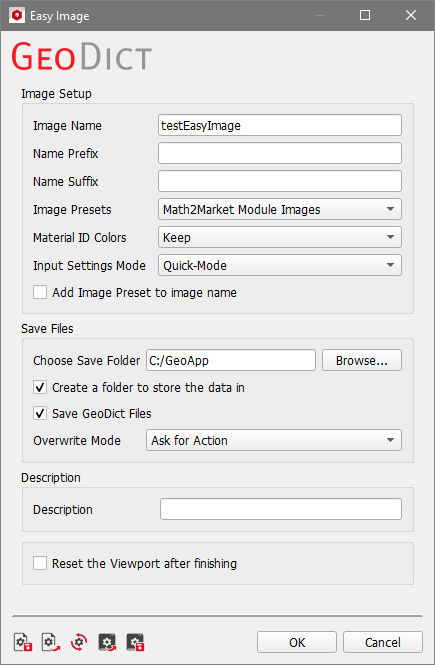
Under the Image Presets, you can also select special modes, such as the Split Structure by Material preset. With this preset, you can also save a video that visualizes the splitting process. If you would like to learn more, a video tutorial is available here.
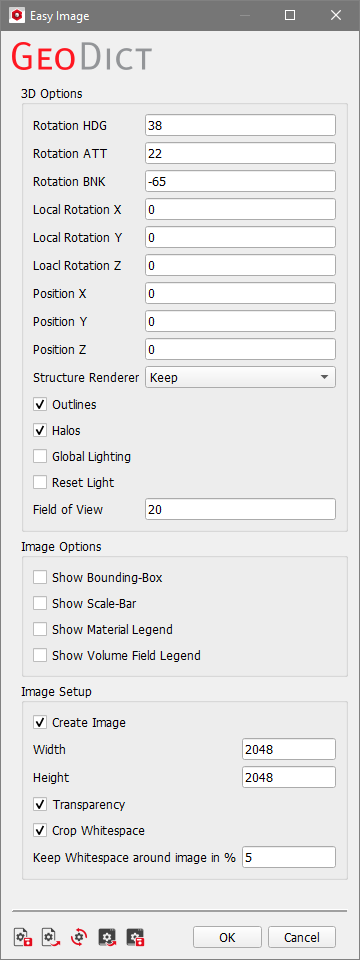
Additional dialogs appear during image creation to help you collect and save all the necessary GeoDict files. Other dialogs allow you to adjust the image setup. For example, the Expert-Mode dialog shown below allows you to change the camera and visualization effects.
Results
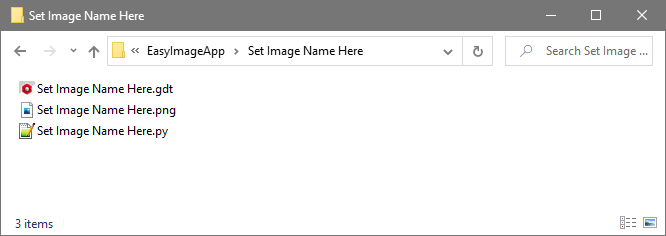
After creating an image with the Easy Image GeoApp, a folder with the previously selected Image Name will be created. The Name Prefix and Name Suffix are only applied to files stored in the folder. This allows you to quickly and easily create multiple versions in one place without duplicating necessary files. With all the files in one place and the image settings saved as a Python macro, you can reproduce images quickly and easily.
Here, three different Image Presets were used for the same structure, also available on our website. The Material ID Colors were set to GeoDict Highlight Colors. All other parameters were kept at their default settings.
