2D View as Plot
The 2D View as Plot app saves the 2D visualization of the current structure as a plot. This plot is then contained in a GeoDict result file (*.gdr).
|
Modules needed to run this GeoApp: GeoDict Base |

Click Edit to open the 2D View as Plot parameter dialog. Select a Result File Name fitting to the current project.
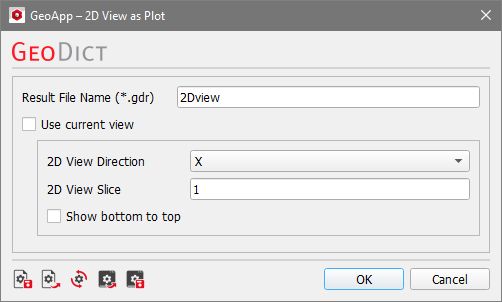
Check Use Current View to save a plot of the currently visualized 2D slice and view direction. If this option is unchecked, you will need to select the 2D View Direction. Activate Show bottom to top to display the image accordingly. If this option is inactive, the image is shown top to bottom. Once you have defined these parameters, click OK to close the dialog box. Then, go back to the GeoApp section and click Run.
Results
When the image generation finishes, the Result Viewer of the result file (*.gdr) opens automatically. The Results - Report tab only displays a short report. You find the resulting image from the 2D structure view in the Result - Plots tab.
Right-click in the plot to open a dialog providing several options for post-processing, as described in the Result Viewer user guide. The image is also saved as *.png in the corresponding result folder.
