Plots in Result Files
Many result files have a Plots subtab under the Results tab of the Result Viewer. In the Plots subtab, the values are displayed using different types of plots. All data for each plot is saved in the Post Map of the result file. If any changes are made in the plot settings or if a post-processing step is done, the result file is updated and saved. Thus, plot appearance stays the same even after closing the Result Viewer.
This updating and saving of plot settings can also be recorded as a macro and always appears in the Session Macro. This means that everything done while post-processing to the plots can also be scripted/automated using Python macros.
Each plot has a Plot Title, which is shown above the plot. A plot contains at least one graph: a set of data points, which has a unique marker and color, e.g., a blue line or a set of bars. All graphs in a plot share the same value range in X and Y axis directions and have unique Graph Names that are shown in the legend. Both the X-and Y-axis have a Label showing the quantity that is plotted and the corresponding unit.
Each plot can have multiple graphs and each result can have multiple plots. Thus, some plots are grouped in other subtabs, for higher simplicity. If there are more than two plots in a subtab, the active plot can be chosen from a drop-down menu. This is often the case for time sequences or similar types of data.
If there are exactly two plots in a group, both of them are displayed. The two plots are separated by a horizontal slider, such that the size can be adjusted.
Hovering with the cursor over the plot will show indicator lines and the values of the axes at the point of the cursor. The first value shown belongs to the X-axis, the second one shows the value of the Y-axis.
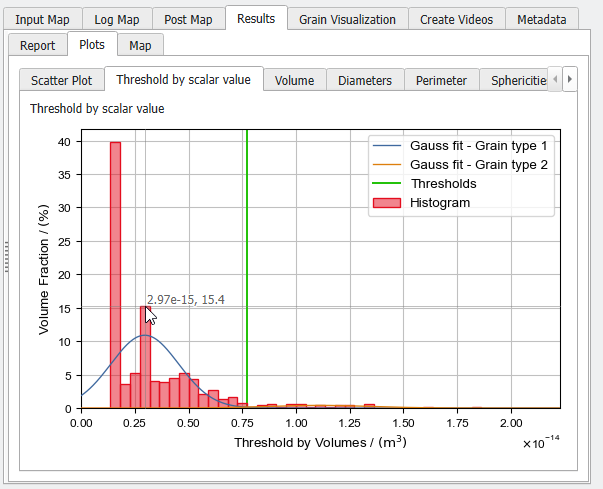
Click and hold with the left mouse button and draw a rectangle to zoom into the plot at this position.
Right-clicking inside the plot area opens the Plot Context Menu. Here, the plot can be exported in different ways, and the plot settings can be changed, especially the zoom can be reset with Set automatic axis ranges.
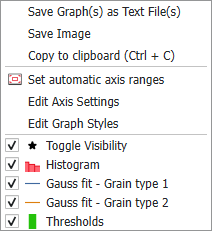
The Plot Context Menu: |
|---|
|
