GeoLab Installation
GeoLab can be found inside the GeoDict installation folder in the subfolder GeoLab. The default location in Windows is:

GeoDict may be installed in another folder, especially in case of Linux systems. For Linux, use the installation path of GeoDict on your system instead of the path above.
GeoLab consists of two parts. The first is the folder GeoLab\Lib that contains all functionality provided for working with GeoDict files. In the folder GeoLab\Examples you find several examples about working with GeoLab.
To use GeoLab, the path of the folder GeoLab\Lib needs to be added to the MATLAB search path. This can be done in different ways.
For Windows installations, a GeoLab desktop icon is created during the GeoDict installation. This allows to directly start GeoLab on computers where MATLAB is installed. It starts MATLAB and adds the path of the Lib folder of your GeoLab installation to the MATLAB search path.
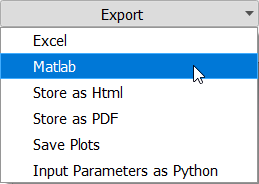
Alternatively, GeoLab can be started by selecting Export → Matlab at the bottom of the GeoDict Result Viewer. If a MATLAB installation is available, MATLAB is started, and the path of the GeoLab Lib folder is added to the search path. The GeoDict result file (GDR file), selected in the GeoDict Result Viewer, is imported to MATLAB additionally.
For Linux installations or if you prefer to start MATLAB directly in Windows, this can be done by adding the path in the MATLAB command window. Writing the following in the command window of MATLAB, adds the path and checks that this worked correctly.

The second command returns a MATLAB struct containing information about your GeoLab Program Files version. If Gdr.GetHeader() does not return an error, GeoLab is installed correctly. When support needs to be contacted about any issues with the installation, it is important that this information is enclosed.
The following should be displayed:
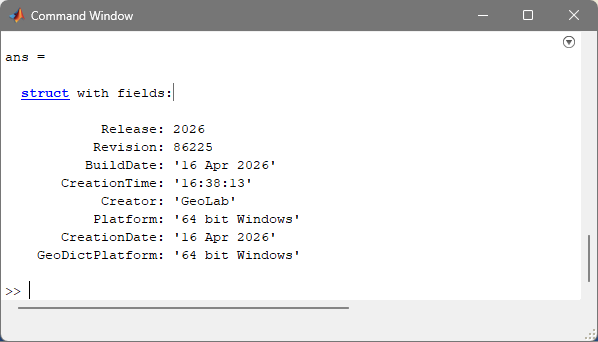
Your MATLAB version may differ from the one used in this chapter, but most information should hold regardless of the version.
To use GeoLab functionality, it is sufficient to add the folder GeoLab\Lib to the MATLAB search path. If you are running an example of GeoLab, required additional paths are added automatically.
The process of installing GeoLab needs to be repeated every time MATLAB is started, unless the user sets this to be done automatically at startup, as follows:
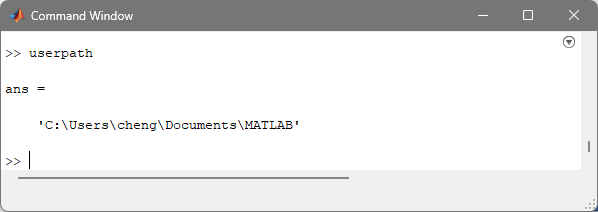
- Write userpath in the Command Window. The path is the startup directory for MATLAB. Here it is C:\Users\cheng\Documents\MATLAB as shown in the command window. If needed, the path could be changed to another location with userpath('C:\...\NewPath').
- Navigate to the startup directory with cd('userpath'):
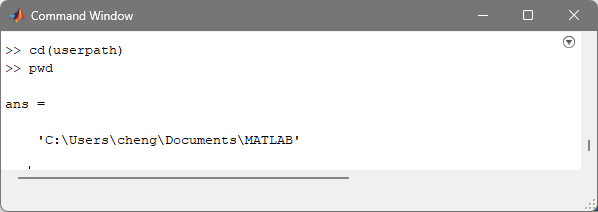
- With edit('startup.m'), create a file that is executed at every MATLAB startup, if this doesn’t already exist.
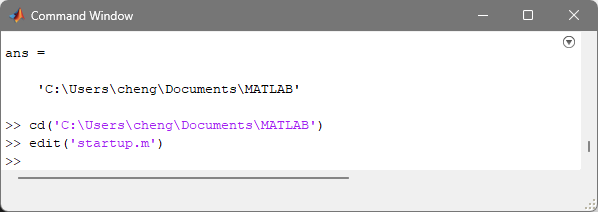
The MATLAB Editor window appears on top of the Command Window.
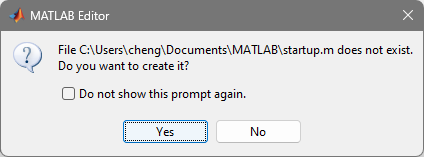
If the file startup.m already exists, it is opened in the editor.
- Write addpath(genpath(…)) in the startup.m file, pointing to the GeoLab subfolder in the GeoDict 2026 installation folder. If the file already exists, it is recommended to add the command at the end of the file. Save the startup.m file by selecting Edit → Save in the GeoDict GUI toolbar.

