Grid Options for the Rectangular Grid
Basis Vectors
When Create Rectangular Grid is checked, the three Basis Vectors of the unit cell must be aligned to the X-, Y- and Z-axes. In the first row of the table, Basis Vector 1 is given which belongs to the X-axis. Basis Vector 2 (in the second row) belongs to the Y-axis, and Basis Vector 3 (third row) belongs to the Z-axis. Thus, only the component of the corresponding direction of each vector can be edited. In the periodic grid, the basis vectors define the size and shape of the unit cell and the relation from unit cell to unit cell. The effect of changing the basis vectors is shown below – the shape of the unit cell can be an arbitrary cuboid.
Domain
Cell Number and Size
For Rectangular Grids, the Number Cells X, Y, and Z must be given. It sets the number of unit cells in the corresponding direction in the domain. As the basis vectors are aligned to the axes, their value determines the size of one unit cell. The size of the generated grid in metric units (Width (X), Length (Y), and Height (Z)) is computed based on the Cell Number and cannot be edited.
Inlet and Outlet
The parameters Inlet and Outlet add empty space to the domain at the bottom or at the top of the domain (in Z-direction). The Inlet is in Z- direction, the Outlet is in Z+ direction. When generating one unit cell without Inlet and Outlet (Setting both values to 0), the structure is repeated periodically and the objects penetrating the border of the domain reappear at the opposite side. When either an Inlet or an Outlet is used (by choosing a value larger than 0), the structure is not periodic in Z-direction anymore so the objects will not reappear from the other side. In this example, the object in the unit cell is a sphere centered in the origin. Therefore, it is not completely contained in the domain when the Inlet is set to zero, while the Outlet is set to a larger value.
The size of the inlet and outlet will be added to the Height (Z) of the domain and affects the number of voxels in Z-direction (NZ).
Voxel Length and Number
The Voxel Length sets the size of a voxel in the selected unit and, therefore, the resolution of the structure. Together with the domain length (Width (X), Length (Y), and Height (Z)) it will determine the values for the domain size in voxel, which are shown below (NX, NY, and NZ) and cannot be edited. It will also show the achieved domain size in metric units and the error compared to desired domain size (e.g., a width of 50 µm can not be fully resolved with 4 µm voxel length, the error is 2 µm in this case).
|
Note! Try to adjust the voxel length or the domain size to minimize the error. |

Select Pore Material
The material for the Pore / Matrix Material (ID 00) in the grid can be chosen in the Domain panel. The material(s) of the object(s) are set in the Objects in Unit Cell tab.
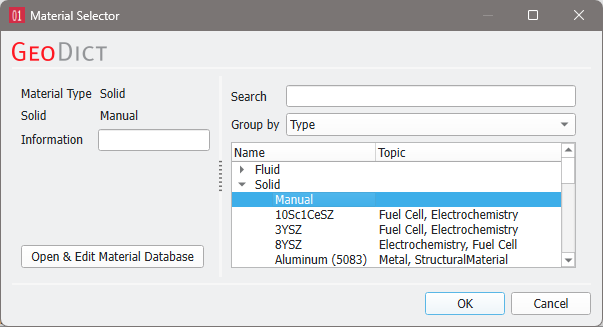
The pull-down menu gives access to selecting the desired material from the GeoDict Material Database. When none of the materials available in the database fit the preferred specifications, Manual should be chosen. Alternatively, a new material with the desired specifications can be added to the Material Database (see the Material Database chapter).
To match realistic material colors for visualization in a certain application, the default material colors can be changed through the Color & Visibility tab of the GUI sidebar. For more visualization options, see the Visualization chapter.
Overlap Behavior
In the generated grid, overlap between the objects might occur. This overlap can be handled in different ways.
By default, Resolve Overlap is enabled. With this option, the overlapping regions are assigned to the materials of the objects which are in contact. This leads to a more realistic structure.

Additionally checking Mark Contact Voxels allows to define a separate material for the contact areas. This means, for each overlapping object a one voxel thick layer is reassigned to the Contact Material. In this way, even contacting objects with the same material ID can be clearly distinguished.
|
Know how! Using Resolve Overlap needs more time to compute, therefore we recommend disabling this option for large structures where the information about the overlap is not relevant (e.g., for flow simulations). |

Alternatively, an Overlap Material can be selected for the regions where objects overlap.

