Slice Thickness Adjustment
In FIB-SEM images the slice thickness can be different for each slice. If the image provides information about the slice thickness, as is the case, e.g., for images taken by Zeiss machines, the Slice Thickness Adjustment can be applied on the image. Otherwise, NO slice thickness available is displayed at the top of the section.
Observe how the different slice thicknesses are assigned to coordinates, forming a vector that indicates the slice thickness, in the following figure.
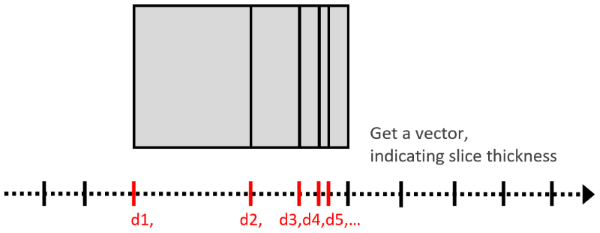
These vector entries must be provided for the image stack under consideration. Therefore, the ending of each image in the stack must be _z=…um (the unit must be given in microns), where the ... must be replaced by the corresponding coordinate. For example, the names could be image_001_z=1.0um.tif, image_002_z=2.1um.tif, image_003_z=3.3um.tif, and so on. FIB-SEM image stacks from Zeiss machines follow this naming scheme.
The slice thickness is adjusted by using interpolation to fit the given distance between the given Z-slices.
If the Use X/Y Voxel Length box is checked, the distance between the resulting Z-slices will be equal to the voxel length in the X- and Y-directions. Otherwise, enter the desired Z-Distance in nanometers.
For gray value Interpolation, choose between Linear and Nearest Neighbor.
Click Apply to adjust the Slice Thickness Adjustment.
|
Know how! You can Save your current settings for this tool as Start-Up Settings . The next time you process an image, these settings will be automatically loaded and filled into the parameter fields. You can also load the Built-In Default Settings available in GeoDict. If you change any settings and want to revert to your saved start-up settings, click the corresponding button to Load the Start-Up Settings . |

In the following example, the slice thickness between the individual images is approximately 2 µm, while the voxel length in the X- and Y-directions is 1 µm.
Thus, selecting Use X/Y Voxel Length and clicking Apply results in 256 slices instead of 129, stretching the image in the Z-direction.
