Workflow Manager
To display the Workflow Manager, check Show Workflow Manager in the top left of the 3D Image Processing dialog. This section displays either the Current Workflow or a chosen predefined workflow. The current workflow contains all the image adjustments and filters applied (e.g., Ring Artifact Removal).
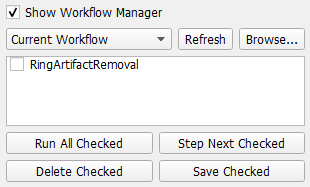
If you added a new workflow to the workflow folder during the current GeoDict session, either by moving a GeoPy (GeoDict Python) file to the GeoDict settings folder or by clicking the Save Checked button, click Refresh to display the new workflow in the pull-down menu.
Click Browse and select a GeoPy macro to add it to the pull-down menu.
The workflow buttons offer the possibility to run the entire workflow again (Run All Checked) or run only single steps (Step Next Checked). Features can be deleted (Delete Checked) or saved (Save Checked) to a new predefined workflow.
Predefined workflows contain a set of image processing tools. The GeoDict settings folder already offers two predefined workflows:
- The FIB-SEM Workflow (shown here) uses the Flickering Correction, Slice Alignment, Curtaining Filter, Scale of the image, and the Non-Local Means Filter.
- The Micro-CT Workflow combines the Gradient Brightness Correction, Enhance Contrast, and Non-Local Means Filter.
Predefined workflows may be controlled by variables, but they can be edited (Edit Parameters) to adjust a workflow to your needs.
With Edit Macro, the chosen workflow script is opened for editing. To learn more about GeoPy macros refer to the GeoPy scripting user guide.
