Install a Floating License
After emailing the server information (either the hostid.txt file or a screenshot of the System Info page) to support@math2market.de, two license files are sent from Math2Market: a *.glic license file, used to operate GeoDict, and a *.lic license file, used to operate the RLM Server.
First, install the .lic file on the RLM server. For this, copy the received *.lic file into the folder where RLM searches for the license. If you have installed the RLM server as a service, this is the folder that you specified with the -c option when installing the server. If no folder was specified during the server installation, place the *.lic file in the folder that contains the rlm executable and the ISV server file (m2m.set).
To import the license, you now have to restart the ISV server. Do this by selecting Reread/Restart All Servers in the menu of the RLM web interface, or open the menu of the m2m ISV server and select the Reread/Restart Server option.
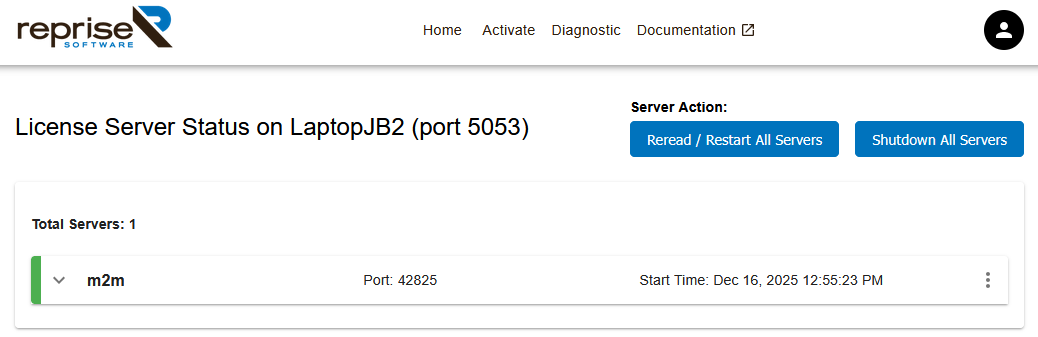
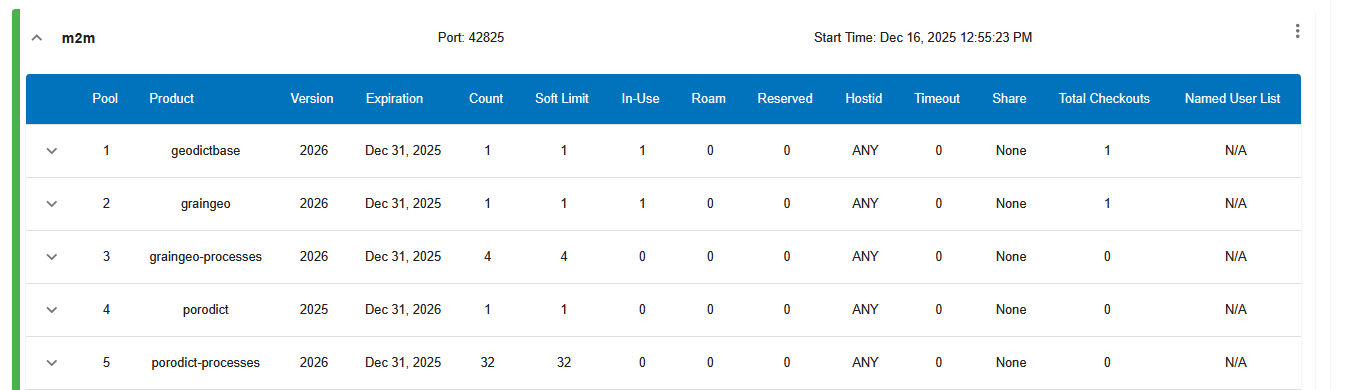
Expand the m2m ISV server and check that the new licenses are shown in the list below. All licenses contained in the license file are listed here. Check that the amount of licenses, the version and the expiry date are as expected.
Afterwards, install the .glic file for GeoDict as described for node-locked licenses.
The .glic file is an encrypted file. Besides other information, it contains the address (hostname or IP and port number) under which the GeoDict client will find the RLM license server. Therefore, it is not possible to change the address or port number of the RLM license server after installation (it is possible to change the port number of the ISV server, though).
