Header Section
In the Header Section of the Result Viewer, the table in the middle contains a row for each currently opened result file. The columns show the full File path, the name of the Module, and the name of the Command that created the file. Only the content of the file(s) highlighted in blue is visible below in the Result Section.

You can change the column width of the table by clicking and holding on the line between the column headers and then pulling to the left or to the right.

Clicking on a column header sorts the files in alphabetical order (either by file name, module name or command name), clicking again inverts the order to anti-alphabetical.
Right-clicking in a row opens a context menu for the result file. Select Open Result Folder to open the result folder corresponding to the result file in the file explorer. With Load Structure, which is also available as button in the Result Section, the structure belonging to the result file is opened in the current GeoDict instance. The options Load Input Parameters, Manage Data, Export, and Close are also available in the Bottom Section and explained there.
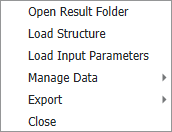
|
Know how! The options from the context menu are always accessible for loaded result files! To use the same options in the Result Section or the Bottom Section, the result file must be selected and shown in the Result Section. |

The buttons on the left side can be used to Open a new *.gdr result file directly from the Result Viewer and to move opened *.gdr files Up and Down in the table shown in the middle. Use the options Swap Selected and Synchronize Tabs when multiple result files are shown (see below).
On the right side, click to Combine Results into one *.gdr file. Additional (not already loaded) gdr files can be added in the opening dialog. A click on Raise Main Window  brings up the main screen of the GeoDict GUI in front of the Result Viewer.
Show multiple result files simultaneously
Multiple result files can be selected by using Ctrl+click (selects only clicked files) or Shift+click (selects all files in between) on the list of entries. The selected files are highlighted in blue and shown next to each other in the Result Section. The number on the left in the table rows indicates the position of the files content in the Result Section. Additionally, in all opened Map tabs, the differences or similarities between the results are highlighted and are easier to spot.

If exactly two result files are selected at once click Swap Selected result files to interchange their positions in the list of files. This will also swap the order in which the Result Sections are displayed.
Check Synchronize Tabs if multiple result files are highlighted. Then, clicking a tab in one of the result files will display this tab in all highlighted result files simultaneously. This facilitates the navigation through multiple opened result files.
If you click Combine Results, only the selected files are combined into one gdr file.
