Create Videos
Under the Create Videos tab, three predefined videos can be generated. In the drop-down menu, select either the Deposited Particles Video, the Filtration Video or the Pressure Drop Video.

On the left of the dialog, a simple animation shows the type of movie that is created. On the right, a short description explains the contents of the movie.
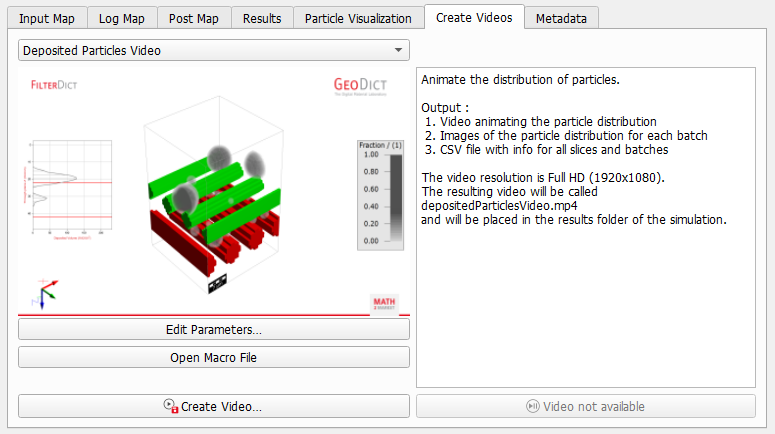
Each video is created using a python macro placed in the folder C:Program Files\Math2Market GmbH\GeoDict 2025\VideoMacros\FilterDict\MediaLifetime.
|
Important! Video generation is not possible if the GeoDict-Tools package has not been installed. |

By clicking on Open Macro File, the macro is opened in a text editor. It is not necessary to edit the macro to create the standard video, but a user may make a copy of this macro and use it as a starting point for his own video generator.
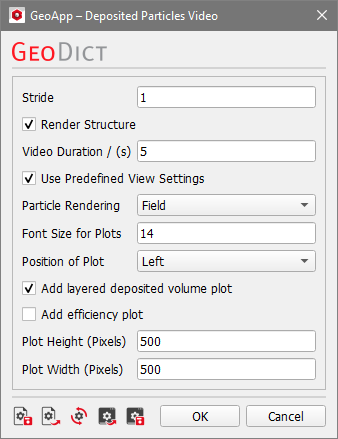
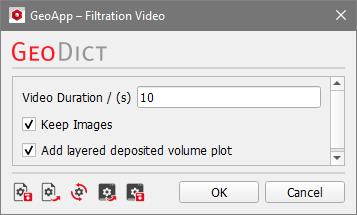
Click on Edit Parameters… to open a dialog showing the parameters available in the macro. After selecting the parameters, click on Create Video... to start the generation of the movie. The mp4 file is automatically put into the result folder of the filtration run, and can be copied from there. Alternatively, the video can be started directly from GeoDict through the Play Video button which replaces the grayed out Video not available button after a successful video generation.
 Filtration Video
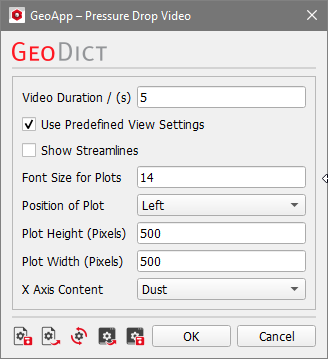
Pressure Drop Video