Particle Visualization
To visualize the initial and final positions of particles, track their trajectories, and study the flow of the fluid through the filter structure, select the Particle Visualization tab.
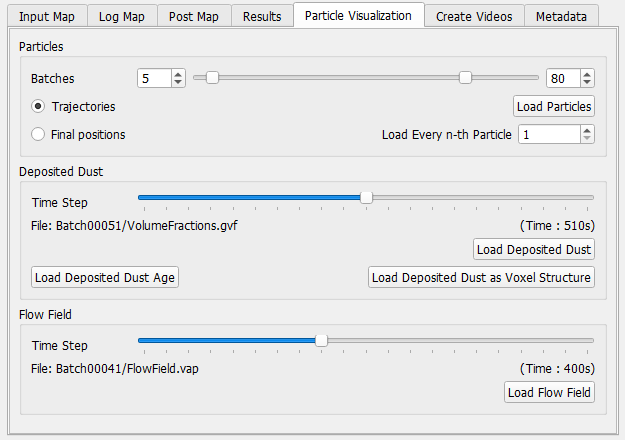
Particles
In the Particles panel, select one or several succeeding batches with the sliders. Select Trajectories to animate the particle motion from inflow to outflow or deposition place. If a large number of particles was simulated, loading all the trajectories at once is memory consuming and may not be possible. Loading only the Final positions does not allow to animate the particle motion, but is less memory consuming. Memory consumption may also be reduced by visualizing only a fraction of the simulated particles per batch by loading only Every n-th Particle.
Clicking Load Particles loads the selected trajectories or final particle positions and displays the particles in the viewport.
Deposited Dust
Use the slider to select the Time Step. There are three options to visualize the deposited dust from the simulation:
- With Load Deposited Dust, a result field (*.gvf) is loaded that contains for every voxel a single double value in the range [0,1], describing the volume fraction of the voxel filled with dust particles.
- With Load Deposited Dust as Voxel Structure, the volume field is converted to a voxel structure.
- With Load Deposited Dust Age, a result field is loaded that contains for every voxel a single integer value describing how many batches ago this particle was deposited. Voxels filed in the last batch contain the value zero, voxels filled in the previous batch the value 1, and so on...
Clicking on the appropriate button loads the data and displays the deposited dust in the viewport.
Flow Field
Use the sliders to select the corresponding time step. Click Load Flow Field to load the result and refer to the Visualization handbook for details.
Visualization of Coalescence Results
When coalescence is enabled in the simulation, some of the standard visualization options will only show a partial result and give a wrong impression of the simulation. Visualizing particles (either as Trajectories or as Final Positions) is not recommended. This will show only the movement of the oncoming batch of particles and where they deposit on the filter. It will not show how the particles coalesce with the already deposited particles and how they attach to the filter. Especially, the position of a deposited particle is not shown correctly, as this position changes whenever a new particle coalesces with it.
To visualize the position of the deposited particles correctly, use Load Deposited Dust. Set the Threshold to >= 0.5, and GeoDict will show all voxels that are filled by more than 50% with the deposited fluid.
By default, GeoDict will color each voxel depending on the volume of fluid contained in it. To change this to a single color, click on the Color Map Edit… button and select Constant as Color Space.
