2D Slice Visualization
In the default Tile View, the 2D Slice Visualization section contains the preview areas for the X-Y plane, the Y-Z plane, and the X-Z plane.
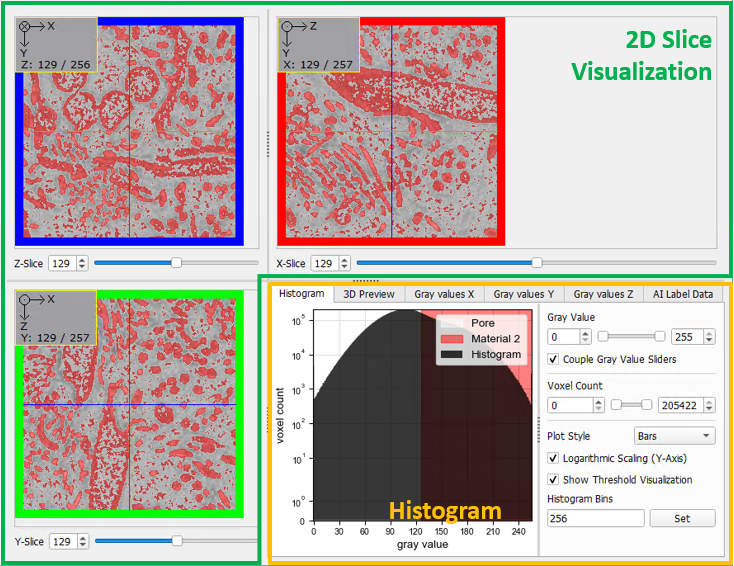
Below the 2D images, the values in Z-Slice, X-Slice, and Y-Slice control which slices are shown above in the preview areas. These values can be quickly changed by resting the mouse cursor on the field box or the corresponding image slice and using the mouse wheel. The slice that is being shown also moves in the three-dimensional representation in the 3D Preview tab in the Histogram section.
Zoom in and out either by using the corresponding buttons in the View Options section or click and hold CTRL and scroll the mouse wheel while resting the cursor on a gray value image slice. For continuous zooming, right-click into the 2D image, hold the mouse button, and move the mouse up and down to zoom in and out.
Pan the image by holding the left mouse button and moving the mouse.
For more information on 2D visualization, please also refer to View menu and the View Options section. As the gray value image is also loaded to the GeoDict visualization area, also consider the possibility of advanced 3D visualization described in the Visualization user guide.
