Menu Bar
From the Menu Bar in the 3D Image Processing dialog, you can access File options allowing you to save the image as 2D image slice(s) or as 3D image data, or to back-up the current processing status of the gray value image. The View menu tree contains many of the available view settings. The other two tabs lead to all available Image Processing and Segmentation & Labeling tools.


From the File menu, you can save the image as 2D Image Stack or 3D Image. This way, the processed images also can be saved again as gray scale data before (or instead of) importing them in GeoDict. Provide a name for the Result File and the result folder at the top of the dialog. The 3D image dataset can be saved as a stack of 2D images in one of the spatial directions (X, Y, or Z). The names of saved 2D images contain the selected direction, the slice number, and start with either the folder name or a prefix when choosing Give Image Prefix. Select to save the whole stack of 2D images (All), some of them (Interval), or just one of them (Single Image). If you select Interval, (for example, here 1 to 42), images in Z-direction are saved as 2D *.tiff files in the afterwards chosen folder. The images are named from CT-image_Z00001.tif to CT-image_Z00042.tif. 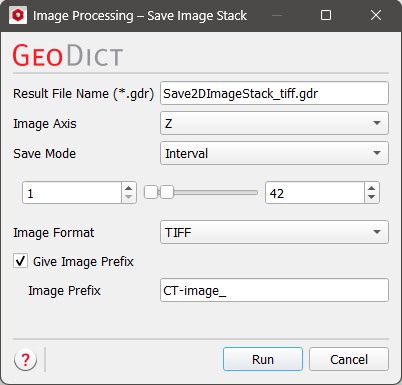 Also, a Single Image may be saved as 2D image. For example, here, slice 39 on the Y-direction would be saved as *.png image. 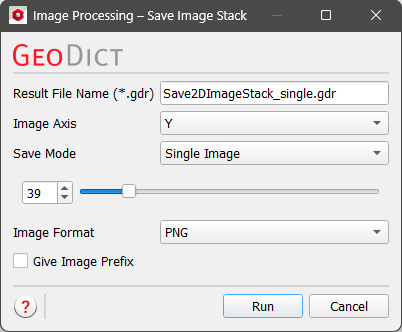 As another example, here, twenty 2D images in X-direction are saved. The names of the twenty saved *.png images contain the Result File Name, the selected direction X, and the Slice Number. Slices may be saved as 2D Images either in 8-bit PNG file format or as 8-/16-bit TIFF files depending on the data.
The slice thickness is one voxel length. Additionally, a GeoDict result file (*.gdr) with the given name is saved to the current project folder containing information about the applied filters and the original image dimensions. Open the result file in the Result Viewer by selecting File → Open Results (*.gdr) from the menu bar in the GeoDict main window. 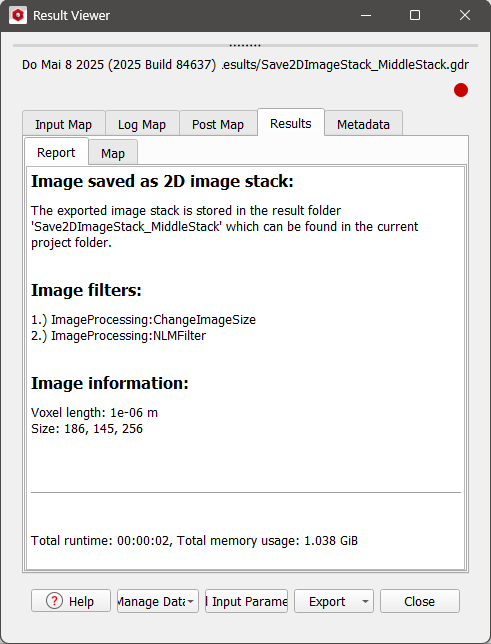 3D images can also be saved in a single 3D data file as:
Define a Result File Name at the top of the dialog. Click Run to store the result file and 3D image file in the project folder. In case of storing the data in the GeoDict .grw file format, more options are available. A *.grw file is a GeoDict Universal File with a standardized header describing the 3D data format. This header may be read with a text editor such as Notepad++. If you check Compress, the raw part of the image is compressed. Thus, the image data is compressed, while the header stays uncompressed. Define the Image Name and the Field Name by checking Give Image Name. The image and field names are visible, e.g., when loading the gray values into GeoDict as volume field. Then the name appears in the Project Status section and as a title of the gray value legend. If Give Image Name is not selected, the default names Image and Gray Values are used for that purpose. 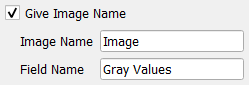 Additionally, a GeoDict result file (*.gdr) with the defined Result File Name is saved to the current project folder containing information about the applied filters and the image dimensions. Open the result file in the Result Viewer by selecting File → Open Results (*.gdr) from the menu bar in the GeoDict main window. |

The View menu contains all available options for representation of the gray value image as 2D slices in the 2D Slice Visualization section. The View Mode allows changing between Tile View and Stacked View.  With the Tile View, the three 2D slices (for the X-Y, the X-Z, and the Y-Z planes), and the histogram section are displayed as shown in the screenshot of the 3D Image Processing dialog here. In the Stacked View, only one of the 2D slices or tabs of the Histogram section is displayed. Here, you can focus on either of these by choosing the desired visualization from the available tabs. 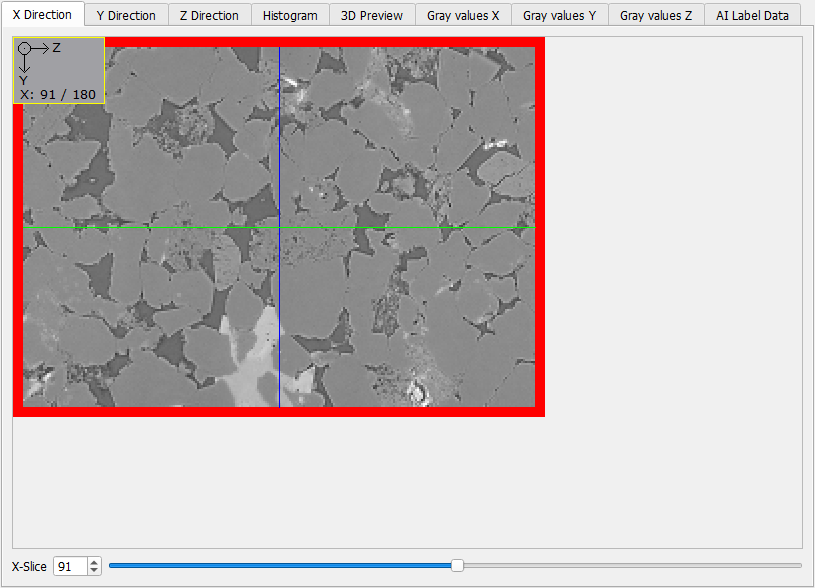 The selection in Axes controls the display of the lines giving orientation in the 2D image slices. For Synced, the lines show the currently selected slices in the other two planes, as can be seen in the screenshot below. The colors of the lines correspond to the color of the boundaries around the slices in the 2D Slice Visualization section (blue for X-Y, green for X-Z, red for Y-Z planes). For Centered RGB, the lines always are displayed in the center. For None, the lines are invisible. From the View menu, you can select the Main Plane. This choice only affects the visualization in Tile View. The chosen plane is shown on the upper left panel (here, YZ) and the order of the panels is changed according to the choice. 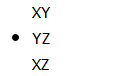 Check or uncheck Show Coordinates to control if the legend in the upper left corner is displayed. It contains the information of plane and slice on the preview areas for the three directions. Outline Segmentation refers to the representation of the thresholding settings and is explained in more detail in the Image Segmentation section. Use GeoDict Custom Colors to change the colors of the representation of the thresholding settings for the image segmentation to the colors that are currently defined in the GeoDict main GUI. The color settings are available from Color & Visibility tab of the side bar on the right of GeoDict main window: 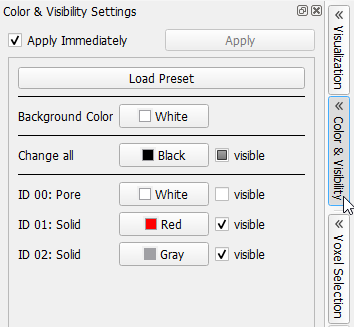 When the Auto Collapse Tree option is checked, you only see the currently chosen feature from the Image Processing or Segmentation & Labeling tab in the Image Processing and Segmentation section. All other features are collapsed automatically after selecting another feature in the respective tab for convenience and simplification. Check Sync Scrollbars to synchronize the 2D slices in the Tile View when scrolling the excerpt up and down or left and right. |
The Image Processing menu is an overview of the 3D Image Processing tools in GeoDict. Click on the names of the various features and you are forwarded directly to the according functionality in the Image Processing tab to the left of the 3D Image Processing dialog. |
The Segmentation & Labeling menu is an overview of the 3D Image Segmentation and Labeling tools in GeoDict. Click on the names of the features and you are forwarded directly to the according method in the Segmentation & Labeling tab to the left of the 3D Image Processing dialog. |
©2025 created by Math2Market GmbH / Imprint / Privacy Policy
