Histogram
The Histogram section contains statistical information on the gray value image in several tabs.


The Histogram shows the frequency of all gray values as absolute numbers providing information on the number of distinguishable material phases. The appearance of the histogram, on the bottom right, is controlled through the options right next to it and by the context menu accessible by right-clicking in the plot. The histogram plots the number of voxels against the gray values (in the given gray values range) and shows how many voxels have a particular gray value.  The ranges for Gray Value and Voxel Count control the horizontal and vertical axes of the histogram. To focus on a region of the plot, change the range of values for voxel count and gray value. Interactively, the histogram changes and shows the portion of the plot corresponding to the new range of values. Moving the sliders allows a sort of zooming in and out of the plot in order to focus on a range of values. The option Couple Gray Value Sliders couples the changes made to the Gray Value slider in the histogram to the general Gray Value Range in the image preview. This allows you to apply changes made in the histogram also to the 2D Slice Visualization. The Plot Style can be changed from the default Bars to a Line plot depending on the favorite visualization. 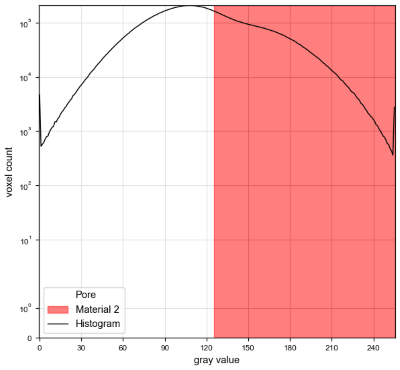 Logarithmic Scaling of the Y-Axis may be deactivated to highlight the gray value ranges of material phases. 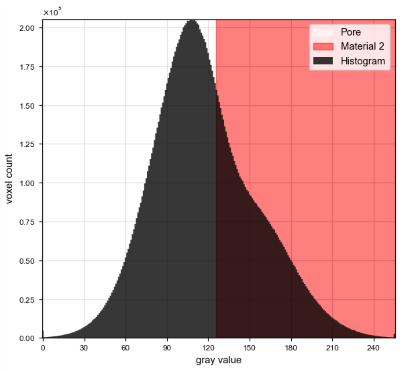 For another form of the histogram plot, choose to not Show Threshold Visualization. This disables the depiction of the thresholds between the different defined materials as described here. Right-click into the plot to further change the appearance, save the image (*.png or *.svg), copy the image to the clipboard, or store all graph values in a *.txt file. The context menu is the same as for the Result Viewer plots, and therefore is described in more detail in the Result Viewer user guide. 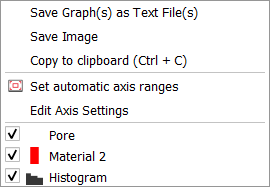 |
The 3D Preview displays the currently selected X-, Y-, and Z-slices in the 2D Slice Visualization in a 3D representation. The 3D representation updates interactively when changing the current slice selection. Full 3D visualization options are available in the main GeoDict GUI, please refer to the Visualization user guide for more information. 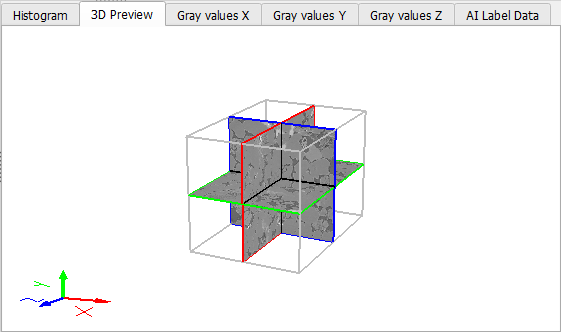 |
In the Gray values X, Y, and Z tabs, the slice mean of the gray values is plotted. Additionally, a Quadratic Fit is calculated and plotted. These graphs may indicate brightness gradients in the scans. The Gradient Brightness Correction and Gaussian Brightness Correction filters can correct these brightness artifacts.  |
In the AI Label Data tab you find a plot showing the number of voxels per labeled material for the AI Segmentation. The tab is only available if the image was labeled as described here. 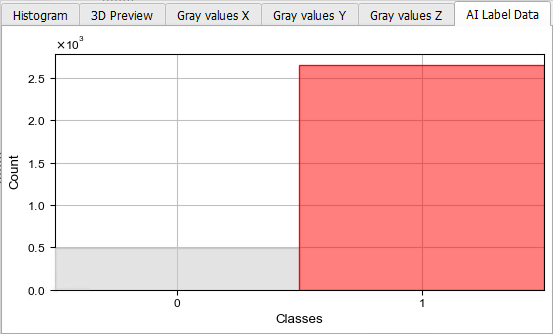 If voxels are labeled in the AI Segmentation section, the plot shows how much training data there is for all labeled material Classes. This helps to evaluate if the Count of labeled voxels is similar enough for all materials, and thus allows you to to improve the labeling. In the example above, many more voxels are labeled red (solid material) than white (pore space). |
©2025 created by Math2Market GmbH / Imprint / Privacy Policy
