Create / Add GAD Objects Tab
Object types and their geometric options are set through the Create / Add GAD Objects tab.
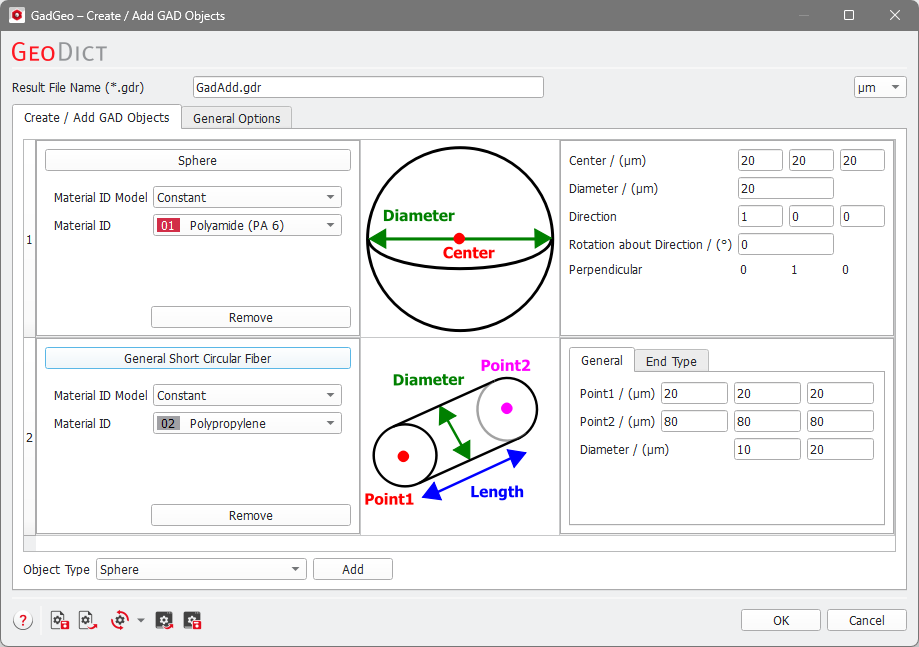
The left panel displays the number assigned to the object (1, 2, 3...), the Object Type (Sphere, General Short Circular Fiber, …), and the object Material ID and Material ID Model. It is not possible to set the material itself here, but you may assign materials to a given ID using Settings → Select Constituent Materials in the main menu of GeoDict prior to using GadGeo.
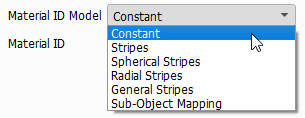
By default, the Material ID Model is set to Constant, which means that the whole object is made of a single material. In the other models, the object consists of several constituent materials, e.g., a bicomponent fiber. The constituent materials can be arranged in several ways, the detail are explained in the description of the Change Material ID Model command.
Clicking the button with the object type name once minimizes the complete panel for the object. Clicking it when the panel is minimized expands the complete panel.

Remove can be used to eliminate a certain object from the list and from the generation.
The center panel schematically shows the geometrical properties of basic objects, and the right panel determines the size and position of each basic object through values for Center, Diameter, Length, Point, etc.
At the bottom left of the dialog, the Object Type pull-down menu and the Add button can be used to add the selected object type to the list of the structure’s basic objects during the generation. The available object types are explained in detail here.

