Distribute
When Distribute is selected from the pull-down menu in the GrainGeo section, the objects are uniformly spread throughout the structure. Only structures that contain analytic information (GAD objects) can be used for the distribution of objects.
Observe the process of distributing spheres in a 200 x 200 x 200 structure, periodic in all directions, generated with GrainGeo Create with a Voxel Length of 1 µm. The grain's centers follow a density distribution, which results in a layered structure.
Clicking the Options’ Edit… button opens the Distribute Options dialog.
When the desired parameters have been entered in the Distribute Options dialog, clicking OK closes the dialog and returns to the GrainGeo section.
Clicking Generate starts the distribution process.
 Preparations and Requirements
A granular structure containing GAD information has to be in memory.
To use this feature, the domain must be periodic, and the objects are not allowed to overlap. Distribute allows to create a homogeneous structure even for structures created with Pile where boundary effects occur in the pile direction.
Without a structure in memory, clicking Generate results in an error message.
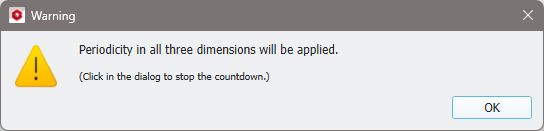
When the structure in the selected file is not periodic, an information message appears indicating that periodicity will be applied in all three directions and the loaded structure will be treated as periodic. The GAD objects are still distributed.
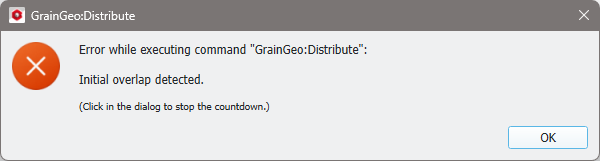
If the loaded structure contains overlap the distribution is not executed and an error message appears.
|
Distribute Parameters
In the Distribute Options dialog, Number of Iterations, Shift Distance, and Random Seed specify the distribution process.
Result File Name
At the top, the name for the file and folder containing the generation results can be entered in the Result File Name (*.gdr) box. The default name can be kept, or a new name can be chosen fitting the current project. The result file is shown after the distribution process is finished. The result file does only contain the usual information about input parameters and runtime. The resulting structure is saved in the corresponding result folder.
|
Parallelization
Control how many threads are used for the computation. Parallelization is possible if your license and hardware allow it.
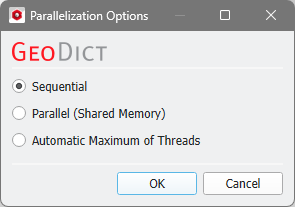
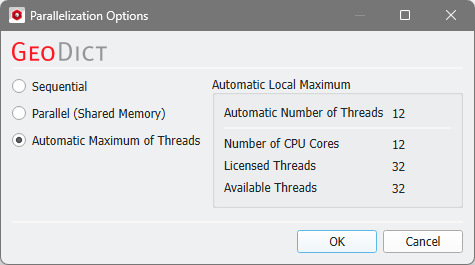
The Parallelization Options dialog opens when clicking the Edit button and you can choose between Sequential, Parallel (Shared Memory), or Automatic Maximum of Threads.
Selecting Sequential will not apply parallelization and only one thread is used for the computation.
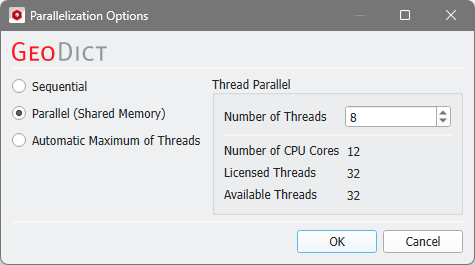
When Parallel (Shared Memory) is selected, the Number of Threads can be entered. Below, the Number of CPU Cores that the current machine has, the maximum number of Licensed Threads and the number of those licensed threads that are available (Available Threads) are shown in the dialog. Of course, the maximal number of parallel processes you can use, is the smallest of those three numbers.
If Automatic Maximum of Threads is selected, the number of parallel processes is automatically selected for optimal speed, based on the CPU cores and licensed parallel processes.
The Automatic Local Maximum of processes is automatically selected, which is the minimum of Number of CPU Cores, Licensed Threads, and Available Threads.
|
Number of Iterations
The Number of Iterations determines how many distribution steps are done. More distribution steps lead to a wider distribution of the objects, which is getting closer to a uniform distribution.
|
Shift Distance
The Shift Distance determines the maximal object movement during a single iteration. Large shift distances lead to more computational time per iteration. Observe the effect of increasing the shift distance from 1 to 4 and then to 10, while the number of iterations is kept at 35.
|
Random Seed
Random Seed initializes the random number generator behind the object distribution. Changing its value produces different sequences of random numbers and hence, different realizations of the distribution. If all settings are equal, distributing the same initial structure with the same Random Seed value produces exactly the same structure. The Random Seed is a non-negative integer number, it increases automatically with every generation run.
|