Options
At the top left of the dialog, the name for the file containing the generation results can be entered in the Result File Name (*.gdr) box. The default name can be kept, or a new name can be chosen, fitting the current project.
The result files are saved in the chosen project folder (File → Choose Project Folder, in the Menu bar). If a GeoDict result file (*.gdr) with the given name already exists in the project folder, a warning message is shown at the start of the creation process. You can either decide to rename the chosen file name to a new one, to cancel the generation process, to overwrite or to back up the old file. When nothing is selected, GeoDict uses the Back-Up option after a waiting time.
The available units (m, cm, mm, µm, nm and Inch) are selectable from the pull-down menu at the top right of the dialog. When the units are changed, the entered values are adjusted automatically.
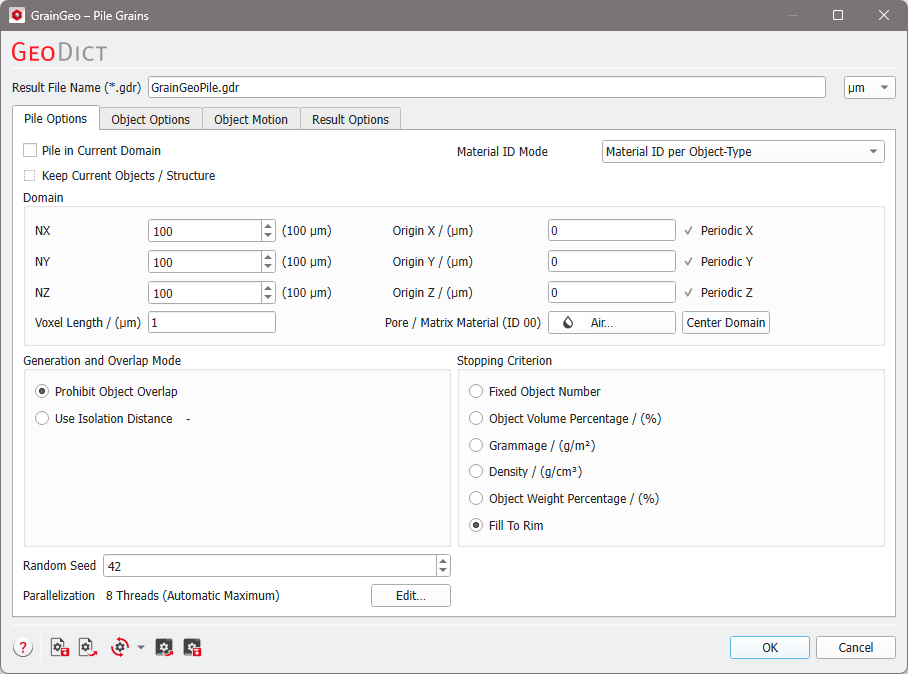
The parameters are organized into tabs: |
|---|
|
Different Pile Grains Presets
In the bottom of the dialog find several helpful options.
|
Each option is explained by a tooltip which appears when resting the mouse over the icon. |


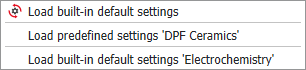
The built-in default icon comes with a selection of different presets. Clicking on the little arrow shows several additional preset options.
The usual built-in default settings will load the settings according to the current GeoDict edition. You can change the current GeoDict edition from the Settings menu as described in the Graphical User Interface chapter.
In Pile Grains find the presets Electrochemistry and DPF Ceramics. Choose the presets and inspect the entered parameters in the different tabs if they are a better base for your applications.