Please enable JavaScript to view this site.

GeoDict User Guide 2025

Options

At the top left of the dialog, the name for the file containing the generation results can be entered in the Result File Name (*.gdr) box. The default name can be kept, or a new name can be chosen, fitting the current project.

The result files are saved in the chosen project folder (File Choose Project Folder, in the Menu bar). If a GeoDict result file (*.gdr) with the given name already exists in the project folder, a warning message is shown at the start of the creation process. You can either decide to rename the chosen file name to a new one, to cancel the generation process, to overwrite or to back up the old file. When nothing is selected, GeoDict uses the Back-Up option after a waiting time.

The available units (m, cm, mm, µm, nm and Inch) are selectable from the pull-down menu at the top right of the dialog. When the units are changed, the entered values are adjusted automatically.
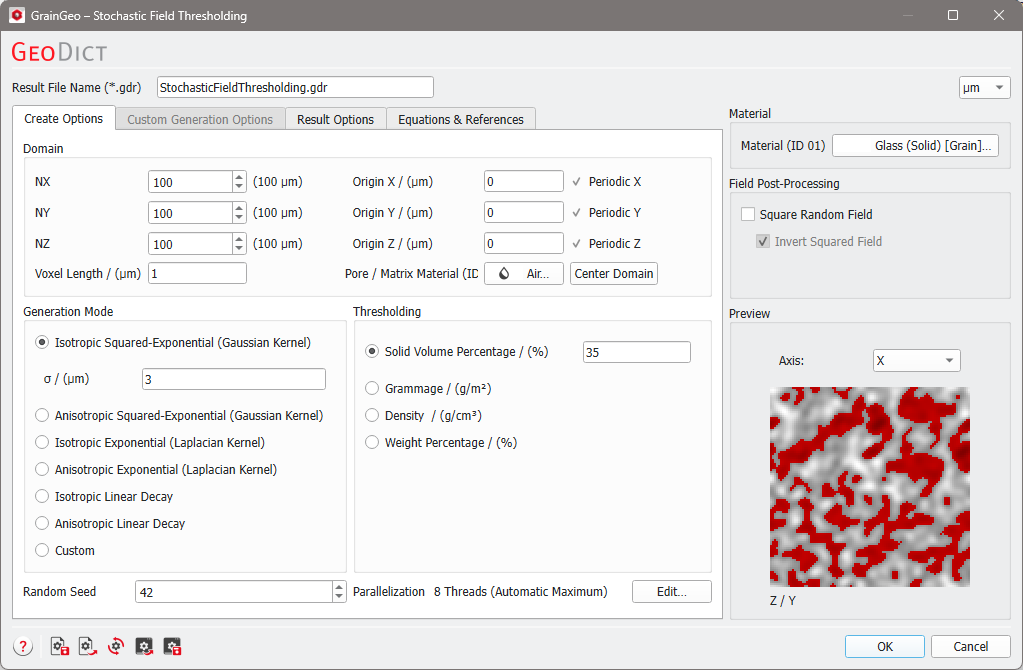
GrainGeo_StochasticFieldThresholding_Dialog

The parameters are organized in the following tabs:

  • Material and Preview
    Determine the material, apply field post-processing, and observe a preview visualizing the current settings.
  • Create Options
    Determine general properties of the resulting structure, such as size, position, resolution, and solid volume percentage.
  • Custom Generation Options
    Choose individual combinations of stochastic fields to create a custom random field.
  • Result Options
    Determine if the random field should be saved in the result folder.

Note-KnowHow

SettingsIcons_Help

Opens the corresponding User Guide section.

SettingsIcons_SaveSettings

Saves the settings to a GeoDict settings file (*.gps).

SettingsIcons_LoadSettings

Loads the settings from a GeoDict settings file (*.gps) or a GeoDict result file (*.gdr).

SettingsIcons_BuiltinDefaults

Resets all parameter settings to the built-in default settings.

SettingsIcons_SaveStartUp

Resets all parameter settings to the saved start-up settings.

SettingsIcons_LoadStartUp

Saves the current parameter settings as start-up settings.

Each option is explained by a tooltip which appears when resting the mouse over the icon.

©2025 created by Math2Market GmbH / Imprint / Privacy Policy
