Import STL and OBJ Files
To import CAD models in GeoDict formats, select Import → ImportGeo-CAD in the menu bar. The ImportGeo-CAD section opens at the left of the GeoDict GUI.
Data in the *.stl and *.obj formats can be selected by clicking Browse…. Through the opening Select File dialog, locate a file of that format in the chosen project folder. Select the file name and click Open. A single file or multiple files can be chosen at once.
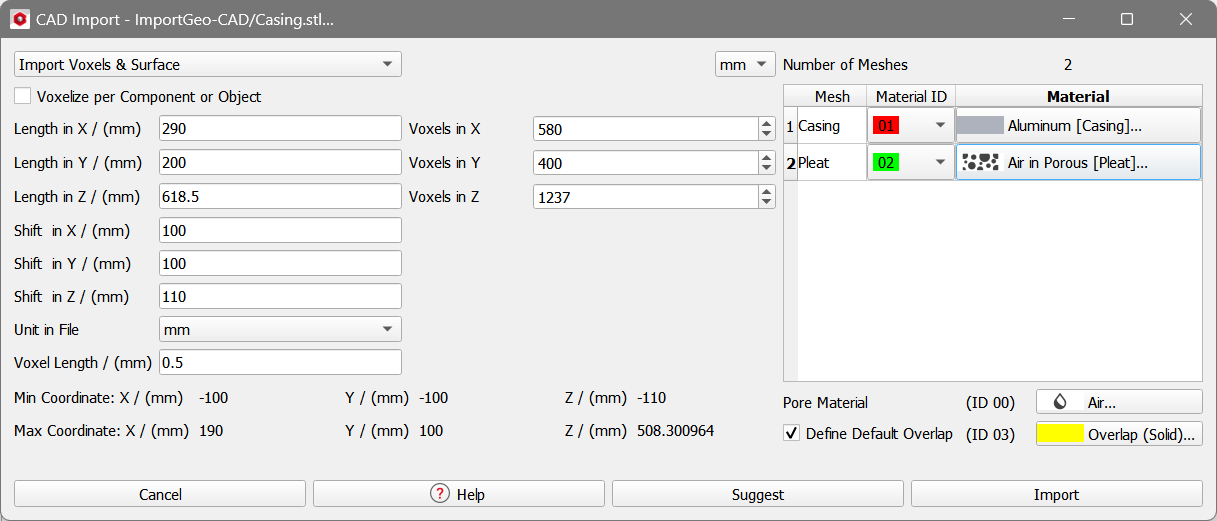
When all files to import have been selected, click Open. The CAD Import dialog that opens already shows how many meshes are contained in the selected files.

The input parameters shown in the dialog are divided into three categories:
|
When all settings have been checked, click Import to load the structure.
If Import Voxels was selected, the structure is available as a voxel grid afterwards for further computations with other GeoDict modules. It can be visualized as any other generated or imported voxel mesh. See the Visualization chapter of this User Guide for more details.
If Import Surface was selected, the original surface triangulation is loaded and can be visualized as described in Visualization of surface meshes.
|
Important! Please note that only watertight meshes can be imported, otherwise an error message pops-up and the imported structure may contain artifacts. 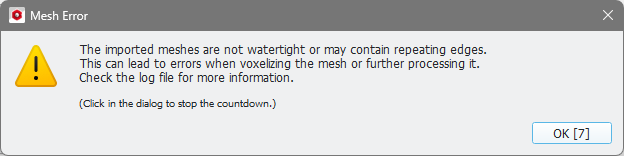 |

If you want to import multiple meshes (or if the file to import contains multiple meshes), each mesh must be watertight by itself. If a mesh is not watertight, inside and outside is not clearly defined in some places and this may lead to unwanted artifacts. In the example below, only the red part is watertight, the green part is not closed (the side where the green part touches the red part is missing).
