Add
The Add mode allows to combine a structure with the original structure in such a way that both occupy the same domain. Adding structures commonly results in overlap between the original and the added structure.
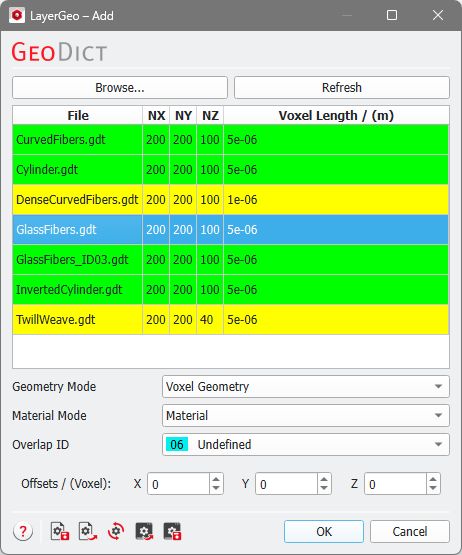
The options dialog shows a table with all files in GDT, GAD, and .leS formats present in the current project folder. To choose a project folder, select File → Choose Project Folder → Select Project Folder… in the menu bar beforehand. By clicking Browse…, you can also choose files from another directory. Clicking Refresh updates the table, e.g., after a new file is added to the currently selected folder.
The rows with the file names in the table take colors depending on their size and voxel length in relation to the current structure loaded in GeoDict:
- Green: Names of files containing a structure whose dimensions match in all three directions (NX, NY and NZ) and in the voxel length.
- Yellow: Names of files containing a structure whose dimensions match in only two directions, or do not have a matching voxel length.
- Not highlighted: Non-matching structures are not highlighted.
To select a structure, click on its name. The name of the selected structure is then highlighted in blue.
Below the table of the available structures, the choice of Geometry Mode defines if the analytic data or the voxel geometry is used. The Material Mode defines the overlap behavior between the original and the added voxel structure if Voxel Geometry is selected. For the Analytic Geometry mode, the overlap behavior is given by the current structure. Finally, an Offset can be entered.
Voxel Geometry
As default Geometry Mode, the Voxel Geometry is chosen. In this mode, the structures are added based on the voxel information alone. If analytic data was present in the geometry files before, this data is discarded.
As Material Mode you can choose between Material and Material ID, which defines the Material ID of the overlapping structure parts.

As seen for the Attach mode, the combined structure keeps the constituent material information from the original structure in case of the same Material IDs.

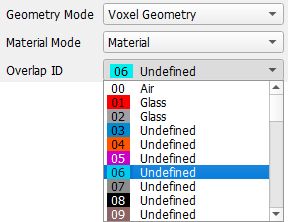
|
Know how! The color assigned to a Material ID can be changed later by selecting it through Settings → Color & Visibility Settings in the menu bar, its icon |

 in the toolbar, or the Color & Visibility tab at the right edge of the GeoDict GUI. The visibility of a Material ID can also be set in the Color & Visibility Settings dialog. For more details see the
 Analytic Geometry (gad)
If the loaded structure contains analytic data, the Analytic Geometry (gad) mode becomes available. Here, the analytic objects are added, and the overlap rules are defined by the domain settings of the current structure (see GadGeo - Edit Domain). In the Analytic Geometry mode, the constituent materials from the currently loaded structure are used. This also holds if a Material ID appears in both structures.
|
Important! This works only when the files of both structures (the chosen file and the current structure) contain analytic information. If the structure to add does not contain analytic data and you click Run, an error message will appear. 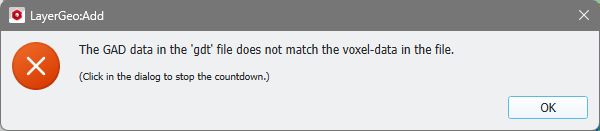 |

Offsets
At the bottom of the dialog, you can define an offset for the position of the added structure. The default zero Offsets places the added structure starting at the (0, 0, 0) position of the original structure.
By setting non-zero Offsets in any of the three directions, a structure can be added to the original structure at any position in the given direction(s). If the offset forces the chosen structure to leave the domain of the current structure, the resulting structure will be enlarged.
For example, a woven mesh (TwillWeave.gdt) is added to the CurvedFibers.gdt (original structure) with an offset of 25 voxels in Z-direction and the Material Mode MaterialID. The combined structure shows the mesh embedded into the curved fibers.
With offsets of -50, -50, and 75, the mesh appears in the combined structure as follows:
With the same settings as before, but with the Geometry Mode Analytic Geometry chosen, the glass fibers will be extended into the enlarged domain and the resulting structure will look like this:

