Creating combined result files
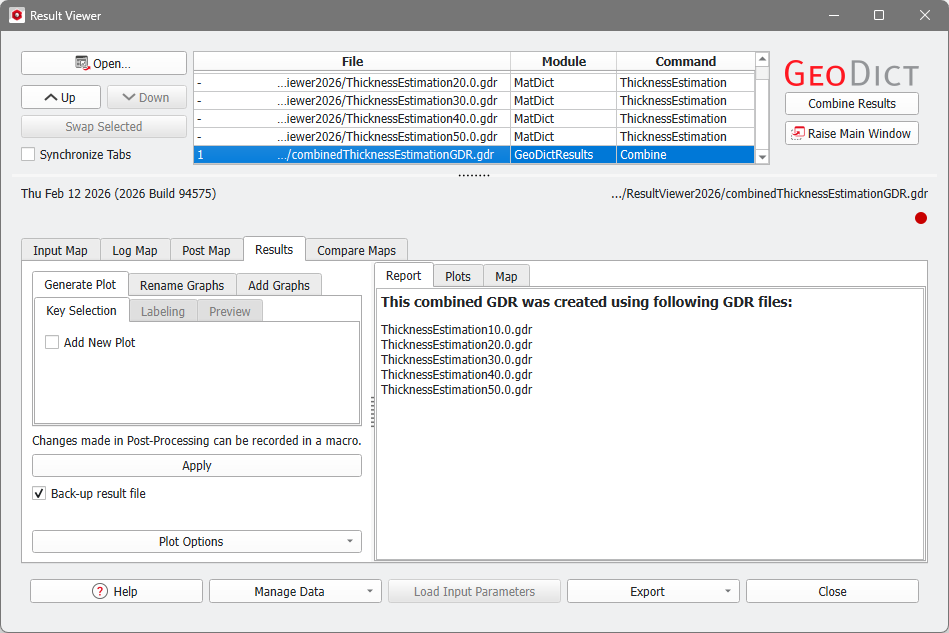
Several selected result files can be combined into one single file by clicking Combine Results located at the top right of the Result Viewer’s Header Section.

In the example, fiber structures with varying solid volume percentage (10% - 50% SVP) were generated with a python macro and the largest Percolation Path and a Thickness Estimation were computed for each structure. You can download the ParameterStudy.py file used in this chapter for inspection and recreation in a zipped folder. |
Next, the Combine Results dialog opens to define combine settings and input files. In the Result File Name box at the top enter a name for the combined result file.
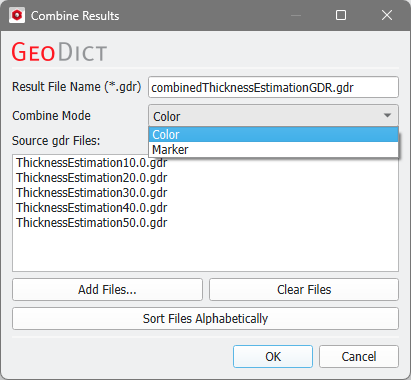
The list of Source gdr Files already contains all files that have been highlighted in the Header Section box of the Result Viewer. Click Add Files… to add one or multiple files to the selection. Clicking Clear Files empties the list completely and clicking Sort Files Alphabetically sorts the list in alphabetical order. The files can also be sorted manually by drag and drop in the list.
|
Know how! The order of files in this list mirrors the ordering of files (and plots) in the combined result file. |

The two Combine Modes, which are Color and Marker, change the appearance of automatically combined plots.
With the Color mode, plot data originating from one result file share the plot color, while with the Marker mode, they share the plot markers.
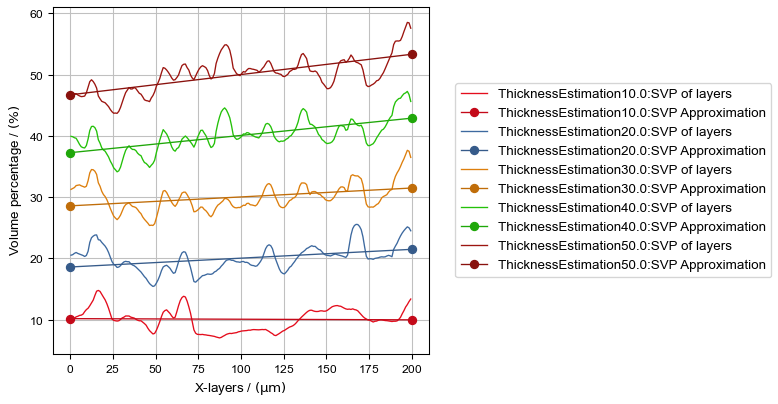
Color Mode
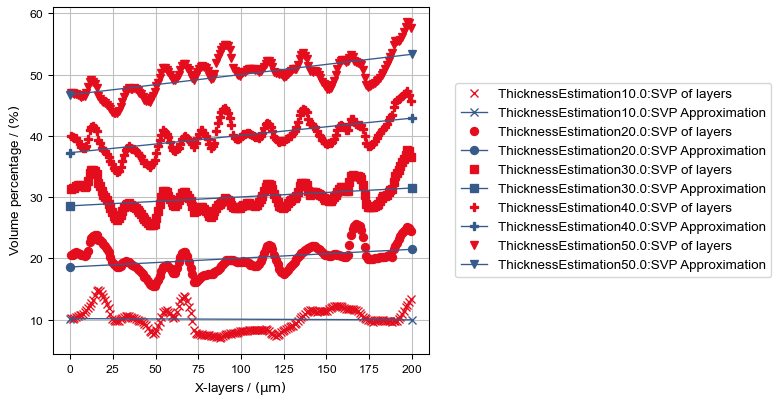
Marker Mode
Clicking OK starts the combining process. It combines all values into one file and enables post-processing on the combined results. If possible, plots from the original result files are merged into one plot.
The Result Viewer of the combined result file opens automatically and, like any other result file, it can also be opened at any time by selecting File → Open Results (*.gdr)… in the menu bar.